Atlanta Microsoft BI Group Meeting on May 4th (Making Sense of Copilot in Power BI)

Atlanta BI fans, please join us in person for our next meeting on Monday, May 4th at 18:30 ET. Jackie Kiadii will show you how you use the Copilot capabilities in Power BI. CloudStaff will sponsor the meeting. For more details and sign up, visit our group page.

Delivery: In-person
Level: Beginner/Intermediate
Food: Pizza and drinks will be provided

Agenda:
18:15-18:30 Registration and networking
18:30-19:00 Organizer and sponsor time (news, Power BI latest, sponsor marketing)
19:00-20:15 Main presentation
20:15-20:30 Q&A

Overview: Copilot in Power BI is generating excitement — and significant confusion. Between multiple Copilot experiences, Fabric capacity requirements, and differences across Desktop, Service, and Fabric, many Power BI professionals struggle to explain what Copilot actually does and when it makes sense to use it.
This session provides a clear, practical overview of:

  • Copilot use cases that exist today
  • Where Copilot works (and where it doesn’t)
  • Licensing and capacity requirements
  • Current limits that impact real‑world adoption

Rather than a technical deep dive or demo, the focus is on clarity and expectation‑setting — helping attendees evaluate Copilot realistically and explain it confidently to Excel users, business stakeholders, and clients.
Attendees will leave with a framework they can use to make informed decisions about Copilot and confidently explain it to others.

Speaker: Jackie Kiadii is a Power BI trainer specializing in helping Excel users successfully transition to Power BI and adopt Microsoft analytics tools with confidence. She is a retired Microsoft Excel MVP, Microsoft Certified Trainer (MCT), Microsoft Data Analyst Associate (PL‑300), and Microsoft Office Specialist: Excel Expert. Jackie focuses on turning complex Microsoft BI topics into clear, practical guidance that supports real‑world adoption. Her work emphasizes licensing clarity, user expectations, and helping teams avoid costly or unnecessary decisions when implementing Power BI and Copilot.

Sponsor: CloudStaff.ai

PowerBILogo

Power BI Unmaterialized Columns

Coming back from a long vacation, I’ve almost missed this interesting Power BI enhancement: Power BI unmaterialized calculated columns. Normally, I avoid the traditional DAX calculated columns for a variety of reasons, such as confusion about where business logic is applied, limited support across storage modes (for example, Direct Lake doesn’t support them), longer refresh times, etc. This not to say that calculated columns can’t be useful, such as in the case where you need to flatten a parent-child hierarchy. But unmaterialized calculated columns could open interesting scenarios that go beyond content translation to other languages mentioned by Microsoft in the April 2026 update.

Understanding unmaterialized columns

To start with, the announcement does a good job to confuse the audience by implying that they are applicable only to Direct Lake storage mode. I’ve found the documentation page more useful to understand them (specifically this table). The important takeaway is that they are also available in import storage mode.

Storage mode Standard (default) User Context
Import Materialized Unmaterialized
Direct Lake on OneLake Unmaterialized Unmaterialized
Direct Lake on SQL N/A N/A
DirectQuery Unmaterialized Unmaterialized
Dual Materialized (Import), unmaterialized (DirectQuery) Unmaterialized
DirectQuery on Power BI semantic models Unmaterialized N/A

Historically, DAX calculated columns are materialized during data refresh, meaning that once the engine calculates the formula, the output is saved (materialized). From this point on, a calculated column behaves like a regular column. However, the calculated column expression can’t reference runtime report conditions, such as the identity of the interactive user or filter selection. By contrast, like a DAX measure, the expression of the unmaterialized calculated column is evaluated at runtime. Why would you ever want to do this if we have DAX measures? Let’s consider an example.

Using unmaterialized columns

The Adventure Works DW schema has a DimSalesTerritory dimension. Suppose that the sales rep responsible for a given sales region would like to see his region as “My Region” on reports. This is probably a somewhat contrived scenario but I’m sure once you understand it, you will find other scenarios that can benefit from unmaterialized columns.

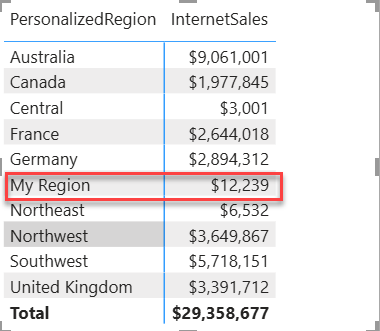
Implementing this without unmaterialized columns presents a challenge. You can come up with a DAX measure, but you will run into report limitations, such as that the measure can’t be used as a dimension to slice measures by. Or, you can go down the path of extending the model with other tables, but you will increase the complexity and user confusion. Unmaterialized columns open a new possibility by dynamically evaluating the expression, such as implementing runtime lookups. In my case, the expression of the PersonalizedRegion column is simple, but it can look up at runtime the assigned region from another table in the model, such as DimUser.

PersonalizedRegion = if (USERPRINCIPALNAME() = "<my email>" && SalesTerritory[SalesTerritoryRegion] = "Southeast", "My Region", SalesTerritory[SalesTerritoryRegion])

As you can see, the column expression can reference any DAX function, just like a measure. For this to work, you must flag the column expression context to User Context in the advanced column properties in Model View. Consequently, the column data is no longer materialized.

But the most important point is that you can continue using the column as a dimension, such as by adding it to the Rows or Columns wells in a Matrix visual. You can’t do this with a measure and that makes all the difference.

Summary

In summary, unmaterialized calculated columns bridge two previously completely distinct DAX worlds: calculated columns and measures. Like measures, they can reference runtime report conditions, such as the interactive user identity and report filters. Like columns, they can be used as dimensions. On the downside, like measures, complex formulas might impede the report performance.