SQL Server 2008 (Katmai) to Launch February 28th 2008

From the latest MS press release “In anticipation for the most significant Microsoft enterprise event in the next year, Turner announced that Windows Server 2008, Visual Studio 2008 and Microsoft SQL Server 2008 will launch together at an event in Los Angeles on Feb. 27, 2008, kicking off hundreds of launch events around the world.”

Whoa, I didn’t expect Katmai so soon. Well, Euan Garden is telling us that a marketing launch doesn’t mean all that much after all [;)]. It will probably be a few more months before Katmai RTMs.

SSRS Setup Woes

I was setting up Reporting Services 2005 today on a clean Windows XP machine and I came across the infamous error:

The report server has encountered a configuration error. See the report server log files for more information. (rsServerConfigurationError). Access to the path ‘c:\Program Files\Microsoft SQL Server\MSSQL.2\Reporting Services\ReportServer\RSReportServer.config’ is denied.

Here is how I fixed this horrible problem. First, I open the Computer Manager and verified that the following two groups exist: SQLServer2005ReportingServicesWebServiceUser$<machinename>$MSSQLSERVER and SQLServer2005ReportServerUser$<machinename>$MSSQLSERVER.

Next, I used the Windows Explorer to verify that these groups have read ACL permissions to the Report Server folder (C:\Program Files\Microsoft SQL Server\MSSQL.3\Reporting Services\ReportServer) by right-clicking on the this folder and checking the Security tab. Finally, I verified that the following users have been assigned to these groups.

  • SQLServer2005ReportingServicesWebServiceUser$<machinename>$MSSQLSERVER should have the ASP.NET account assigned to it. In Windows XP, the default ASPNET account is <MachineName>\ASPNET. In Windows Server 2003 and Vista, this should be the built-in NT AUTHORITY\Network Service account.
  • The SQLServer2005ReportServerUser$<machinename>$MSSQLSERVER should have the account the SSRS Windows Service is running under, e.g.; NT Authority\SYSTEM, if it is running under local system.

In my case, the issue was caused by the fact that for some obscure reason, the SQL Server setup program had added <domain>\ASPNET to SQLServer2005ReportingServicesWebServiceUser$<machinename>$MSSQLSERVER instead of the local ASPNET account. So, I removed this account and added machinename\ASPNET. This took care of rsServerConfigurationError.

Since I wanted to use my old ReportServer database I followed the steps in this KB article to restore it over the existing catalog database. But then when I browse to localhost/reportserver I had another error that SSRS cannot connect to the ReportServer database because login failed for the ASPNET account. So, I tried the Reporting Services Configuration utility and hit the Apply button on the Database tab but I got an error status message that the ASPNET account already exists in the ReportServer database. To solve this error, I used SQL Server Management Studio to drop the existing ASPNET logins and associated schemas from the ReportServer and ReportServerTemp databases and hit the Apply button on the Database tab in the Reporting Services Configuration utility again.

How to install SQL Server 2005 Reporting Services on a Windows Vista-based computer

I spent a couple of hours today trying to get SSRS 2005 working on Vista. I was getting the infamous IIS 500 error when browsing the Report Manager (http://localhost/reports) and Report Server (http://localhost/reportserver) virtual roots. I triple-verified the Brian Welcker’s recommendations and the Vista considerations in the SQL Server 2005 readme file. I couldn’t figure what’s going on especially given the fact that I installed SSRS on my home Vista machine with no problems. The only difference this time was that I performed file-only install of SSRS because I wanted to use an existing report catalog. In a moment of a Google eureka, I came across the How to install SQL Server 2005 Reporting Services on a Windows Vista-based computer KB article. It turned out that the Reporting Services Configuration Utility put the IIS applications in the default application pool which in IIS 7.0 is running in Integrated Managed Pipeline Mode. I created a new ReportServer application pool in Classic Managed Pipeline Mode, put the ReportServer and Reports applications in, and the issue went away.

Analysis Services Query Performance Top 10 Best Practices

I came across this little gem which I haven’t noticed so far. A nice summary of the 10 things you should do to optimize the UDM query performance. The best one is kept for last – scale out when you can no longer scale up. So true, if I could only convince customers to do so J

Protect UDM with Dimension Data Security

SQL Magazine published the first part of my article Protect UDM with Dimension Data Security in its July issue. This article explains the fundamentals of dimension data security. I am working on making the article available for public access (as of now, it requires subscriber-level access). The article code can be downloaded from the publisher’s website and from my website.

I am currently writing the second part (tentatively named Protect UDM with Dynamic Dimension Security) whose focus is dynamic dimension security. It will present two implementation approaches for implementing dynamic dimension security which are harvested from a real-life project: factless fact table and integrating with external security service.

Trust Relationships

If you use VS.NET deployment to deploy your SSAS project from one domain to another, you may get the following obscure error message on deploy.


The trust relationship between the primary domain and the trusted domain failed.


This may happen even if your workstation and the deploy server are on the same domain. The most likely reason for this error is that you have added Windows groups or users from the old domain as members to SSAS role definitions. To fix the error clear the role membership list.

Aggregate Rows and SP2

Back to my When (null) is not Null post, there is a undocumented breaking change in SQL Server 2005 SP2 which you should be aware of. In response to the customer demand, SP2 treats aggregate rows as detail rows.  As a result, if the report doesn’t use the Aggregate() function, the report will show all rows. For those using the Aggregate function, there will be no change.

TechEd 2007 US Memoirs

I am back from an one-week vacation to Clearwater, Florida followed by TechEd 2007 US in Orlando. Overall, nothing earth – shattering on the BI arena from TechEd 2007. Product groups are between releases so most of the content was SQL Server 2005-based with a few sneak previews of some of the good stuff to come in Katmai.


My presentation attracted a fairly large crowd. Almost 500 folks joined my presentation “Applied Microsoft Reporting Services 2005” which was scheduled for the first breakout slot after the keynote on Monday. Thank you! I’ve made the source code and slides available for download on my website. Courtesy to Marco Russo, I’ve also uploaded a couple of photos to capture the moment of glory.


Now that I can open my mouth about some of the cool features coming up in the Katmai release of Reporting Services that were officially announced, here are the most important ones:


  1. Standalone report designer – both the VS.NET Report Designer and the Report Builder will share the same full-featured designer. Note that “standalone” doesn’t mean “embeddable”. While a post-Katmai release may bring us a designer which can be hosted in a custom application this will probably not happen in Katmai. Sigh…

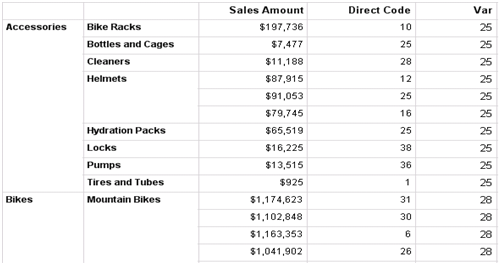
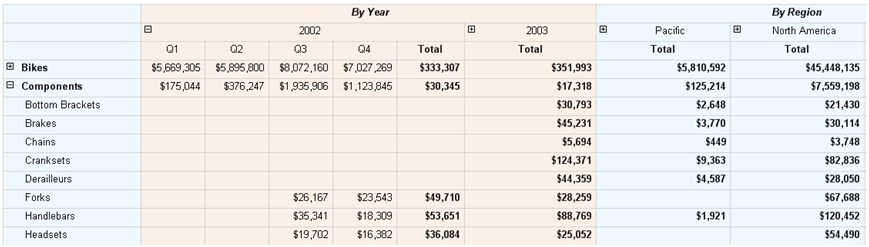
  2. Tablix region – The table and matrix regions unite and give a birth to a brand new region called tablix. This versatile control can handle it all. By changing a few properties, the tablix can morph itself into a table, crosstab, or list report! The tablix region will enable reports that were not possible or required hacks in the past to get around the matrix limitations, such as stacked columns in a crosstab reports, multiple subtotals, and multiple pivot columns. I wish I had this baby a year ago…

  3. RDL Object Model – The Katmai release will ship with public RDL Object Model. This is a great news for developers (myself included) that need to generate RDL programmatically.

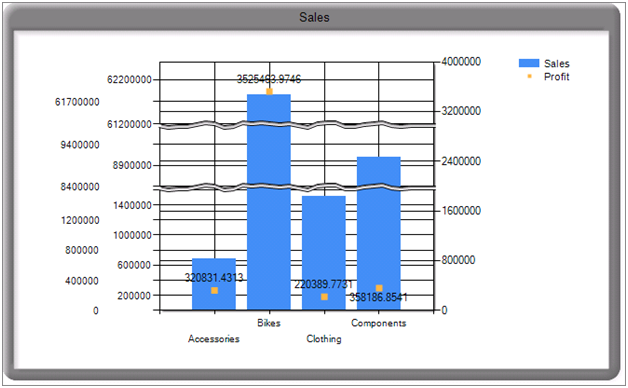
  4. Acquisition of the Dundas RS controls – MS acquired the Dundas chart, gauge, and map for Reporting Services. This will sure spice up the report graphical experience and position MS to compete better with other report vendors.

  5. Acquisition of the Soft Artisans Office Writer technology – This will let business users embed reports in Microsoft Word and Excel documents.

  6. Many designer enhancements – HTML inline support, better designer experience, export to Word 2000-2007, etc.

I hope I haven’t missed something important. The first Katmai CTP build to include some of the new RS enhancement is due in July.


Nothing too exciting on the SSAS side of things as the main team of the next release is “don’t rock the boat”. It will focus mainly on improving the server performance, manageability, and robustness.

A Couple of Report Builder – UDM Hacks

If you target the SSRS Report Builder as an UDM client you may find the following two workarounds (aka hacks) useful. Both hacks require manually updating the SMDL definition. Alas, so much about model auto-generation L.

Multi-grain Relationships Don’t Appear

If a dimension joins a measure group at a higher grain the corresponding Report Builder role is excluded from the model. Steps to repro:

  1. Open the Adventure Works SSAS project in the BIDS cube designer and switch to the Dimension Usage tab.
  2. Note that the Date dimension joins the Sales Targets measure group at the Calendar Quarter level (not the Date level). That’s because the FactSalesQuota (the fact table Sales Targets is based on) stores the sales quotas at the quarter level in AW.
  3. Generate a report model from a data source pointing to the Adventure Works SSAS database
  4. Open the Report Builder and connect to the Adventure Works cube.
  5. From the Sales Targets folder, drag the Sales Amount Quota on the report canvas.
  6. Note that the Entities pane excludes the Date dimension.

Hack: Change the SMDL definition manually to include the dropped relationship. To do so, compare the SMDL definitions side-by-side before and after the grain was changed using a file comparison tool such as SourceSafe or ExamDiff. For example, the first missing role entry should look like the one below:

<RoleID>udm:Role_MeasureGroupDimension_Entity_MeasureGroup_RPM_Profitability_Measures_Entity_Dimension_Date_Entity_Dimension_RPM_Date</RoleID>

</RolePathItem>

</Path>

<AttributeID>udm:Attribute_Hierarchy_Date.Date</AttributeID>

</AttributeReference>

<AttributeReference>

<Path>

<RolePathItem>


In my case, I had to restore three entries caused by raising the grain of a dimension relationship. Once the entries have been restored manually and the model was deployed, the reports worked as expected.

Text-based Calculated Members Are No-Show

An UDM text-based calculated member comes back as empty in a Report Builder report. That’s because the Report Builder defaults the data type of the member to Float. Steps to repro:

  1. In the Adventure Works sample cube add the following calculated member:

    Create Member CurrentCube.[Measures].[Hello]
    As “Hello”,
    VISIBLE = 1;

  2. Assign the member to a measure group so it will show up in the Report Builder.
  3. Create a table report and uses the Hello member. The column comes back empty.

Hack: Overwrite the data type of the member in the auto-generated SMDL:

<Attribute ID=”udm:Attribute_Measure_Hello”>

<Name>Hello</Name>

<DataType>String</DataType>

<Nullable>true</Nullable>


</Attribute>


Deploy the model and observe that the text-based calculated member now does show.

Companion for MS Analysis Server

SQL Minds has released Companion for MS Analysis Server. Companion for MS Analysis Server is a product that helps with the health monitoring and performance tuning of Microsoft SSAS 2005. The product offers historical baseline, custom aggregations and their usage, meta data browsing, cube browsing, various reports on SSAS inner workings, trace information on slowest SQL, DMX, MDX and XMLA requests, processing information broken down by steps, capacity planning and forecasting, and more…