I believe that the Pareto 80/20 principle applies well to a sound BI strategy where 80% of the BI needs should be addressed by Organizational BI (data warehouse, semantic layer, dashboards, operational reports, descriptive analytics, predictive analytics, big data, etc.) and 20% should be left for self-service BI. One of the areas where self-service BI excels is to promote lateral thinking. A business users can quickly test ideas and hypotheses by importing, mashing up, and visualizing data. This is why I’m excited to present at the Visual Analytics Science and Technology Conference in Atlanta on October 16th. The session title is “Self Help BI: How Self-service BI Promotes Lateral Thinking” and it’s included in the “Using Visual Analytics to Foster Lateral Thinking about Business Problems” workshop. I’ll show how a business users can use the Excel reporting and data mining capabilities to test ideas and then share the results by deploying to the cloud.
WORKSHOP: Using Visual Analytics to Foster Lateral Thinking about Business Problems
DATE & TIME: October 16, 08:30 am – 12:10 pm ET
LOCATION: A 706+707
Lateral thinking (also called divergent thinking) is a critical part of the sense making process. Moreover, researchers in the field of Visual Analytics have recognized that iterative and sequential rounds of ‘Convergent Thinking’ and ‘Lateral Thinking’ are necessary for arriving at the most insightful observations. The same pattern is at the heart of ‘Design Thinking’ practiced by creative professionals. The approach leads them to holistic problem solutions that exceed what could be achieved through pure a ‘Convergent Thinking’ approach. However, most of the BI and analytics systems used by business organizations include tools and interactive features (like filtering, sorting, selecting or ‘data brushing’) that are primarily ‘convergent’ in nature. There is little or no support for lateral ideation. Yet lateral thinking has a fairly well developed body of knowledge and includes easy to use techniques for developing out-of-the-box, creative design ideas. Business practitioners regularly use ideation techniques like ‘6 Hats’, ‘HIT Matrix’ and ‘BrainWriting’ to bring structure to brainstorming sessions that seek out-of-the-box business ideas. Most new design or business ideas start as a ‘sketch’ or early visualization of the idea. But there are no formal tools or techniques in commercial BI systems that allow business users to develop ‘sketches’ of alternative business scenarios though forced and controlled data experiments – just the way a ‘HIT matrix’ or ‘6 Hats’ technique does in Lateral Thinking workshops. This session will introduce a number of ideation techniques designed for lateral thinking and foster discussion around how these approaches can be leveraged in the visual analytics context. The session will bring together researchers and practitioners to think about ways this can be done, and discuss challenges and potential solutions.
I hope you can make it!
https://prologika.com/wp-content/uploads/2016/01/logo.png00Prologika - Teo Lachevhttps://prologika.com/wp-content/uploads/2016/01/logo.pngPrologika - Teo Lachev2013-10-05 22:19:552016-02-15 10:26:15Presenting at Visual Analytics Science and Technology Conference
In my previous blog, I was somewhat hard on Oracle for not testing their connectivity software property. On a positive note, I like their effort to integrate Oracle Developer Tools with Visual Studio. This video provides a nice intro to this feature. Basically, Oracle Developer Tools for Visual Studio fulfills the same role as the Visual Studio built-in support for SQL Server, including designing objects, querying databases, and even tuning queries in Server Explorer.
It’s great to see vendors working together and Oracle Developer Tools for Visual Studio is a true affirmation that times are changing for better.
https://prologika.com/wp-content/uploads/2016/01/logo.png00Prologika - Teo Lachevhttps://prologika.com/wp-content/uploads/2016/01/logo.pngPrologika - Teo Lachev2013-10-04 00:45:002016-02-15 10:29:52Oracle Developer Tools for Visual Studio
Getting two mega vendors to work together – always fun. On a positive note, the experience further reinforced my love for SQL Server.
Scenario: Installing Oracle 11g 64-bit and 32-bit clients on Windows Server R2 64-bit machine for both development and testing. As you would recall, BIDS (aka SSDS in SQL Server 2012) is a 32-bit application. So, is PowerPivot if it runs in 32 bit Excel. On the other hand, the server products, such as SSRS and SSAS, are x64. So, the changes are that you’ll need both the 32-bit and 64-bit OLE DB Oracle providers since Microsoft discontinued its Oracle OLE DB provider support.
Issue 1: It looks like this deployment scenario wasn’t on the Oracle support radar and probably was never tested. First of all, based on previous experience, you need to install both the 64 bit and 32 bit full Oracle clients with the Administrator option. Other options didn’t work for me. However, the 64-bit client install completes fine but the 32-bit client fails. Once the 32-bit setup goes to the Finish step, it just vanishes into a thin air, probably as a result of an unhandled exception. No errors in the Oracle inventory logs or anywhere else.
Resolution: How do we get the 32-bit client to actually install SxS with the 64-bit client? A registry hack of course, because it tries to use the 64-bit inventory folder (C:\Program Files\Oracle\Inventory) and this is not allowed. So, open regedit and navigate to HKEY_LOCAL_MACHINE\SOFTWARE\Wow6432Node\ORACLE. Change the inst_loc setting from C:\Program Files\Oracle\Inventory to C:\Program Files (x86)\Oracle\Inventory, as follows:
[HKEY_LOCAL_MACHINE\SOFTWARE\Wow6432Node\ORACLE]
inst_loc=C:\Program Files (x86)\Oracle\Inventory
Issue 2: Now that we got the 32-bit client installed, what do we get in BIDS when we attempt to set up a data source to Oracle? The Oracle OLE DB provider is missing.
Resolution: Run the Oracle 32-bit client a second time but choose the Custom option. Then, select the Oracle OLE DB provider to get it registered properly.
Now we get the Oracle OLE DB Provider to show in BIDS and we should be able to connect in both x32 and x64 clients and everything should just work nicely, right?
Issue 3: After all of this setup extravaganza, what speed do you get when reading rows from Oracle in SSAS or PowerPivot? About 20,000 rows/sec. Now, SSAS is capable of processing 100K+ rows/sec on a single thread so something is wrong here. I got the same pathetic speed with different customers so the issue is probably with the OLE DB provider. I tried a few things but I couldn’t get better performance. I’m hearing that Oracle drivers from other vendors (DataDirect and Attunity were specifically mentioned) have better performance but I haven’t tried them. Let me know if you have a better luck.
Microsoft awarded me again with the Most Valuable Professional (MVP) Award for SQL Server. This makes it 10 consecutive years as MVP! Where did all this time go? Anyway, I feel honored to be a member of this elite group of dedicated professionals.
https://prologika.com/wp-content/uploads/2016/01/logo.png00Prologika - Teo Lachevhttps://prologika.com/wp-content/uploads/2016/01/logo.pngPrologika - Teo Lachev2013-10-01 21:04:332016-02-15 10:35:30MVP for a Decade
So many names! Data warehouse, data mart, star-schema, snowflake schema, dimensional model, Type 1, Type 2, Type 3… What does it all mean? Whether you’re a data consumer, ETL specialist, or database designer, it pays to understand the vocabulary and design concepts of dimensional models. In this session, we’ll cover the basics of dimensional modeling, including dimensions, facts, and the ways they all come together. We’ll talk about why denormalization isn’t necessarily a dirty word, some common design challenges, and a few ETL considerations. By the end of the hour, you’ll be ready to impress your friends and confound your frenemies with your mad dimensional modeling knowledge!
Speaker:
Audrey Hammonds
Audrey Hammonds is working as a consultant for Innovative Architects in Atlanta. (With my fellow Datachix!) Fourteen years ago, she volunteered for DBA training to escape COBOL, and never looked back. A firm believer that good fundamentals and solid design can save a database professional’s sanity, she has devoted much of her career to designing (hopefully) elegant databases and straightening up others’ not-so-elegant databases. Audrey has run the gamut from Database Developer to Production DBA to Architect.
Prototypes with Pizza:
Power BI Natural Query by Teo Lachev
Sponsor:
Datachix Audrey Hammonds and Julie Smith
https://prologika.com/wp-content/uploads/2016/01/logo.png00Prologika - Teo Lachevhttps://prologika.com/wp-content/uploads/2016/01/logo.pngPrologika - Teo Lachev2013-09-30 11:45:002016-02-15 10:35:51Atlanta BI Group Meeting Tonight
I’ve upgraded to Windows 8.1 and got IE 11. As I’ve come to expect, a new browser upgrade brings a new set of issues, among which buttons disabled when they shouldn’t be and page posts not working. What about reports? This is what I get when I use Report Manager. The report toolbar is all messed up.
How to fix this horrible issue? Use the compatibility view of course:
Open Internet Explorer, press the Alt key, click Tools on the menu bar, and then click Compatibility View settings.
Add the report site, such as localhost, to the list of websites.
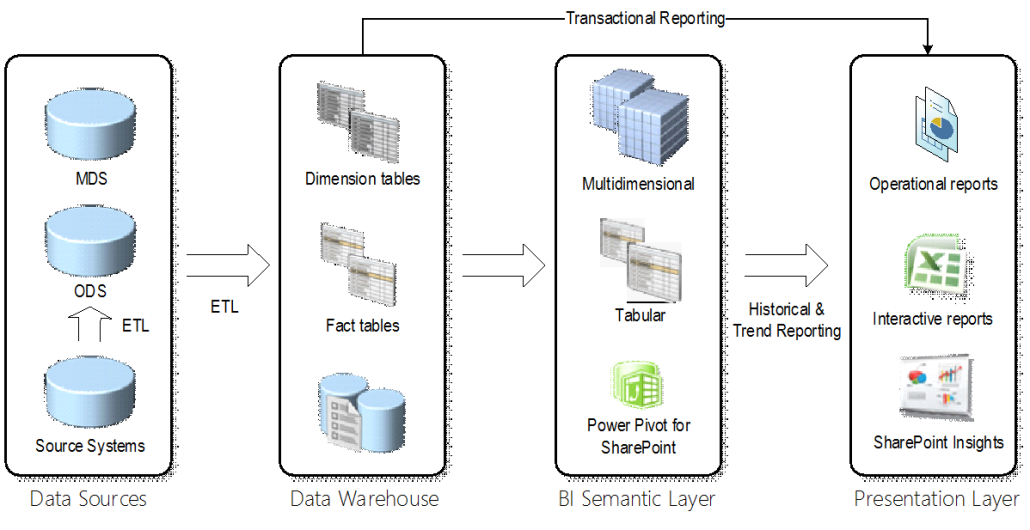
My Fall newsletter entitled “Why a Semantic Layer?” is out and it will be e-mailed to subscribers on Monday. The reason why I wrote is to bring the focus back on organizational BI. Based on my experience, decision are makers are confused about what their company’s BI strategy and roadmap should be. I’ve asked a BI manager recently if he knows that a semantic layer could be a true self-service BI enabler and he said he didn’t know. After talking to some well-known BI vendors and listening to their “pure” self-service mantra, the focus was shifted from a comprehensive BI architecture that truly addresses the company needs to selecting a tool that has the most visualization fluff.
In general, there are two self-service BI paths your organization can take:
Semantic layer + ad hoc reporting – If your organization decides to invest in implementing a comprehensive organizational BI framework (see the diagram in my newsletter) that features a semantic layer, the end user’s focus will be where it should be: on data analysis and not on building models. For example, end users can use Excel, Power View, or whatever third-party data visualization tool your company felt in love with, to connect to the semantic layer and create insightful ad hoc reports with a few clicks. No need to import data and build models before the business users ever get to data analysis.
Self-service models – In this scenario, you put the responsibility on end users to create models and their version of the truth. Following this path, an end user would use a tool, such as Power Pivot, to import data, create a model on the desktop, and then derive insights from the data. Don’t get me wrong. There are good reasons when this path makes sense, including the ones I mentioned in my blog “Does Self-service Make Sense”.
Ideally, your BI roadmap should consider and plan for both paths although the focus should be on organizational BI first and then finding gaps that self-service BI could address, such as testing ideas requiring external data. If your organization relies only on “pure” self-service BI, it won’t be long before you’ll find out that the pendulum has swung the wrong way. Many have taken this road but the outcome is always the same: “spreadmarts” that might get the work done in the interim but would fail in a long run. As a rule of thumb, I recommend the 80/20 principle, where 80% of the effort is spent on organizational BI (DW, ETL, semantic layer, dashboards, operational reports, data mining, big data, etc.) and 20% is left for self-service BI. But each organization is different so the ratio might vary.
Let me know your thoughts.
https://prologika.com/wp-content/uploads/2016/01/logo.png00Prologika - Teo Lachevhttps://prologika.com/wp-content/uploads/2016/01/logo.pngPrologika - Teo Lachev2013-09-21 23:51:002016-02-15 10:45:03Flavors of Self-service BI
Data is your biggest asset and today’s currency but the data can be messy. You know it and we’ve seen it – many times. The messier the data, the bigger the headache. At Prologika, we believe that data quality issues should be addressed as early as possible and the validation process should start with the source systems. You need a solution to detect data entry issues without ETL, custom validation code, and exhaustively hard-coded rules. This is why I’m excited to announce today the availability of Prologika Validator!
Available as a cloud service and on-premises offering, Prologika Validator uses predictive analytics to find data anomalies in order to help you improve data quality. It analyzes historical data and discovers common data patterns and relationships. When the user attempts to save a data entry that is outside the norm, Prologika Validator can detect the outlier. Then, the source system can notify the operator about a potential data entry error. As a result, the data is cleaned at the source and wrong data doesn’t end up in downstream systems, such as a data warehouse. Suppose your company buys some products from vendors. The operator responsible for the order entry creates an order in the ERP system, such as Oracle Financials or Microsoft Dynamics. The system might not be capable of detecting a wrong field entry or a wrong combination of fields, such as the user has specified a wrong unit of measurement for the product purchased. However, Prologika Validator is capable of detecting such outliers by predicting the likelihood that the order entry is outside the norm. The validation process is very fast and the operator is notified immediately.
Sounds interesting? Visit the Prologika Validator page and give it a try now. If you want to know how Prologika Validator can help you improve data quality, contact us to discuss your requirements and get a pricing proposal.
With the rising popularity of Power View, you may need to integrate it with PerformancePoint to jazz up your dashboards and make them more interactive. Take a look at the following, admittedly unpolished, dashboard which combines a PerformancePoint scorecard and Power View report.
What’s interesting is that the Power View report is synchronized with the dashboard filter. For example, when the user changes the filter to 2009, the Power View report filters on the same year. Starting with SQL Server 2012 SP1 CU4, Power View supports passing URL parameters using the syntax rf=[Table].[Field] eq Value. In this case I use the following Power View URL:
http://<site>/_layouts/15/ReportServer/AdHocReportDesigner.aspx?RelativeReportUrl=/PowerPivot Gallery/Adventure Works Dashboard.rdlx&ViewMode=Presentation&PreviewMode=True&PreviewBar=False&[Date].[Calendar Year] eq 2009
As you would quickly discover, the Power View customization is rather basic. The only operator supported for now is the equal operator (eq) and multi-valued parameters are not supported. The PerformancePoint integration is achieved by using the Web Page report type. Because of the mechanics of how PerformancePoint passes a parameter to a web page report (it always appends the Endpoint_Url query string containing the filter value), you’ll need a wrapper ASP.NET or HTML page that extracts this parameter and constructs the correct Power View URL. I opted for an ASP.NET page. Due to the SharePoint limitation that ASP.NET pages cannot have code-behind files, the PowerViewWrapper.aspx page, which I added to the Pages folder, includes the server side code:
<!DOCTYPE html PUBLIC “-//W3C//DTD XHTML 1.0 Strict//EN” “http://www.w3.org/TR/xhtml1/DTD/xhtml1-strict.dtd”>
Note: By default, SharePoint disallows custom code and the page will error out with “Code blocks are not allowed in this file”. To fix, this open C:\inetpub\wwwroot\wss\VirtualDirectories\80\web.config and change the PageParserPaths section as follows (allowing all pages with /* was the only way I was able to get the page to execute successfully:
The last part is to hook the Web Page report to the dashboard (no surprises here):
In the PerformancePoint Designer, add a Web Page report with an URL pointing to the wrapper page, such as http://<site>/bi/Pages/PowerViewWrapper.aspx?Dummy=1 (the Dummy parameter was added so ParseQueryString could parse the query parameter in the wrapper page).
Add the report to the dashboard.
Drag the Display Value property of the filter and drop it onto the Web Page report zone.
In the Connection dialog box, click the Connection Formula button and configure it as follows:
The <<SourceValue>> placeholder returns the filter value, which PerformancePoint passes to the wrapper page, which in turn calls the Power View report.
https://prologika.com/wp-content/uploads/2016/01/logo.png00Prologika - Teo Lachevhttps://prologika.com/wp-content/uploads/2016/01/logo.pngPrologika - Teo Lachev2013-09-15 01:45:002016-02-15 10:55:44Integrating Power View with PerformancePoint