Posts

Filtering Tables Dynamically in DAX

Sometimes, your DAX calculated measures might need to filter a table dynamically based on a certain condition. For example, you might have a Type 2 table like this one:

ClaimID

ClaimDate

ClaimStatus

RowStartDate

RowEndDate

XXX-1

1/1/2015

Open

1/1/2015

1/15/2015

XXX-1

1/1/2015

Approved

1/16/2015

12/31/9999

When a change is detected on the existing claim, this design expires the previous row and adds a new one. A common business question would be “How many claims do we have as of a given date?” Tabular is more flexible than MD answering this question because you can directly filter the table. In your first attempt, you might write the following calculated measure:

ClaimCount:=CALCULATE(DISTINCTCOUNT([ClaimID]), [RowStartDate]<=[FilterLastDate] && [FilterLastDate]<=[RowEndDate]))

Where FilterLastDate is another calculated measure that returns the max date if the user has selected a date range, such as an entire month from a Date hiearchy, so that the measure is evaluated as the last date of the user selection. However, this attempt fails with the error “A function ‘CALCULATE’ has been used in a true/false expression that is used as a table filter expression. This is not allowed.” This article provides more context although I personally believe that the explanation doesn’t give all the details as the second argument is Boolean in this case. To fix this you need a more complicated expression that uses the FILTER function:

ClaimCount:=CALCULATE(DISTINCTCOUNT([ClaimID]), FILTER(ALL(ClaimSnapshot[ClaimDate], ClaimSnapshot[RowStartDate], ClaimSnapshot[RowEndDate]), [RowStartDate]<=[FilterLastDate] && [FilterLastDate]<=[RowEndDate]))

The FILTER function does the same filtering logic. If the table you filter on is related to a Date table, such as on ClaimDate, you need to ignore its context. Otherwise, the calculated measure scope will be limited by the Date selection. To do so, you need to use the ALL function but because it returns a table, the result needs to include all columns that you need to filter on.

DAX Variance Calculations

Variance calculations are a common BI requirement but good reference material is lacking. How do we create them in DAX? Let’s say you need to calculate the variance between this month sales and the previous month sales.

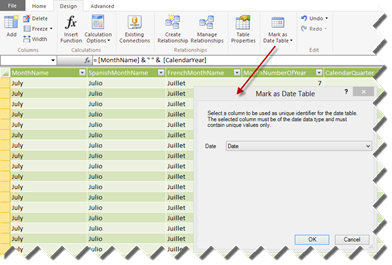
  1. DAX date functions require a Date table. They won’t work if you don’t have a separate Date table. They also require that you tell PowerPivot (or Tabular) about your Date table. So, as a first step select the Date table, go to the Design ribbon, and then click Mark as Date Table. PowerPivot will infer the column of the date data type (you must have such a column).

081513_1449_DAXVariance1

  1. Sort the Month column with custom sort. For example, if your Month column returns the month in MMM-YY format, sort that column by another integer column in the format YYYYMM. More on this in a moment.
  2. Define a new calculated measure using the following formula:

=SUM(ResellerSales[SalesAmount]) – CALCULATE(SUM(ResellerSales[SalesAmount]), PREVIOUSMONTH(‘Date'[Date]))

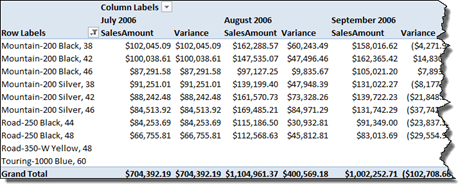
What’s going on here? The formula needs to work irrespective of the month on the report. In other words, if we put months on columns, each month will act as of that month. That’s why we need a calculated measure. The first SUM returns the aggregated sales for the month. The CALCULATE function is used to overwrite the context because we want to get to the last month sales. To do this, we pass the PREVIOUSMONTH function as a second argument and point it to use the Date column in the Date table as we do with other DAX date-related functions.

081513_1449_DAXVariance2

Here is something important. This report won’t work with just months on columns if your Month column returns the name of the month only. That’s because the month name will be repeating across years. This is why the PREVIOUSMONTH documentation insists on having both year and month on the report.

“To see how this works, create a PivotTable and add the fields, CalendarYear and MonthNumberOfYear, to the Row Labels area of the PivotTable.”

If you don’t want to add the year to reports, add a MonthName calculated column to your Date table with the following formula: = [MonthName] & ” ” & [CalendarYear] that makes the month unique across years and another column MonthNameSort to sort by with the following formula: =[CalendarYear] * 100 + [MonthNumberOfYear]. Then sort the first column by the second. To do this, in the PowerPivot window, click any cell in the MonthName column. Then, in the Home ribbon, click the Sort by Column button and choose the MonthNameSort as the sort by column. Use the MonthName column on the report, as I’ve done in the screenshot above.

Further considerations:

  1. If you want to calculate a variance between parallel periods, use the DAX ParallelPeriod() function.
  2. While a clumsy way exists in PowerPivot Tabular to handle multiple relative dates (see the “Calculating many time periods within a single measure formula” section in the DAX Samples white paper), the formulas must still reference a specific measure, e.g. SalesAmount. That’s because Tabular doesn’t currently support scope assignments that allow you to create generic “shell dimensions” spanning multiple measures.
  3. What if you want the variance to work across months, quarters, and years? Because Tabular doesn’t support functions for hierarchy navigation and no PreviusPeriod() function exists, you have to resort to the DAX Samples workaround to adjust the formulas depending on what level you are in the Date hierarchy, such as to use PreviousMonth() if you are at the month level and PreviousYear() if you are at the year level.

Cube vs. VertiPaq Query Performance

This is a big topic and frankly it’s too ambitious on my part to tackle it. Assuming equivalent multidimensional (BISM Multidimensional) and tabular (BISM Tabular) models, I was curious how a multidimensional cube fares against VertiPaq in terms of performance. To be fair to VertiPaq, I decided to use native DAX queries. As you’ve probably heard, BISM Tabular in SQL Denali will include a variant of DAX to query tabular models deployed to SharePoint and SSAS running in VertiPaq mode. Chris Webb has a good writeup about DAX queries here. The DAX EVALUATE construct allows external clients to query tabular models using native DAX syntax instead of MDX. Since BISM Tabular speaks DAX, DAX queries are likely to be more efficient and give you better performance when querying tabular models. At this point, only Crescent generates native DAX queries. The DAX query syntax is:

DEFINE

MEASURE Table1 [measure1] = <DAX_Expression>

MEASURE Table2 [measure2] = <DAX_Expression>

EVALUATE <DAX Table Expression>

ORDER BY

    <DAX_Expression> [ASC | DESC]

    <DAX_Expression> [ASC | DESC]

START AT

    Value_or_Parameter, Value_or_Parameter, …

To have a more sizable dataset, I used the Contoso cube for my tests. I created a BISM Tabular model and imported the Contoso data. Since you probably don’t have Contoso, I provide queries that target the Adventure Works cube. I’ve started with the following unoptimized MDX query which calculates the average sales amount by date across products whose daily sales exceed the daily sales for the same date in the previous month:

WITH


MEMBER [Measures].SlowAvg AS


Avg

(


Filter

(

[Product].[Product].[Product].MEMBERS

,[Measures].[Sales Amount] > ([Measures].[Sales Amount], ParallelPeriod([Date].[Calendar].[Month]))

)

,[Measures].[Sales Amount]

)

SELECT

[Measures].SlowAvg ON 0,

[Date].[Calendar].[Date].Members
ON 1

FROM [Adventure Works];

Then, I optimized the query to take advantage of block computation mode, as follows:

WITH


MEMBER diff as
iif ([Measures].[Sales Amount] > ([Measures].[Sales Amount], ParallelPeriod([Date].[Calendar].[Month])), [Measures].[Sales Amount], null)


MEMBER [Measures].SlowAvg AS


Avg

(

[Product].[Product].[Product].MEMBERS, diff

)

SELECT

[Measures].SlowAvg ON 0,

[Date].[Calendar].[Date].Members
ON 1

FROM [Adventure Works];

Finally, my equivalent DAX query that used to measure performance was:

define measure FactResellerSales[TotalSales] = Sum([SalesAmount])

measure FactResellerSales[TotalSales – LastYear] = [TotalSales](SamePeriodLastYear(DimDate[FullDateAlternateKey]), All(DimDate))

measure FactResellerSales[AverageSales] = AverageX(Filter(Values(DimProduct[ProductKey]), [TotalSales] > [TotalSales – LastYear]), [TotalSales])

evaluate addcolumns(filter(values(DimDate[DateKey]), not isblank([AverageSales])), “AverageSalesAmount”, [AverageSales])

order by [DateKey]

And, the findings from the tests:

1.       MDX query un-optimized (cell calculation model) both on cold cache and executed second time – 33 sec

2.       MDX query optimized (block computation mode) on cold cache – 4.8 sec

3.       MDX query optimized (block computation mode) executed second time – 0.7 sec

4.       DAX query both on cold cache and executed second time – 6.4 sec

Here are some take-home notes:

  1. The fact that VertiPaq is an in-memory database doesn’t mean that it will perform much better than a multidimensional cube. The formula engine of BISM Multdimensional does cache query results in memory. So does the Windows OS. In fact, the more the cube is used, the higher the chances that its data will end up in memory.
  2. VertiPaq might give you good performance without special tuning. All DAX calculations run in a block computation mode.
  3. Optimized MDX queries might outperform VertiPaq especially if results are cached.
  4. DAX queries are never cached which explains why DAX queries perform the same when executed subsequently.

The fact that VertiPaq gives you a head start doesn’t mean that you cannot write inefficient DAX queries. For example, the following DAX measure definition returns the same results but it’s twice as slow.

measure FactResellerSales[AverageSales] = AverageX(Filter(AddColumns(Values(DimProduct[ProductKey]), “x”, [TotalSales]), [x] > [TotalSales – LastYear]), [x])

Again, this is an isolated test case and your mileage might vary greatly depending on queries, data volumes, hardware, etc. But I hope you could use it as a starting point to run your own tests while waiting for a VertiPaq performance guide.