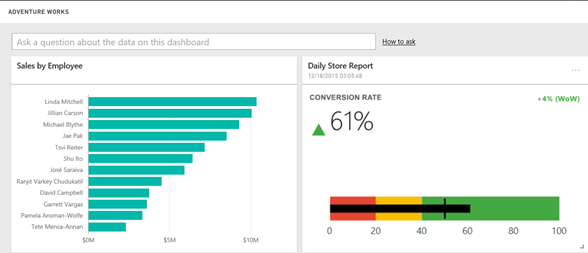
As I said in the “Microsoft Unveils BI Roadmap” blog, SSRS will play an important role of the on-premises BI portal. With this post, I’ll start covering the new SSRS 2016 features. One of the Power BI features announced at the PASS Summit was the forthcoming integration between SSRS 2016 and Power BI that will allow users to pin SSRS report items to Power BI dashboards. You can test pining reports items to Power BI with SQL Server 2016 CTP 3.0 and later. The newly released CTP 3.2 also features the new sleek SSRS portal (we’ve come a long way!). The items you can pin currently include charts, gauge panels, maps, and images. Pinning a report item takes a few clicks:
Open the report and click the Power BI button (a new toolbar button in SSRS 2016). If this is the first time you do this, you’ll be asked to authenticate with Power BI and grant SSRS special permissions it needs for pinning. Then, SSRS switches to a special page mode that shows which items can be pinned.
Click the tile you want to pin.
In the “Pin to Power BI Dashboard” window, select the dashboard you want to pin the report to and the update frequency that specifies how often Power BI will query the report for data changes.
And, the report item is pinned to the dashboard as a regular tile. You can click the tile to navigate back to the SSRS report.
As you can see, Power BI is becoming a focal point for cloud hosting of the main MS report artifacts: Power BI reports, Excel reports, and SSRS reports.
https://prologika.com/wp-content/uploads/2016/01/logo.png00Prologika - Teo Lachevhttps://prologika.com/wp-content/uploads/2016/01/logo.pngPrologika - Teo Lachev2015-12-18 03:51:002021-02-16 04:59:57Integrate SSRS 2016 Reports with Power BI
To me, Power BI is the most exciting milestone in the Microsoft BI journey since circa 2005, when Microsoft got serious about BI. Power BI changes the way you gain insights from data; it brings you a cloud-hosted, business intelligence and analytics platform that democratizes and opens BI to everyone.
I’m happy to announce my latest (7th) book – Applied Microsoft Power BI. Currently, the one and only book on Power BI. Some people discouraged me to write this one. After all, trying to cover a product that changes every week is like trying to hit a moving target. However, I believe that the product’s fundamentals won’t change and once you grasp them, you can easily add on knowledge as Power BI evolves over time. Because I had to draw a line somewhere, “Applied Microsoft Power BI” covers all features that were announced at the PASS Summit 2015 and that were released by December 2015.
The book has four parts for each of the four user types: information worker, data analyst, pro, and developer. Information workers will learn how to connect to popular cloud services to derive instant insights, create interactive reports and dashboards, and view them in the browser and on the go. Data analysts will discover how to integrate and transform data from virtually everywhere, and then implement sophisticated self-service models. The book teaches BI and IT pros how to establish a trustworthy environment that promotes collaboration and how to implement Power BI-centric solutions for descriptive, real-time, and predictive analytics. Developers will find how to integrate custom applications with Power BI, embed reports, and implement custom visuals to present effectively any data.
The book is making its way slowly through the retail channels but it should be available on Amazon (in both paper and Kindle formats) and with other retailers before the holidays. I’ll drop a note and update the book page once the book is available for purchase. Meanwhile, visit the book page for more information about the book, source code, and a sample chapter (Chapter 1 “Introduction to Power BI”).
I predict that 2016 will be the year of Power BI and I hope that this book will help you bring your data to life!
https://prologika.com/wp-content/uploads/2016/01/logo.png00Prologika - Teo Lachevhttps://prologika.com/wp-content/uploads/2016/01/logo.pngPrologika - Teo Lachev2015-12-16 19:26:002016-02-20 14:32:56The One and Only Power BI Book
A sparkline is a miniature graph, typically drawn without axes or coordinates. Commonly used on dashboards, sparklines typically visualize trends over time, such as to show profit over the past several years. Although other Microsoft reporting tools, such as Excel and Reporting Services include sparkline elements, Power BI doesn’t have one. That is until now.
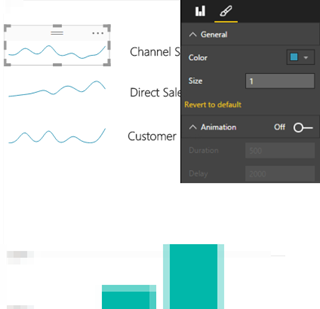
I contributed a “classic” sparkline custom visual to the Power BI Visuals Gallery. Once you import and add the sparkline to a report, you bind the sparkline to data using the Data tab of the Visualization pane. For example, you can aggregate a Freight field added the Value area over the CalendarQuarterDesc field added to the Category area. The resulting graph will sho how freight fluctuates over time. You can use any field to group the data, not just a field from the Date table.
The sparkline supports several formatting options. The General section lets you change the line color and width. The default properties are “steelblue” as a color and one pixel for the line width. The Animation section lets you turn on an animation effect that draws the line gradually from left to right (who says that Power BI visuals have be to static?) Although in general I advise against animations and other visual distractors in real-life reports, I wanted to emphasize the point that Power BI visuals can support anything clients-side JavaScript can do. The Duration setting controls how fast the line draws (the default setting is 1,000 milliseconds) and the Delay settings controls the interval between redraws (the default is 3,000 milliseconds). The sparkline supports also a tooltip. When you hover anywhere on the viewport, a tooltip pops up that shows the name of the field added to the Value area and the data point values.
The main limitation of the current implementation is that similar to the Power BI gauge visualization, it doesn’t render over multiple lines, such as for each product category on rows. Preferably, at some point Power BI would support a repeater control similar to the SSRS Tablix region. This would allow nesting the sparkline into other visualizations, such as a table, that will repeat the sparkline for each row. As Power BI stands now, the only way to implement this feature is to draw the visual for each value of the category field, which would require also drawing labels for the row categories. However, it doesn’t repeat on rows, the sparkline could be used to display multiple measures arranged either horizontally or vertically as the screenshot shows. Another limitation related to the previous I’ve just discussed is that it supports only a single field in the Category area and a single field in the Value area. In other words, the sparkline is limited to one measure and one group. Continuing on the list of limitations, the tooltip displays the same information irrespective where you hover on the sparkline viewport as opposed to showing just the value of the data point behind the cursor.
I hope you’ll find my sparkline useful not only for your real-life projects but also for learning how to implement custom visuals.
UPDATE: An updated sample is included in the Chapter 12 source code of my “Applied Power BI” book.
One of the biggest Power BI strengths is its open architecture. In addition to opening the visualization framework, Power BI introduced REST APIs that let developers embed dashboard tiles in custom web applications (embedded reports will probably follow soon). Microsoft provided a sample application (Integrate-a-tile-into-an-app) on GitHub to demonstrate how dashboard tile embedding works. This application navigates the user to an authentication UI where the user signs it to Power BI before the application can access the user content. However, there are plenty of embedded reporting scenarios where this isn’t desirable. For example, you might have a web application that already authenticates users with Forms Authentication and you don’t want to ask the user to log in to Power BI again. Instead, you might want to pass the identity of the authenticated user to Power BI. In the more advanced (but increasingly common) scenario, you would want Power BI to pass the user identity all the way to an on premises Analysis Services model so that data security works.
The bad news is that currently Power BI doesn’t support custom security. Custom security is on the roadmap but currently you can’t pass application users to Power BI. This isn’t as bad as it sounds. For example, if you have a limited number of users or external customers, you can register them in Power BI so that you know their Power BI usernames and passwords. For example, if my company does business with Acme1 and Acme2, I could register acme1@prologika.com and acme2@prologika.com with PowerBI. Then, once the acme1 user authenticates with my web application and request a dashboard, I can authenticate the user with acme1@prologika.com to Power BI.
The good news is that Power BI supports OAuth2 for security. OAuth2 is a very flexible security mechanism and it supports different flows via the grant_type parameter. One of the flows that it supports is the grant_type=password flow that allows you to avoid the Power BI authentication UI step if you know the user credentials. This is conceptually similar to how Basic Authentication works. The OAuth2 grant_type=password scenario is also referred to as two-leg authentication (the three-leg authentication is when the Authentication UI is involved).
To demonstrate this, I’ve made changes to the Microsoft sample app and uploaded the modified sample (attached to this blog). Configure it in Visual Studio as follows:
In the application settings, change the ClientSecret, ClientID, UserName, and Password to match your setup. You obtain ClientID and ClientSecret when you register the application with Azure AD. The username and password must match the credentials of a registered Power BI user.
In the application Build tab, make sure that the NOLOGIN conditional symbol exists.
Right-click on the project and then click Manage NuGet packages. Download and install all referenced packages as they are not packaged with the sample to reduce size.
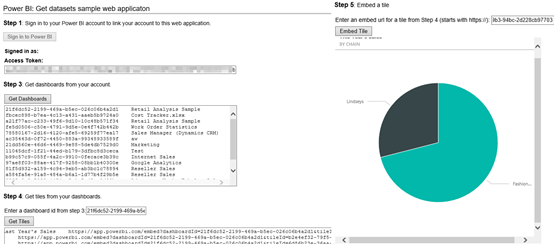
Run the application. The “Sign in to Power BI” button should be disabled. When you click Get Dashboards, the app should be able to retrieve the dashboards on behalf of the Power BI user. From this point on, the app works as per the original sample. Again, the big difference is that the Authentication UI is not shown because you don’t need to collect the user credential.
Special thanks to the Power BI Team and Rui Quintino by DevScope for sharing insights. For more information about how APIs for embedded dashboard tiles work, read the “Power BI API updates roundup” blog by Lukasz Pawlowski.
In summary, the sample demonstrates how you can use OAuth2 two-leg flow to avoid authenticating the user twice and redirecting to the Power BI authentication dialog. As a disclaimer, this is not a production-ready sample (there are hardcoded links, no error handling, no refresh token flow, etc.).
https://prologika.com/wp-content/uploads/2016/01/logo.png00Prologika - Teo Lachevhttps://prologika.com/wp-content/uploads/2016/01/logo.pngPrologika - Teo Lachev2015-10-19 13:43:002021-02-16 04:59:56Power BI Embedded Dashboards Without Authentication UI
For years I’ve been harassing Microsoft to support embedding interactive reports connected to SSAS on custom apps. This feature has been sorely missing in the Microsoft BI stack. Yet, it’s a must-have feature that enables a wide range of integration scenarios, such as customer-facing reporting. Imagine your customers being able to ask natural questions for data exploration. This is a killer feature!
It looks like Power BI might finally bring some relief. I while back, I posted an Embedding Reporting feature wish on the Power BI discussion list. It now has 643 votes and it’s one of the most voted for features. Recently, when asked to provide feedback, I communicated to Microsoft how I envision report embedding to work:
Developers must have the ability to embed reports/dashboards in applications. This should be conceptually similar to how they can do this now with ReportViewer. However, instead of an ASP.NET control, I’d imagine REST APIs with jQuery.
The tricky part is security. It is paramount to be able to pass the user identity to on-premises SSAS models. Ideally, we don’t want to ask external users to register in Power BI. Instead, some kind of bulk licensing needs to be supported to allow requests to Power BI to go under a single trusted account but yet pass the user identity to SSAS.
In a nutshell, the external user goes to the customer website and he’s authenticated using whatever authentication mechanism the app uses. Then, a call is made to Power BI to authenticate using a trusted account. When the user requests a report, the call must allow somehow passing the user identity. And, then this identity needs to flow to SSAS. Previously, to achieve this scenario and circumvent the SSAS limitation of supporting Windows security only, developers would add a CustomData connection string to the SSAS connection so that SSAS can use it for row-level security.
Recently, Lukasz Pawlowski (a Senior Product Manager formerly on the SSRS team and now heading the Power BI APIs) responded:
“Quick update here. While it’s not report embedding, we just announced a preview of an API to integrate dashboard tiles into applications. Read about it on the Power BI Developer blog”
So, it looks like the first wave of the embedding APIs has arrived. While it’s not what we need, I think we can expect full-featured embedding to arrive soon.
https://prologika.com/wp-content/uploads/2016/01/logo.png00Prologika - Teo Lachevhttps://prologika.com/wp-content/uploads/2016/01/logo.pngPrologika - Teo Lachev2015-09-26 23:34:002021-02-16 04:59:54Power BI Report Embedding on the Horizon
I’m happy to announce the availability of my latest training course – Applied Power BI Service. I believe that the new version of Power BI, known as Power BI Service or Power BI 2.0, is going to be very successful and it should warrant your serious interest. This one to two-day class is designed to help you become proficient with the Power BI Service and acquire the necessary skills to work with online and on-prem data, implement data models on a par with professional models created by BI pros, unlock the power of data by creating interactive reports and dashboards, and share insights with other users. No prior data modeling or reporting knowledge is assumed. Students are welcome to bring their own data to the second day of the class.
https://prologika.com/wp-content/uploads/2016/01/logo.png00Prologika - Teo Lachevhttps://prologika.com/wp-content/uploads/2016/01/logo.pngPrologika - Teo Lachev2015-08-12 00:46:322021-02-16 02:32:32Applied Power BI Service Class Available
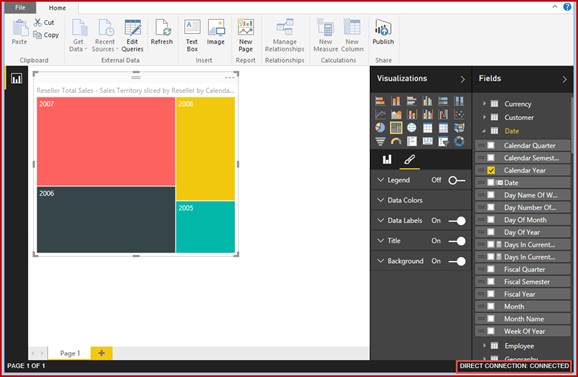
As you’ve probably heard the news, Power BI went live yesterday. Among the many new features, Power BI Desktop (previously known as Power BI Designer) now supports live connections to Tabular. This is conceptually similar to connecting Excel to Tabular or Power View to Tabular to create ad hoc reports. However, Power BI Desktop is a standalone and freely available tool that is independent of Office or SharePoint.
When connected directly to Tabular, Power BI Desktop generates DAX queries as a result of report changes, sends them to Tabular and displays the results. Of course, we know we have new visualizations that don’t exist in Excel and on-prem Power View, such as tree maps, region maps, etc.
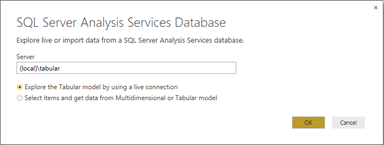
Upon discovering connectivity to Tabular, Power BI Desktop asks you how you want to connect:
Once you create the report, you can publish the dataset and report to Power BI. As a prerequisite, you need to install and configure the Analysis Services Connector to that the report can connect to Tabular on premises. If the connector is not installed, you will get an error on publishing. Speaking of the connector, at this time it cannot be installed side by side with the Personal Gateway which is used for refreshing data from on-prem data sources. You need to install them on separate machines.
Tabular is the first data source that supports direct connectivity in Power BI Desktop. I’d imagine that live connections to other data sources will follow soon. Direct connectivity is useful to support fast databases where there is no need to import and cache the data. In this case, you’ll need to weight out the pros and cons of direct connectivity vs. data import.
https://prologika.com/wp-content/uploads/2016/01/logo.png00Prologika - Teo Lachevhttps://prologika.com/wp-content/uploads/2016/01/logo.pngPrologika - Teo Lachev2015-07-25 11:33:002021-02-16 04:59:53Power BI Desktop Supports Direct Connectivity to Tabular
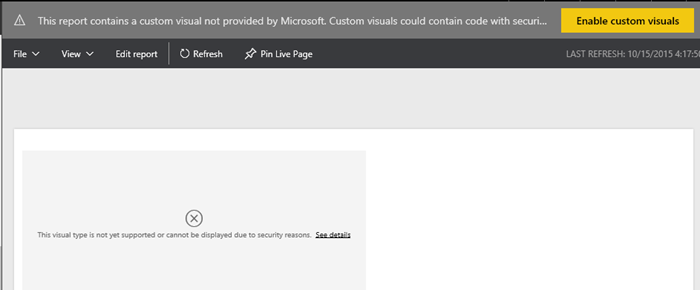
Today Microsoft announced the general availability of Power BI on July 24th meaning that Power BI goes live on that date. Among the many new features mentioned in the blog, the one that piqued my interest is custom visuals. Developers might recall that SSRS has provided custom report items since version 2005, which I wrote about in the October 2006 issue of the MSDN Magazine. Similarly, now you can implement custom visualizations in Power BI! And, instead of writing .NET code, you can do so using JavaScript. This opens the path to implement custom visuals using any of the JavaScript-based visualization frameworks, such as D3, WebGL, Canvas, or SVG.
This will be huge as it will allow developers to extend the Power BI visualization capabilities using open-source visualization frameworks. Do you need some gadgets, like a bullet graph? With some coding wizardry, you can implement your own, such as by using the D3 Bullet Charts sample. Moreover, to speed up development, Microsoft has published the code of all of the existing Power BI visualizations on GitHub. Once you follow the instructions to install the Power BI Visuals Sample, you can open the project in Visual Studio and open in the browser index.html located in the PowerBIVisualsPlayground project. This allow you to test the visuals. The actual TypeScript code of the Microsoft visualizations is located in the Visuals project. I think the Microsoft decision to make Power BI open will be a paradigm shift for the BI industry. Besides the Push API which are already published, Microsoft has already indicated plans to make Power BI even more open, such as to allow developers to embed reports in custom web applications. Now, if only Power BI supports on-prem installation …
https://prologika.com/wp-content/uploads/2016/01/logo.png00Prologika - Teo Lachevhttps://prologika.com/wp-content/uploads/2016/01/logo.pngPrologika - Teo Lachev2015-07-10 21:54:002021-02-16 04:59:48Power BI Custom Visuals Announced
I welcome every news about better visualizations in Microsoft BI so I rejoiced to read this blog by Ariel Netz, Group Program Manager in the Power BI Designer team.
“The Power BI Designer team is working on our first update for the summer. That update will be significant, and will signal a new phase in our product development. To date we have mostly invested in the modeling and query capabilities, but starting with the first summer release users will see heavy investments in the Data Exploration & Reporting capabilities in the product. While it might be bit premature to go into detail, it’s not premature to provide a teaser… ”
And the teaser screenshot in the blog shows more visualization gadgets with the ability to change chart series colors. I hope they thrown in conditional formatting as well.
Confused which visualization tool to use? You probably are with so many vendors and tools out there. But as I said many times, your focus should be on data integration and not on the front end. If you have a solid architecture and trusted data, it should be easy to plug in whatever visualization tool is the course de jour. Yesterday it might have been QlikView, today Tableau might enjoy the spotlight, but tomorrow it might very well be the Power BI Designer.
May you leave in interesting times – Chinese proverb.
https://prologika.com/wp-content/uploads/2016/01/logo.png00Prologika - Teo Lachevhttps://prologika.com/wp-content/uploads/2016/01/logo.pngPrologika - Teo Lachev2015-06-12 18:28:142021-02-16 04:59:39Cool Visualizations Coming To You This Summer
As a continuation to my “Power BI vNext (let’s now call it Power BI 2.0 to align terminology with Microsoft) SSAS Connector and Security” blog, you might wonder how Power BI provisions users. For example, if a user signs with his business e-mail and a coworker shares BI artifacts with him, what happens when the user leaves the company? Can he still gain access?
As it turns out, when the user signs to Power BI, Microsoft adds the user transparently to the Azure AD (AAD). Syncing AD with AAD is not a requirement. This is why you don’t need to extend your AD to Azure or synchronize it when you want Power BI reports to connect to on-prem Tabular models. If you do not sync your AD with Azure AD and remove user from AD, they continue to exist in Azure AD. If the tenant is a managed tenant (i.e. there is a tenant admin), tenant admin can disable the user in O365 when the user leaves the company. However, if this is an unmanaged tenant (i.e. no admin yet), the company administrator needs to “Take Over” the tenant, as described here. To make this easier, you can do DirSync which will do this automatically or extend your AD to Azure.
https://prologika.com/wp-content/uploads/2016/01/logo.png00Prologika - Teo Lachevhttps://prologika.com/wp-content/uploads/2016/01/logo.pngPrologika - Teo Lachev2015-05-15 22:44:002021-02-16 04:59:27Power BI 2.0 User Provisioning