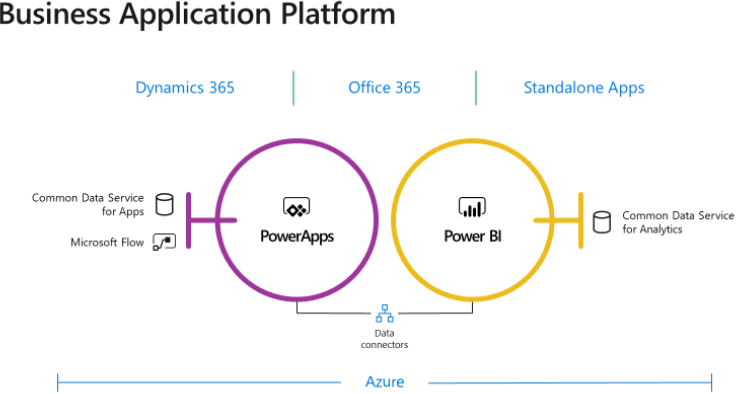
Thank you to everyone attending the Power BI workshop by Prologika yesterday. We had another great turnout with more than 50 people from 30+ companies attending the event at the Microsoft Technology Center in Alpharetta! Kudos to Eric Flamm and Michael Folarinde for the great job proctoring the event. Here is some feedback that the attendees shared in the post-event survey:
“I was frustrated and confused with using Power BI service and Desktop because I didn’t know how to manipulate the visualizations, slicers, etc. and thought the tools were not capable. I walk away from this now knowing this information and excited to use the tools to transform data to help our business.”
“Very informative and showed me new things despite me using PBI for a few months.”
“Very instructive and knowledgeable of our instructor Teo. He is very patient and answered all my questions.”
“The presenter was great. He was obviously very knowledgeable, was great at explaining the concepts, and was very patient.”
“The presenter, Teo, was extremely knowledgeable of Power BI. He presented the material in a clear and easy to follow format. He was able to answer all levels of questions from beginner to advanced and even questions regarding infrastructure and how to implement Power BI into small or large organizations. I really enjoyed that we were given time to actually perform the various tasks ourselves and then get help along the way. It really helped to reinforce the lessons we had just learned.”
“…The instructors were very helpful with any questions.”
And my next week is entirely booked with more Power BI training. It’s great to witness and participate in the great momentum surrounding Power BI!
https://prologika.com/wp-content/uploads/2016/01/logo.png00Prologika - Teo Lachevhttps://prologika.com/wp-content/uploads/2016/01/logo.pngPrologika - Teo Lachev2018-05-11 16:52:212018-05-11 16:53:30Another Successful Power BI Workshop
In my “Why Business Like Yours Choose Power BI Over Sisense” blog, I discussed how Sisense seeks a competitive advantage by offering a user-friendly designer connected to the their ElastiCube, thus claiming that Sisense is a better choice with larger datasets because business users don’t have to use professional tools (Visual Studio) or deploy to external servers. Things have changed in Power BI since then. Microsoft increased the dataset size to 1 GB (Power BI Pro) and 10 GB (Power BI Premium). A 10 GB compressed dataset is a lot of data (probably allowing you to import over a billion rows). But fully refreshing a large dataset is no fun and it can take many hours (see my blog “Processing AAS Models Asynchronously” for some stats).
Fortunately, the May release of Power BI Desktop brings incremental refresh, which a feature that was previously only available in Analysis Services. As its name suggests, the primary goal is to reduce the time required to refresh datasets with imported data by processing only data that has changed instead of the entire dataset.
I was involved and provided feedback during the prerelease testing of Power BI incremental refresh. Without reiterating the documentation, here are some things you need to pay attention to:
Incremental refresh is a Power BI Premium feature. Although you configure it in Power BI Desktop, you can’t test it in Power BI Desktop. You must deploy the file to a premium workspace to put it in action. I provided feedback that this feature should be also available in shared capacity workspaces because its primary goal is to reduce resources in a shared environment but as it stands incremental refresh is a premium feature.
Associate the RangeStart and RangeEnd query parameters in a custom filter to one column in the table set up for incremental refresh. During development, it makes sense to load a subset of the data, such as for only one year. So, set RangeStart and RangeEnd accordingly.
When you define a custom filter that uses RangeStart and RangeEnd on the table you configure for incremental refresh, triple verify the filter range to ensure that rows don’t overlap. Here is an example of a correct custom filter. If I make a mistake and I change the right boundary to [OrderDate] <= RangeEnd, then I’ll get overlapping rows for the end period. So, make sure that you don’t specify the equal sign in both the left boundary and right boundary.
= Table.SelectRows(dbo_FactResellerSales, each [OrderDate] >= RangeStart and [OrderDate] < RangeEnd)
I suggested Microsoft provide a narrative that restates the configuration of the incremental refresh policy. For example, the configuration below means “This policy will load historical data from Jan 1st, 1997 to the current date. Subsequent refreshes will process only the last 10 days to the current system date (UTC time).”
When you deploy to *.pbix file to a premium workspace and navigate to the dataset refresh page, you’ll see that the entire Parameters section is disabled. This is a bug which should be fixed by the time incremental refresh goes out of preview. It should remove or disable only the RangeStart and RangeEnd parameters but enable other query parameters. That’s because the RangeStart and RangeEnd parameter values are not used once the model is published.
Because incremental refresh requires a new schema comparability level, you can’t connect to Power BI Desktop models in SSMS. Incremental refresh also breaks the feature for importing Power BI Desktop files in Azure Analysis Services.
What happens behind the hood?
You should appreciate how simple Power BI incremental refresh is to set up. BI pros know that SSAS partitions take some effort to set up. It gets more complicated when you need to set up rolling partitions and merge partitions. In Power BI, you only need to configure the refresh policy and Microsoft takes care of the rest. Behind the scenes, Microsoft introduced a new partition type that has a refresh policy and parameterized query using the RangeStart and RangeEnd parameters. When the model is refreshed, Power BI expands this partition type and creates the actual table partitions. Considering the above setup, it creates 20 yearly partitions, 1 Quarter partition (for Q1 2018), and 35 daily partitions, assuming the current date is May 5, 2018. These partitions get consolidated and merged over time. For example, once Q2 is full, all daily partitions are merged into a monthly partition, and when the quarter is complete, monthly partitions get merged into a quarterly partition, then quarters get merged into years. Power BI also takes care of removing older partitions when they fall off the range (sliding window).
As the documentation mentions, a “preview” limitation is that subsequent publishing from Power BI Desktop replaces the published refresh policy and triggers a full load on the next refresh. Remember that full load happens once the first time you initiate manual or scheduled refresh of the published dataset. Once the dataset is fully loaded, subsequent refreshes load the dataset incrementally (the last 10 days with the above configuration). Currently, there isn’t a way to reload the dataset (full refresh), such as when you discover the historical data has issues and you need to reload the history, except deleting the dataset and republishing it. I hope that Microsoft will enable access to the Analysis Services Tabular management endpoint to support such scenarios. Or, a better option might be to extend the Parameters section in the refresh page to include an option for full load so that the business user can trigger a full reload.
Query Folding
One important consideration to keep in mind is that incremental refresh works best with data sources that support query folding. Such data sources pass through some Power Query transformation steps, such as filtering and grouping, to the underlying data source to improve performance and avoid loading the entire dataset before filtering and grouping is applied. To determine if a specific step is “folded”, right-click the step, such as Filtered Rows, in the Applied Steps pane and observe if the “View Native Query” is enabled.
Although Microsoft doesn’t have an official list of data sources that support query folding and what steps are folded, typically relational data sources and data sources that can handle the SQL WHERE clause support query folding. Excel and text files do not. It’s important to check query folding because it the data source doesn’t support it, Power BI Desktop currently doesn’t prevent incremental refresh but it will load all the data before the filter is applied. Specifically, the query mashup (M) engine will apply the filter as it reads the rows before it gets loaded into the partitions. You might be able to mitigate this performance issue with non-foldable sources by applying the RangeStart/RangeEnd filter when the initial query is sent to the data source. For example, Dynamics Online supports a $filter clause that will work with incremental refresh:
= OData.Feed(“<endpoint url>/sales?$filter=CreatedDate ge ” & Date.ToText(RangeStart) & ” and CreatedDate lt ” & Date.ToText(RangeEnd)”)
Power BI incremental refresh is an important enhancement to the Power BI data architecture. A Power BI premium feature, incremental refresh brings the following benefits for tackling larger datasets: data loads are faster, data loads are more reliable (no long-running connections), and reduced resource consumption.
https://prologika.com/wp-content/uploads/2016/01/logo.png00Prologika - Teo Lachevhttps://prologika.com/wp-content/uploads/2016/01/logo.pngPrologika - Teo Lachev2018-05-08 13:39:372021-02-17 01:01:53Notes on Power BI Incremental Refresh
Everyone has a different opinion about what self-service BI should be. But to many people the journey starts and stops with Microsoft Excel. Excel is the self-service BI nirvana. If the user can’t see and filter the detail data, even the most sophisticated self-service BI tool cannot be trusted. And since everyone knows how to do this in Excel, why should they use other tools? To me, the best self-service BI is empowering business users to connect to an organizational semantic model, ideally with Excel as a front end. Most of my current projects use Analysis Services Tabular for implementing semantic models. Therefore, it’s so frustrating that Excel still lacks good support for Tabular. For example, it splits a Tabular table into two tables (“dimension” and “measure group”) because Excel still uses the MDX interface. To make things worse, all fields in the “dimension” table has a Text data type because it gets only the field caption and not the data type. As a result, you can’t filter and compare date and number fields from the “dimension” tables.
According to Microsoft, a better Excel-Tabular combo hasn’t yet bubbled up high based on the feedback that the Excel team gets from customers. In an attempt to get the proper attention, I just posted the “Better Support for Analysis Services Tabular” wish list on Excel User Voice. I bundled multiple items into one wish list.
Please vote if you care.
It’s about time to improve support for SSAS Tabular:
1. Auto-generate DAX.
2. Avoid splitting a table into a “measure group” and “dimension”. See how PBI Desktop handles metadata.
3. Carry over data types so that users can create reports, such as show me invoices where Due Date is greater than … Currently, all dimension table fields map to Text.
4. Many customers have expressed interest in connecting Excel tables directly to Tabular, bypassing Pivot Table, so they can use the column dropdowns and other Excel Table goodness.
5. Support descriptions as tooltips when the user hovers on a field in the Field List.
https://prologika.com/wp-content/uploads/2016/01/logo.png00Prologika - Teo Lachevhttps://prologika.com/wp-content/uploads/2016/01/logo.pngPrologika - Teo Lachev2018-05-02 17:16:542018-05-02 17:21:25Help Improve Excel as Analysis Services Front End
SQL Saturday Atlanta is a must-attend, full-day event for the community, by the community. This year SQL Saturday will take place on May 19th at Gwinnett Technical College – Alpharetta, 2875 Old Milton Pkwy, Atlanta, Georgia, 30009. Prologika will deliver two presentations:
Master Data Management with SQL Server 2016 MDS
According to the Top Business Intelligence Trends 2018 survey by BI-Survey.com and based on feedback from over 2,000 BI professions, the top BI trend this year is Master Data/Data Quality Management. Having consulted with a large insurance company on master data management with SQL Server 2016 for years, Neal Waterstreet has plenty of best practices to share on this topic, so join his session at 8:30 AM.
Want to know the position Master Data Management and MDS play in an organization’s overall data strategy? We’ll review the key concepts and the different roles and responsibilities to help you get your organization moving forward with MDM. We’ll then take a look at the features of SQL Server 2016 MDS that make it an excellent tool for MDM. This demo-packed presentation will cover architecture and installation, different ways of processing data, hierarchies, security and many other features that will get you up and running with MDS.
10 Ways to Empower Your BI Strategy with Power BI
“Data discovery/visualization” and “Self-service BI” take the next top spots in the above survey. According to the 2018 Magic Quadrant for Analytics and Business Intelligence Platforms by Gartner (and I agree), Power BI is the best platform for address these needs. Join me at 2:15 PM to discuss how Power BI can augment your BI strategy.
Not sure what value Power BI brings to your BI projects? Join me to discuss 10 ways Power BI can help augment your existing or envisioned Power BI strategy. If you’re interested in the Power BI but you’re not sure how it fits within your organizational BI strategy, this event is for you. Discussion points include:
Organizational BI
Self-service BI
Cloud vs. on-premises deployments
Predictive analytics
External reporting
Power BI-centric integrated solutions
https://prologika.com/wp-content/uploads/2016/01/logo.png00Prologika - Teo Lachevhttps://prologika.com/wp-content/uploads/2016/01/logo.pngPrologika - Teo Lachev2018-05-01 20:30:362018-05-01 20:30:36Presentations by Prologika at SQL Saturday Atlanta 2018
After a few years of extensive development and beta testing, Tableau announced its data preparation tool (Tableau Prep) for “redefining your data prep experience”. Previously, Tableau relied on other vendors, such as Alteryx, for self-service data preparation. Naturally, I wanted to take it for a spin and compare it with the Microsoft Power Query (available for free in Power BI Desktop and Excel), which has been around since January 2013. Power Query was initially introduced as an Excel add-on but now it’s available in both Excel and Power BI Desktop. For those of you pressed for time, here is the gist:
Copy, remove, duplicate, column from example, calculated column, remove, remove duplicates, remove errors, change type, rename, transform (lower, upper, trim, etc.), replace values, replace errors, split column, index column, group by, fill, pivot, move, format, extract, number column (statistics, standard, scientific, math), date and time column, R script
Filter (formula required), group and replace, clean (upper, lower, trim, remove characters), split, rename, remove, calculated field
Directly into PBI data model, Excel sheet (Power Query in Excel only)
Save as TDE, Hyper, CSV, preview in Desktop
Output options
One table in the model per query (typically)
One output from Tableau Prep file (Tableau model can’t handle multiple tables)
It’s clear that Tableau Prep is far behind the Power Query capabilities and has a lot of catching up to do. I took Tableau Prep for a quick ride to do simple data prep. The goal was to cleanse the geo table in the bi_dimensions Excel file that Microsoft provides as sample data for Dashboard in a Day (DIAD) workshops.
The geo table has a small (but common) issue because it has some extra rows that appear before the main dataset. These rows needs to be removed and the labels in the forth row needs to be promoted as column headers. Simple right?
In Power Query, you can quickly filter out top or bottom rows. No formulas or functions required. There wasn’t such a feature in Tableau Prep. I had to use a column filter (requires an expression) to filter out the top three rows. So much about “a drag-and-drop visual experience” and “no scripting required”. I also couldn’t find a feature to quickly promote column headers. In my opinion, Power Query is by far more user friendly than Tableau Prep.
After enough wrangling to do what’s simple in Power Query but complicated in Tableau Prep, I wanted to save the results. In Power BI Desktop and Excel, you can conveniently load the transformed data directly into the data model. Then, to reflect the changes in the data source, such as when you get a new file with the same spec, you just refresh to re-import and transform the data. No such integration with Tableau Prep. It’s designed to run the flow manually. And to me the biggest limitation of the tool, which stems from the limitation in the Tableau modeling capabilities, is that everything falls apart when you need multiple tables in your data model. Tableau’s mentality remains “one dataset at the time”.
I’ve noticed people excited about the Tableau Prep graphical interface. While it does help visualizing the flow I’m not sure how much value it really adds given that the steps are sequential, and the tool doesn’t support conditional constraints and branches. But you have pretty icons…without much behind.
While testing the tool, I couldn’t help but ask myself “Why pay hundreds of dollars per user/per year for Tableau Creator when Power BI Desktop is better and free?”
MS BI fans, join us for the next Atlanta MS BI and Power BI Group meeting on Monday, April 30th at 6:30 PM. Patrick LeBlanc will do a deep dive into Power BI Report Server. TEKsystems will sponsor the meeting. And your humble correspondent will demo several latest Power BI features: buttons and Q&A. For more details, visit our group page and don’t forget to RSVP (use the RSVP survey on the group page) if you’re planning to attend.
Atlanta BI Group April 30th Meeting Reminder
Please RSVP to help us plan food by 2 PM on the day of the meeting by latest:
Choose Yes and submit the RSVP survey found at the right top corner of the page.
Please note that the voting system tracks votes by cookies. If you don’t see the option to submit the survey, clear your browser cookies, or right-click the Internet Explorer icon, and then click Start InPrivate Browsing. Free covered parking is available at South or North Terraces. Or, use the free open non-ticket parking next to North Terraces (coming north on Ashford Dunwoody, turn left on Perimeter Center Terrace and them immediately right).
Presentation:
Power BI Report Server: A Deep Dive
Level: Intermediate
Date:
April 30, 2018
Time
6:30 – 8:30 PM ET
Place:
South Terraces Building (Auditorium Room)
115 Perimeter Center Place
Atlanta, GA 30346
Overview:
So, you think you know everything you need to know about the Power BI Report Server because you use traditional SQL Server Reporting Services. Well, don’t believe it. In this session we are going to discuss topics such as Configuring Kerberos to resolve connectivity issues. We will discuss different authentication types, when you need them, why you need them and how to use them. We will then jump into configuring your report server to host Excel workbooks using Office Online Server. Finally, we will demonstrate how to configure an SSAS Power Pivot instance for the Excel data model. In addition to these topics, we will discuss other advanced topics such as connectivity and high availability during this demo-heavy session.
Speaker:
Patrick LeBlanc is a currently a Data Platform Solutions Architect. Along with his 15+ years’ experience in IT he holds a Master of Science degree from Louisiana State University. He is the author and co-author of five SQL Server books. Prior to joining Microsoft, he was awarded Microsoft MVP award for his contributions to the community. Patrick is a regular speaker at many SQL Server Conferences and Community events.
Sponsor:
People are at the heart of every successful business initiative. At TEKsystems, we understand people. Every year we deploy over 80,000 IT professionals at 6,000 client sites across North America, Europe and Asia. Our deep insights into IT human capital management enable us to help our clients achieve their business goals – while optimizing their IT workforce strategies. We provide IT staffing solutions, IT talent management expertise and IT services to help our clients plan, build and run their critical business initiatives.
Prototypes with Pizza
“Buttons and Q&A Explorer” by Teo Lachev
https://prologika.com/wp-content/uploads/2016/01/logo.png00Prologika - Teo Lachevhttps://prologika.com/wp-content/uploads/2016/01/logo.pngPrologika - Teo Lachev2018-04-23 09:40:482021-02-17 01:01:20Atlanta MS BI and Power BI Group Meeting on April 30th
Analysis Services normally requires a live connection between the client and server. If the connection is interrupted, the server considers that the client has lost interest and cancels the running operation.Strictly speaking, there is a ‘long running operations’ (LRO) protocol built over the HTTP XMLA messaging protocol which mitigates the issue of disconnects by attempting to keep alive the request/responses. This helps avoid the HTTP disconnection problem for the client libraries and improve the reliability of client applications. But in the end, your mileage will vary depending on the reliability of the networks in between the client machine and the service endpoint.
You don’t have to worry about the connection quality when you send queries as they usually execute fast. Processing, however, is a different story as it might take very long. As a reference point, a 4 billion database can take easily half a day to refresh. Babysitting processing and hoping that the client doesn’t lose the connection, or that SSMS (or whatever management client you use) doesn’t crash is not fun. Not to mention that such issues might not be immediately evident. For example, a few times when we attempted to process the afore mentioned database, SSMS either hung or crashed at the end of the processing task with errors such as “The operation has been cancelled”. You can easily waste hours and even days to restart failed processing and this can get frustrating.
Is it possible to fire and forget processing tasks? If you use Azure Analysis Services (AAS), you’re in luck.
AAS supports processing tasks asynchronously with REST APIs. The difference is that the service component (REST API) maintains the connectivity to the server – thus reducing the chances of HTTP disconnections from the external application. Microsoft has provided a RestAPISample console app to help you get started. As with any REST API invocation, you’d need to register the app in the Azure Portal so that you can authenticate successfully. Other than that, it’s simple to invoke the REST API and Microsoft has provided step-by-step instructions.
Another, although synchronous, option is to run a PowerShell script in the Azure Cloud Shell environment. You can upload the script as a file. The script can ask you to provide credentials interactively (Get-Credentials method) or you can hardcode the credentials. Here is an example of a PowerShell script that processes a specific table.
Of course, the PowerShell option is not immune to connection interruptions but the hope is that because you’re running it on Azure, the connection would be more stable compared to initiating it on your laptop. And you’re offloading the task to Azure so you don’t have to install or run anything locally.
None of the Multidimensional and Tabular semantic models I’ve implemented required scaling out, but I understand that some scenarios might benefit from it, such as B2B or B2C reporting. Depends on the implementation approach, another benefit could be implementing a highly available farm. Implementing a scaled-out, on-premises SSAS farm is not easy. There are different techniques but all of them involve a compromise between availability and latency. Azure Analysis Services sought to make this easier. It’s as easy as changing a slider and AAS synchronizes everything somehow, right? Wrong. Here are the high-level notes of how AAS synchronization works:
As a part of configuring synchronization, you can specify a designated processing node. If you do specify a processing node, processing takes place on that node only and the updated cache is distributed to the query nodes. If you don’t specify a processing node, one of the query nodes handles both processing and querying. The node that handles processing is referred to as a primary node.
AAS synchronization is not automatic. You’re responsible to initiate the synchronization step, either manually from the Azure portal or automated by using Sync-AzureAnalysisServicesInstance from PowerShell, or using the REST API for Azure AS. This means that every time you process the model, you’d need to use one of these mechanisms to sync the model with the query nodes.
When the sync command is initiated, AAS copies the entire AS database from the primary node to blob storage. That’s because the primary (read/write) node is on a different copy than the query nodes so that it can be updated without effecting end-user queries. The file copy happens inside the blob storage (no network traffic is involved). Additional details about the file copy process:
Multi-threaded (unlike the SSAS sync wizard)
Hydrates multiple replicas from a single data folder
The data folder is striped for better I/O
Once the updated database (all files) are copied to the blob storage, the query nodes detach the old copy and attach to the new one.
AAS waits until the model is fully loaded into memory and available for queries before making the copy (replica) online.
How fast is the sync process? We measured with a 50 GB database and it took 20 minutes for the sync process to complete. I guess most time was spent in the last step. So, as it stands, AAS synchronization is more suitable for predictable processing windows, such as in the “classic” case where ETL processes and synchronizes the model once per day, outside working hours. It might not work well for real-time solutions, where new data might arrive throughout the day and business requirements call for minimum latency because you might not have enough time for the file copy to complete.
Another gotcha that we ran into was that there seems to be an issue with the metrics reporting and a scale-out farm. During load testing we saw that the average QPU of a two-node farm (S4 performance tier with max QPU of 400) showed saturation at 200 average QPU. It looks like the Azure portal collects 400 from each node and then divides by the number of nodes. We raised the issue to Microsoft and probably it will addressed soon.
Scaling out is not about reducing query times. It’s about handling more load when scaling up doesn’t go enough. When you scale out to a two-node farm, you’re still limited by the resource constraints (memory, CPU) of each node. Unless you are after a highly available BI solution, scaling out should be your last option. Time spent in optimizing your model design, data storage, and queries is usually much more productive than taking the easy way out and throwing more hardware (and money).
This blog explained how AAS synchronization works. I hope Microsoft will offer more options in future to make it more useful. A welcome enhancement would be the ability to configure an automatic and less granular synchronization, such as to copy only the files that have changed.
Object-level security (OLS) is a frequently requested security feature when implementing semantic models. For example, a current project disallows some sales persons to see sensitive measures, such as Margin and Profit. In Multidimensional, modelers could use cell security to meet such requirements with the risk of compromising performance. Starting with SQL Server 2017 (compatibility level 1200), Tabular supports object-level security to disallow access to entire tables or specific columns without a performance penalty. As it stands, OLS has the following limitations (for a full list, review the documentation):
There is no user interface for defining OLS. Instead, after defining your roles and row filters as you’d typically do, you need the extra step to open the model.bim source code and enter the OLS definition manually. For example, this Users role definition disallows access to the GrossProfit column. Fortunately, SSDT preserves OLS when you make changes to the role in the Role Editor and save.
“roles”: [ {
“name”: “Users”,
“description”: “All allowed users to query the model”,
“modelPermission”: “read”,
“tablePermissions”: [
{
“name”: “Reseller Sales”,
“columnPermissions”: [
{
“name”: “Gross Profit”,
“metadataPermission”: “none”
}] }
] }
Unlike Multidimensional cell security, Tabular OLS doesn’t support specifying additional or different conditions that apply to OLS only within the same role. For example, you can’t have a single role that applies one condition (row filter) for data-level security and another condition for object-level security. In other words, OLS inherits the row filters defined in the role. Because of these limitations, security requirements might force you to create multiple roles, such as a Sales RLS role for sales people who can see all columns, and “Sales OLS” role for sales people that are disallowed access to some columns even if the same row filters apply.
OLS enforces access to physical columns only. You can’t secure measures directly. If you need to secure a measure, you need to secure a base column that the measure uses either directly or indirectly.
There is a current bug that we ran into regarding drillthrough and OLS. If a user belongs to a role that defines OLS and the user drills through any column in the secured table, Tabular generates this error:
The ‘<sensitivecolumnname>’ column cannot be found in the ‘$<tablename>’ table.
Microsoft has promised a fix in the next cumulative update. UPDATE 4/24/2018 – This issue was fixed in CU6 of SQL Server 2017.
Use Tabular object-level security to protect sensitive columns or exclude entire tables. Coupled with row-level security (RLS), OLS allows you to implement both data and metadata restrictions, subject to the limitations I discussed in this blog.
Thank you to everyone attending the Power BI workshop by Prologika yesterday. We had great turnout with more than 50 people from 30 companies attending the event at the Microsoft Technology Center in Alpharetta! The key takeaways were:
Many companies transition to Power BI because of its great value-to-cost proposition.
PowerQuery is a fantastic tool for data cleansing and transformation that is missing in other competitor offerings.
Power BI can deliver rich visualization capabilities that delight end users and surpass by far the capabilities of traditional reporting tools.
Instead of being a just a stand-alone BI tool, Power BI is a part of a rich ecosystem of products and services that allows you to extend Power BI in versatile ways.
https://prologika.com/wp-content/uploads/2016/01/logo.png00Prologika - Teo Lachevhttps://prologika.com/wp-content/uploads/2016/01/logo.pngPrologika - Teo Lachev2018-04-13 12:24:062018-04-19 07:44:25Another Successful Power BI Workshop