Posts

Power BI Datamarts: the Good, the Bad, and the Ugly

As Microsoft announced here, Power BI datamarts are upon us. I can almost see an important enterprise client demanding “self-service datamarts me now or else… “, thus inspiring an opportunity for another premium feature, spearheaded with great vision and effort, but questionable practical value. In a nutshell, a Power BI datamart is a combo of Power BI Premium and a Microsoft-hosted Azure SQL Database aiming to simplify the implementation of a departmental datamart.

The Good

Unlike other vendors, such as Domo and their proprietary and overly expensive stack, Microsoft has decided to go with somewhat open solution consisting of tools that Power BI users already know: Power Query, Power BI Desktop (for the first time some of its modeling features, such as relationships and DAX measures, made it to the cloud), and SQL Server. Microsoft provisions the database for you although surrounds it with some red tape (more on this in a moment). Thus, a business users aiming for “no code, low code” experience will whip out some dataflows that populate the database and then build a model (dataset) directly in Power BI Service. Obviously, the main goal is to simplify the experience as much as possible where all the action happens online.

It’s nice that Microsoft chose hosting the data in a SQL database instead of a “lakehouse”. Apparently, they learned some painful lessons from Power Query CDM folders. The database size is up to 100 GB which is not bad at all.

The Bad

From the announcement, “Best of all, IT doesn’t have to worry about getting all data into centrally governed data sources, thus providing discipline at the core and flexibility at the edge.” I failed to see how this will provide “discipline at the core” – a tenant that Microsoft learned from their own pain points after tilting too much toward self-service BI. I’ve seen also statements online that business users don’t have to “consult with IT anymore” when implementing datamarts. Really? What happened to managed self-service BI? I’m sure IT will be thrilled having corporate data in Microsoft-owned databases that they can’t manage and queries running amuck and consuming precious premium resources. Luckily, the admin portal has a switch to control who can create these datamarts. I hope at least we have a BYO database feature at some point.

The elastic Azure SQL database that Microsoft provisions is read-only, meaning that you can’t create objects. I’m a big fan of pushing calculations as much as possible to SQL Server, such as by implementing SQL views, but we can’t do that. Instead, we would use Power Query (what else of course) for all the transforms. But I have serious reservations against Power Query – a tool that is known to cause performance issues without providing any troubleshooting and maintenance insights.

The Ugly

Do we really need this feature? I would argue that what was really needed was extending Power Query with “destinations” where the user can specify where the data would land. If that was implemented, IT could selectively let business users augment the infrastructure set up by IT with self-service ETL (more than likely temporary) that sinks the data into an IT-sanctioned database. Further, it would have gotten us out of another proprietary mess that forces dataflows to save their output into CDM folders that make sense only to Microsoft (see my “Power BI Dataflows vs ADF Mapping Data Flows” blog for the gory details). Want to save dataflow data somewhere else? You got to use Power BI datamarts because this is the only way you can have your data in a (Microsoft) relational database and nowhere else.

Recently, an enterprise client has decided to migrate all self-service Alteryx flows to IT-governed ADF pipelines. More than likely, Power BI datamarts are heading in that direction. Be very careful about any pure self-service features, as you might find yourself in a bigger mess that you tried to solve.

Atlanta MS BI and Power BI Group Meeting on June 6th (How Power Query Thinks)

Please join us online for the next Atlanta MS BI and Power BI Group meeting on Monday, June 6th, at 6:30 PM ET.  For more details and sign up, visit our group page.

Presentation: How Power Query Thinks: Taking the Mystery Out of Streaming and Query Folding
Date: June 6th
Time: 6:30 – 8:30 PM ET
Place: Click here to join the meeting
Overview: How does Power Query produce the table data your expressions ask it to output? Query folding is one key concept—where behind the scenes, part or all of your M code may be rewritten into the data source’s native query language then offloaded to the source for execution. Streaming, though perhaps a less familiar term, is even more fundamental, as it describes how table data (as well as list and binary data) flows between functions in M.


Understand these concepts, and you’ll be better positioned to write more efficient mashups, debug problems and avoid unexpected variability in results. Join this session to learn about these key concepts—in a nutshell, to learn about How Power Query Thinks when you ask it to produce table data!


Speaker: Author of the Power Query M Primer Series, an in-depth dive into the Power Query language, Ben Gribaudo is a seasoned architect, developer and data engineer.
Prototypes without Pizza Power BI Latest

PowerBILogo

Atlanta MS BI and Power BI Group Meeting on April 4th

Please join us online for the next Atlanta MS BI and Power BI Group meeting on Monday, April 4th, at 6:30 PM ET.  Michael Carlo (Power BI MVP) will show how to speed up your data modeling experience by using DAX templates. For more details and sign up, visit our group page.

Presentation: World’s Fastest DAX – Using Quick DAX Templates
Date: April 4th
Time: 6:30 – 8:30 PM ET
Place: Click here to join the meeting
Overview: DAX is easy to Learn but hard to master.

This session is all about using the Growing Community Driven Library of Quick DAX Templates. Learn how to find the templates and use them in your daily workflow to drastically speed up your Data Modeling Experience.

Session Covers the following topics:

1. Introduces the concept of Templatized DAX

2. Consuming a Quick DAX Template using Power BI External Tools

3. Discusses how to create your own templates and use them

Multiple demos of working directly inside the tooling for consuming and creating Quick DAX templates.

Speaker: Michael Carlo is very passionate about data and analytics. He spent a massive amount of time learning Power BI. Through this learning process he felt that others may also be interested. Thus, he created a website, a knowledge repository for all things PowerBI (powerbi.tips). This site is uniquely set up for people to read and learn about data modeling and visualizations within Power BI.
Prototypes without Pizza Power BI Latest

PowerBILogo

5 Storage Gotchas for Power BI Dataflows

Over the past few years, the BI industry has come up with new file formats, such as Parquet, ORC, and Avro, which are widely used today. To facilitate its vision for cross-industry data integration, Microsoft introduced a few years ago the Common Data Model (CDM) and CDM Folders. Power BI dataflows output CSV files to CDM folders and each table is saved in its own folder. You can bring your own data lake to directly access these files. If do so, you’ll find the following folder structure:

Although accessing the dataflow files might open all sorts of data integration scenarios, here are some things to watch for concerning the dataflow output:

  1. If you plan to migrate from other self-service ETL tools, such as Alteryx, note that a Power BI dataflow can output only to a CDM folder and export the data as CSV.
  2. Each time the dataflow refreshes, a new snapshot file is generated and added to the <table>.csv.snapshots folder. Currently, dataflows don’t delete previous snapshots and there is no retention policy. You could consider this a feature that lets traverse the dataflow run history, but very quickly you might end up with lots of files.
  3. Working the snapshot files is cumbersome. For example, if you plan to load the data directly from the CSV files, you’d typically want to access the latest data and you’d want the file name to stay the same. However, as you can see in the screenshot, the file name includes the timestamp. So, if the tool doesn’t have a CDM connector, it must sort the files in the folder and load from the top file.
  4. The metadata (column names and data types) is stored in the model.json file. Continuing the previous example, you won’t get the column headers and types if you just load the snapshot file.
  5. Very few tools today support CDM folders. To support them, the tool must first query the model.json file to determine the location of the latest snapshot. The tool must then apply the data types from model.json. The Azure Data Lake Gen 2 connector in Power BI support them, but it’s been in a perpetual Beta. Azure Data Factory supports CDM, but it requires mapping data flows that I typically try to avoid. Microsoft has a Databricks package that understand CDM. I see that Informatica has put up a connector. This is a timid response from the industry considering the Microsoft’s ambitious vision. Even Microsoft’s own Synapse Serverless doesn’t support them yet. Why didn’t Microsoft decide to use modern and established file formats, such as Parquet, that can save both the metadata and data in the same file? It’s clear that Microsoft opted for the lowest denominator that every tool supports, which is CSV. But because CSV files don’t include the metadata, Microsoft had to find a way to provide it.

As a workaround for these limitations, consider implementing Power BI datasets that wrap the dataflows using the Dataflow connector. If you use Power BI Premium or PPU, enable DirectQuery in the enhanced compute engine, so that you don’t have to import the data (the only data connectivity supported by the ADLS connector is import) and you don’t have to refresh both the dataset and dataflow. Looking forward, I’d like to see dataflows supporting output settings, such as retention, immutable file name for the latest snapshot. Dataflows should add an output connector to define where the data should be sent, such as to output to Parquet files to store both the schema and metadata in the file or output to a relational database. I’d like also to see Synapse Serverless extended to support CDM folders.

In summary, yes, you can directly access the dataflow raw files in your own lake, but as it stands, the CDM folder implementation limits your data integration options.

Atlanta MS BI and Power BI Group Meeting on March 7th

Please join us online for the next Atlanta MS BI and Power BI Group meeting on Monday, March 7th, at 6:30 PM ET.  Elayne Jones (Consultant with BlueGranite) will cover the pros and cons of migrating semantic models from Azure Analysis Services to Power BI. For more details and sign up, visit our group page.

Presentation: Migrating Azure Analysis Services Models to PBI Premium
Date: March 7th
Time: 6:30 – 8:30 PM ET
Place: Click here to join the meeting
Overview: Migrating Azure Analysis Services models to Power BI Premium simplifies resource maintenance and drives efficient business intelligence environments. Here, Elayne Jones covers the benefits, drawbacks, prerequisites, and available deployment options.
Speaker: Elayne Jones is a Staff Consultant at BlueGranite who brings experience with data analysis, visualization, and troubleshooting in the Transportation and Shipping industries. She graduated Summa Cum Laude from The University of North Georgia and brings her knowledge from multiple Microsoft certifications with her. Elayne is passionate about harnessing the transformative power of data to drive insights for businesses.
Prototypes without Pizza Power BI Latest by Teo Lachev

PowerBILogo

Power BI Dynamic M Query Parameters Reloaded

In a previous blog from October 2020, I ranted about the narrow list of data sources supported by Power BI Dynamic M query parameters. The February 2022 update of Power BI Desktop expanded the feature reach to relational data sources, such as SQL Server (all flavors), Oracle, Teradata, and SAP. This warranted a second look to see where we’re now and where we’re going.

Dynamic queries are now possible to popular relational data sources

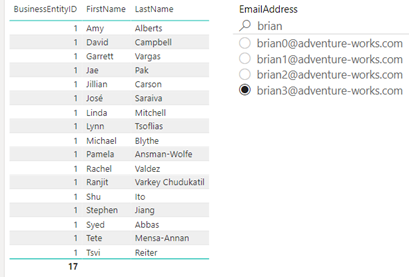
The extended support makes it possible to execute SQL queries or stored procedures by passing parameters based on the user selection. I attach a sample pbix file that demonstrates this scenario. It calls a stored procedure uspGetManagerEmployeesTL in the AdventureWorks2021 database. The stored procedure is a slightly enhanced version of the original uspGetManagerEmployees sp included with AdventureWorks because I wanted to experiment with different scenarios around data security. The idea is to execute the stored procedure after each EmailAddress slicer change to see the employees reporting to that manager.

The following needs to happen to get this feature to work:

  1. You must configure the stored procedure to execute in DirectQuery mode when setting up the connection (the Employee table that I use for the slicer could be imported).
  2. In the case of calling a parameterized stored procedure in DirectQuery, you must wrap the call with OPENQUERY (OPENROWSET won’t work for Azure SQL Database) to avoid Power BI choking when running the report (<storedprocedure parameter> only actually works in Power Query but not when the report renders), as explained in more detail in my blog “Power BI DirectQuery with Parameterized Stored Procedure“.
  3. You must create a query parameter (Login parameter in my case).
  4. In the Model view, you must map the filtered field (in this case EmailAddress in the Employee table) to the Login parameter in the Advanced Properties.
  5. In Power Query, modify the stored procedure call to use the Login parameter.
 Source = Sql.Database("xps", "AdventureWorks2012", [Query="SELECT * FROM #(lf)OPENROWSET('SQLNCLI','trusted_connection=yes', 'exec AdventureWorks2012..uspGetManagerEmployeesTL ''" & Login & "''')", CreateNavigationProperties=false])

How about passing dynamically user context or DAX measure output?

If you read the original blog, I was after passing the user identity obtained from USERPRINCIPALNAME() as a parameter to the stored procedure to support the scenario where the client already has a database security in place. Unfortunately, we still can’t meet this scenario because of the other limitations with dynamic query parameters listed in the documentation. Specifically:

  1. Currently, there no way to pass results of DAX measures to Power Query. You might get innovative and try filtering the slicer using a DAX measure, such as the one below but it won’t work because it uses an “advanced” filter.
    EmployeeFilter = IF(SELECTEDVALUE(Employee[EmailAddress]) = USERPRINCIPALNAME(),1)
  2. The filtered field must be the only field in the context. For example, you can’t use cross-highlighting from another visual that lists another employee’s attribute, such as FullName, even if that maps 1:1 to the filtered field. The classic example where this could be useful would be to show the user-friendly name in a slicer but to pass the system key to the database. Sorry, we’re not that advanced yet although SSRS could do this 20 years ago…

In summary, you can now execute parameterized dynamic SQL statements or stored procedure against traditional relational data sources in DirectQuery by allowing the user to select the parameter value mapped to a dynamic query parameter. However, existing limitations prevent more flexible integration scenarios, such as passing DAX measures to the data source. Unfortunately, Power Query and the model continue to act as two tenants in common that don’t care much about each other’s whereabouts.

Atlanta MS BI and Power BI Group Meeting on February 7th

Please join us online for the next Atlanta MS BI and Power BI Group meeting on Monday, February 7th, at 6:30 PM ET.  Your humble correspondent will show you different techniques to implement scorecards with Power BI. For more details and sign up, visit our group page. Download the presentation assets here.

Presentation: Implementing Scorecards
Date: February 7th
Time: 6:30 – 8:30 PM ET
Place: Click here to join the meeting
Overview: Join this session to learn how to create scorecards measuring strategic objectives with Power BI. We’ll start by introducing you to balanced scorecards and KPIs. Then, I’ll compare different ways to assemble scorecards, including:

·       Conditional formatting

·       Analysis Services KPI

·       Power BI Goals

Demos will make it all clear. As a bonus, you’ll learn some black-belt modeling techniques, such as using Tabular Editor where Power BI Desktop falls short.

Speaker: Teo Lachev is a consultant, author, and mentor, with a focus on Microsoft BI. Through his Atlanta-based company Prologika (a Microsoft Gold Partner in Data Analytics and Data Platform) he designs and implements innovative solutions that bring tremendous value to his clients. Teo has authored and co-authored several books, and he has been leading the Atlanta Microsoft Business Intelligence group since he founded it in 2010. Microsoft has recognized Teo’s contributions to the community by awarding him the prestigious Microsoft Most Valuable Professional (MVP) Data Platform status for 15 years. In 2021, Microsoft selected Teo as one of only 30 FastTrack Solution Architects for Power BI worldwide. https://prologika.com
Prototypes without Pizza Power BI Latest

PowerBILogo

DirectQuery Performance Progression

So much data, so little budget! Caching data in Power BI gives you the best report performance, but budget constraints usually put downward pressure to stay within lower Power BI Premium premium plans. So, what to do?

  1. Split large models. Remember that Power BI Premium Gen2 grants each dataset a 25 GB memory quota. I’m actually a big proponent for consolidated organizational semantic models, but this is where best practices meet reality.
  2. Switch large tables to DirectQuery. When report performance sucks, follow this performance optimization progression:
    1. Add a columnstore index to the fact table – As VertiPaq, a columnstore index organizes data in columns so aggregate queries should see an immediate performance boost. Detail-level queries, e.g. sales by customer, not so much as they probably won’t hit the index.
    2. Try hybrid tables when you can get away with a compromise where the latest data can be cached, but archive data left in DirectQuery.
    3. Try aggregation tables (first automatic, then manual) when you need to speed up aggregate queries at a higher-level grain, such as dashboard queries but leave lower-level queries pass through.
    4. Pray for mercy to come! Or take the stakeholder out for lunch and insist that the time for some compromise has come…

Atlanta MS BI and Power BI Group Meeting on January 3rd

Please join us online for the next Atlanta MS BI and Power BI Group meeting on Monday, January 3rd, at 6:30 PM ET.  Paul Turley will show us how to integrate Power BI with paginated (SSRS) reports. And your humble correspondent will update you on the Power BI latest.  For more details and sign up, visit our group page.

Presentation: Power BI Paginated Reports: The New Old Operational Reporting Platform
Date: January 3rd
Time: 6:30 – 8:30 PM ET
Place: Click here to join the meeting
Overview: Power BI Paginated Reports (aka SQL Server Reporting Services) was old but now it’s new again. Available on-premises or in the Power BI service with flexible licensing, you have multiple options to implement operational reports. This session will briefly cover the differences between analytic and operational reports; and help you understand the advantages and trade-offs using Power BI Paginated Reports, Power BI Report Server and SQL Server Reporting Services. Material from our forthcoming book: Paginated Report Recipes.
Speaker: Paul is a Principal Consultant for 3Cloud Solutions (formerly Pragmatic Works), a Mentor and Microsoft Data Platform MVP. He consults, writes, speaks, teaches & blogs about business intelligence and reporting solutions. He works with companies around the world to model data, visualize and deliver critical information to make informed business decisions; using the Microsoft data platform and business analytics tools. He is a Director of the Oregon Data Community PASS chapter & user group, the author and lead author of Professional SQL Server 2016 Reporting Services and 14 other titles from Wrox & Microsoft Press.  Paul is a 2021 FastTrack Recognized Solution Architect and holds several certifications including MCSE for the Data Platform and BI.
Prototypes without Pizza Power BI Latest

PowerBILogo

Prologika Newsletter Winter 2021

Happy Holidays! More and more organizations consider data virtualization to abstract the underlying storage and integrate siloed sources. In this letter, I’ll discuss a real-life project that used PolyBase to expose third-party ERP data as SQL tables. Before I get to the subject of this newsletter, I’m excited to announce the seventh edition of my “Applied Microsoft Power BI” book. It should be available on Amazon in the first days of 2022. As far as I know, it’s the only book that is updated annually to keep it up to the date with the fast-changing Power BI. Stay tuned for a future blog with more details about the book.


Business Case

Think of data virtualization is a logical data layer that integrates enterprise data across various on-premises and cloud sources. A large, multinational chemical manufacturer decided to migrate their on-premises ERP system to the cloud. As usually happens, the tradeoff for embracing the cloud is losing access to your data in its native storage. Previously, the client could readily integrate the ERP data stored in a SQL Server database. But the ERP vendor didn’t support this option in their cloud offering. The usual explanation cites security and performance issues, although none of them really hold water. The ERP vendor could have supported a premium tier where data is exposed privately without affecting other customers, and report queries could have been redirected to a secondary replica. This is no different that securing and scaling an Azure SQL Database. Alas, as more and more companies find when embracing the cloud, the integration burden gets heavier and is on them and not on the vendor.

To make things even more difficult, the vendor had a replication mechanism to export the data to AWS S3 data lake. Realizing that most clients would struggle calling their REST APIs, the vendor provided an JDBC driver that abstracted the APIs. Great, except that the client wanted to access the data on Microsoft Azure, but no Microsoft tool supports JDBC drivers because no Microsoft BI tool is written in Java.

Integration Options

One integration option could have been to use a JDBC-capable ETL tool, such as Pentaho. But that would have required implementing integration pipelines to pull the data periodically and stage it on Azure. This presented two issues. First, the data integration effort became more difficult as someone had to own and troubleshoot ETL failures. Second, Business wanted as much real-time access to data as possible. In the past, the business users had implemented self-service Power BI models that they would refresh as needed to cache the data from the on-premises database. However, since the ERP vendor required at least 20 minutes for data changes to be applied to the S3 data lake and ETL needed additional time (even with incremental extraction), the data latency became an issue.

The second option was to somehow virtualize the data. Had the vendor supported exporting the data as files on Azure, Synapse Serverless could have been used to expose the data as virtual tables that can be queried with SQL and loaded in Power BI Desktop. But Serverless doesn’t support AWS S3 and even if it did, the vendor didn’t allow direct access to the staged data (REST APIs and JDBC driver were the only supported options).

PolyBase to the Rescue

The solution I proposed was to use PolyBase which is included in SQL Server and Azure SQL Managed Instance. Ideally, the client wanted a full PaaS solution but only PolyBase in SQL Server supports ODBC. So, we had to use an IaaS VM just to virtualize the data. This diagram shows the solution architecture.

An Azure VM was provisioned with SQL Server 2019 Standard Edition. The JDBC driver was installed on the VM and configured to access the ERP data. We used a third-party JDBC-to-ODBC bridge driver to map the JDBC data source as an ODBC data source. Then, PolyBase external tables were set up to virtualize the ERP data as SQL Server tables.

The main drawback of this solution was that no matter how small the source table was, PolyBase would add about 30 seconds in internal processing. Specifically, the PolyBase runtime log has a detailed trail that shows that it takes some time for PolyBase to “warm up” before it gets to the query, and then it needs even more time to process the results. That’s because, as a distributed system (like Synapse), a head node coordinates the query execution with data nodes even if everything is installed on a single VM. More gotchas specific to the fact that the vendor has decided to use Oracle as their relational database can be found at https://prologika.com/polybase-adventures/.

Conclusion

Microsoft has made bold strides in data virtualization. I’m really impressed by Synapse Serverless, which I used for other projects, such as for the project described in this case study. I wish Microsoft extends Serverless to support more storage options. If Synapse Serverless is not an option, your next best bet would be PolyBase. Although PolyBase is supported in SQL MI and Synapse, only the SQL Server box SKU supports ODBC data sources, requiring an IaaS layer to virtualize the data.

Benefits

The solution delivered the following benefits to the client:

  • No ETL effort – Data was left at the original source.
  • Data virtualization – Polybase was used to create external tables that can be queried just like SQL Server regular tables.
  • Reduced data latency – Data changes were available as soon as they are replicated to the data lake.
  • Scalability – PolyBase can be scaled out to other servers if needed.


Teo Lachev
Prologika, LLC | Making Sense of Data
Microsoft Partner | Gold Data Analytics

logo