Power BI aggregations are meant to speed up queries to large DirectQuery tables, as a DBA would create summarized tables to speed up queries to large tables. The most appealing aspect of telling Power BI about these aggregations is that Power BI will automatically redirect the query to the aggregation cache if it determines that its dimensionality matches the dimensionality of the aggregated table, as explained in the documentation. However, there are a couple of limitations worth emphasizing that will prevent this from happening:
Power BI requires regular relationships with 1:M cardinality and uni-directional filter between the dimension table and aggregation table. Many-to-many cardinality (aka “limited” relationships in the documentation) won’t work. For example, you might have a Customer table related with 1:M to a CustomerFilter table. Queries involving the CustomerFilter table won’t hit the aggregation cache.
Dynamic relationship won’t hit the cache either. For example, as a workaround for the first limitation, you might attempt creating measures, such as Measure1 = CALCULATE([SomeMeasure], TREATAS(VALUES(CustomerFilter[Selection], Customer[CustomerName])), but this won’t work either.
Aggregation hits require active relationships or mappings based on replicated dimension values.
These limitations were showstoppers for using Power BI aggregations in a recent project. Instead, we rolled up a custom aggregation approach along the following lines:
We introduced an aggregation table just like with Power BI aggs and joined to the related dimensions.
We created two sets of measures:
On top of the aggregation table, e.g. Sales (Agg) = SUM(FactSalesAgg[SalesAmount])
On top of the DQ table, e.g. Sales (DQ) = SUM(FactSales[SalesAmount])
For reporting, when it was clear which report pages, such as dashboards, would hit only the aggregation table, we used the (Agg) measures. Detail pages, such as drill-through pages, use the DQ measures. To simplify the measure choice for end users interesting in their own reporting, you can introduce measure wrappers, such as:
Sales = IF(ISCROSSFILTERED(FactSales[PrimaryKey or other low granularity column]), [Sales (DQ)], [Sales (Agg)])
https://prologika.com/wp-content/uploads/2016/01/logo.png00Prologika - Teo Lachevhttps://prologika.com/wp-content/uploads/2016/01/logo.pngPrologika - Teo Lachev2021-06-09 13:25:572021-06-09 13:28:29Power BI Aggregations: Limitations and Workarounds
A vital BI practice for every organization, performance management ensures that important metrics, such as Key Performance Indicators (KPIs), meet established goals. The typical artifact to do so is implementing a scorecard: a report that compares the current state with the desired state of these metrics. You might have also heard the term “balanced scorecard” which is an organization-wide scorecard that tracks several subject areas, such as Finance, Customer, and Operations. In the past you have probably used different tools, such as the now deprecated PerformancePoint (included in SharePoint Server) to implement scorecards.
Realizing the importance of scorecards, Power BI introduced Goals that aim to simplify the process of implementing departmental and organizational scorecards. For more information on how Goals works, watch the “Goals in Power BI” presentation from the Microsoft Business Application Summit.
The Good
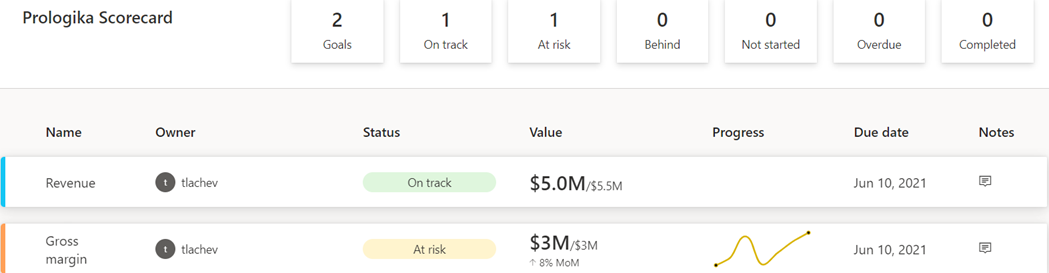
As with anything Power BI, Microsoft has democratized scorecards so business users with no reporting experience can quickly assemble them from existing reports. Think of a goal as a line (or KPIs) in the scorecard. Here is scorecard with two goals:
Currently, Power BI supports two goal types:
Static – The goal creator manually enters and track the goal properties, such as current value, target value, and status. This could be useful for quick and dirty KPIs that are not backed by a data source, such as launching a new promotion campaign. In the scorecard above, I created the Revenue goal by entering 5M as the current value and 5.5M as the goal.
Data-driven – The goal current value and/or target value can be data-driven and bound to metrics from existing report(s). Coming from Analysis Services, I was initially surprised that Power BI doesn’t require implementing KPI measures, but I get it: Microsoft decided to source the metrics from reports so business users can easily apply filters. If the goal owner chooses a metric from a visual that has a Date field, such as a time series chart, Power BI automatically shows a sparkline for the goal progress over time. An, of course, when the report dataset is refreshed, the goal values are updated.
So, no modeling or Power BI Desktop required assuming that someone else, such as a data analyst, has delivered functional and vetted reports with the metrics. Even better, the goal current and target values can come from different reports (even a report in a different workspace if you have permissions), e.g. a report with actuals and another report with targets. So, there is plenty of flexibility here. To mimic a balanced scorecard that spans multiple subject areas, the owner can create subgoals. For example, the main goal could be Finance with subgoals Revenue, Margin, etc.
Because like dashboards, goals are “pinned” from reports, the end user can navigate to the underlying report to examine the data in more detail. Users can also add notes to explain the goal behavior to the teammates.
A scorecard is a first-class Power BI citizen, and as such, it can be secured, endorsed, secured with sensitivity labels, annotated, and shared, such as sharing the scorecard to a Microsoft Teams channel. The scorecard data is saved in a Power BI dataset that users can connect to build custom reports. Moreover, Power BI automatically adds daily snapshots to the dataset allowing users to build up a history of the goals. For example, if the underlying report is refreshed daily, the updated goal values will be appended to the dataset. Developers can use the Power BI REST APIs to implement programmatic scorecard management solutions.
The Bad
Besides navigating to the underlying report, a goal is a one-liner in the scorecard. I can’t define a goal that shows me a metric sliced by dimension members, such as business unit. Further, subgoals are not currently aggregable, such as to sum or average values when rolling up to the main goal. Like limitations with dashboards, there is no way to apply a global filter to the scorecard, e.g. to filter all goals for the prior month.
Besides current and target values, no other goal properties can be data driven. For example, unlike Analysis Services KPIs, the goal status can’t be currently bound to a DAX measure. Changing the status requires proactive manual “check ins” although Microsoft mentions a forthcoming feature that will let users define rules to change the status, like how you can define rules for dashboard tile alerts. Speaking of data-driven properties, I don’t understand why you must use a date field to get the progress as opposed to any other field, such as Month, in your Date table.
The Ugly
Another premium teaser… If we really want to democratize features, shouldn’t we make them available in Pro?
Goals are a Power BI premium feature aimed at making it easier to create scorecards and monitoring metrics from existing reports. They promote a “bottom-up” culture, where business users can create departmental scorecards without reliance on IT. Microsoft plans more features by the end of the year to make Goals more appealing, such as integration with Power Automate to trigger actions, rolling up subgoals, changing the goal tracking cycle (DoD, MoM, YoY), custom goal formatting, Power BI Mobile experience optimized for phones, providing a scorecard visual, and cascaded goals (hierarchy of goals).
If you find Power BI Goals somewhat inflexible or you don’t have budget to upgrade to Premium, you don’t have to use the Goals feature to implement scorecards. You can define KPIs and create dashboard-looking reports where you have complete control over the dataset, filters, and scorecard presentation although this approach would require more advanced Power BI skills.
https://prologika.com/wp-content/uploads/2016/01/logo.png00Prologika - Teo Lachevhttps://prologika.com/wp-content/uploads/2016/01/logo.pngPrologika - Teo Lachev2021-05-12 15:36:122021-05-12 15:36:12A First Look at Power BI Goals
Power BI has made tremendous strides in features solidifying its position as a BI leader and increasing the feature distance over the competition (see latest Gartner report here). And rightfully so, considering that it’s much more than a visualization tool. However, you might find its advanced presentation capabilities still lagging. During a current BI assessment for a large mortgage company, the executive sponsor who have used before Tableau and Qlik told me that “some features that could be done in Qlik or Tableau in 10 minutes could take days with Power BI”. So much about “five seconds to sign up, five minutes to wow!” It’s hard to vow an audience that has seen better …
Here are the top 5 Power BI UX gaps to watch for especially if you’re migrating to Power BI from these two tools:
No dynamic binding – A long time ago, Microsoft promised that most of the Power BI properties would be expression-driven. Only title captions and conditional formatting currently support expressions. However, it’s not uncommon for dashboards to let the user specify what dimension and measures that want to see in a visual. Dynamics measures are not so difficult to implement with calculation groups (require Tabular Editor as today Power BI Desktop doesn’t have UI for calculation groups). Dynamic dimensions are much more difficult to implement. This gap could be solved elegantly if one day Power BI decides to support expressions for fields used in a visual.
No visual container support – It’s also not uncommon to organize visuals in a tabbed interface to save space. The current kludge is to use bookmarks to show or hide UI elements leading to such as a mess that no one can figure out and that should make Microsoft ashamed. So, a container interface to implement a visual that can host other visuals would allow the community to come up with creative gadgets that should make this easier.
No repeater visual – Want to embed a graph or sparkline that’s repeated for each row in a table? Can’t do today unless you use DAX measure that render HTML or SVG (both approaches require advanced DAX or UI skills). Microsoft should extend the Table and Matrix visuals (BTW, why do we have two visuals?) to allow nesting and repeating other visuals, like SSRS Tablix.
No asymmetric crosstab layouts – Currently, Matrix supports only symmetric layouts where the measure is repeated for each column forcing developers to use black belt techniques, such as the one I describe in my “Implementing Asymmetric Reports in Power BI“. Microsoft should enhance Matrix to support flexible layouts, like the SSRS Tablix control.
No Default members – Almost every dashboard requires defaulting the time period to a current period and automatically preselecting it when the period changes, such as when a new month starts. And of course, the user should be able to switch easily to a past period. A long-term Tabular limitation is that it doesn’t support default members. This limitation and the lack of dynamic binding forces developers to come up with workarounds, the most common being replacing the caption of the current period, e.g. “Current Month”, with the caveat that the user can’t see what the current period is. Tabular default members or expression-based slicer and filter default could help.
As you’ve seen, the prevailing theme of this rant is that I’d like Power BI to add more SSRS-like features, so we don’t look for the exit sign when management asks for more advanced and visually appealing reports.
https://prologika.com/wp-content/uploads/2016/01/logo.png00Prologika - Teo Lachevhttps://prologika.com/wp-content/uploads/2016/01/logo.pngPrologika - Teo Lachev2021-04-11 19:07:472021-04-11 19:10:15Top 5 Power BI UX Gaps
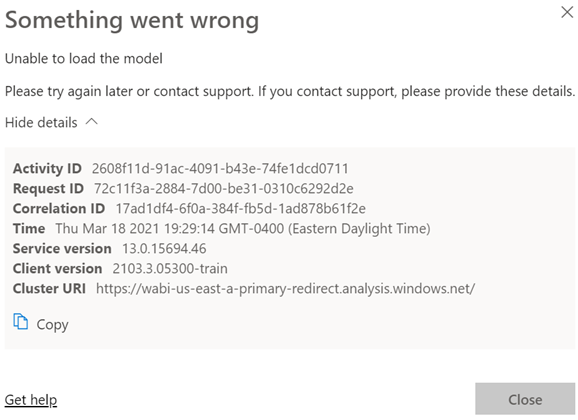
Scenario: You deploy a model to a Power BI workspace. You assign users to Members and Viewers roles. Everyone is happy. You later added a row-level security role and republish the model. Admins, Contributors and Members continue to view reports connected to the dataset as usual. However, Viewers report an error like the one shown below (didn’t Microsoft do an outstanding job explaining what went wrong with all of these guids?):
Analysis: Users with Administrator, Member, and Contributor permissions bypass any row-level security policies even if they assigned as role members. However, viewers are refused access unless they are added to a role that grants them the appropriate permissions. So, the likely culprit here is that there are some viewers that are not assigned to a role.
If viewers should have unrestricted access to an RLS-enabled dataset, create an Open Access role and add them to the role. As a best practice, you should create a security group and grant the group membership to the workspace and RLS.
https://prologika.com/wp-content/uploads/2016/01/logo.png00Prologika - Teo Lachevhttps://prologika.com/wp-content/uploads/2016/01/logo.pngPrologika - Teo Lachev2021-03-18 21:01:042021-05-20 17:16:46When Something Goes Wrong (Unable to Load the Model)
Amidst the COVID pandemic, the Houston Health Department (HHD) had another predicament to tackle. With lab results accumulating rapidly at one million cases per month, the vendor system they used for capturing and analyzing COVID data couldn’t keep up. In this newsletter, you’ll learn how Prologika implemented a BI solution powered by SQL Server and Power BI to solve technology challenges, and deliver fast and reliable insights.
Business Challenges
The vendor SQL Server database had large tables with normalized name-value pairs for each question and answer received from the patient, and for each investigation result. To facilitate reporting, the vendor system had scheduled ETL processes to extract data from the OLTP tables into denormalized tables. However, locking conflicts and large data volumes would crash the system and fail the ETL processes.
As a result, business analysts were not able to get timely data for reporting. HHD and the vendor tried to isolate the reporting loads by replicating the data to a reporting database but the issue with populating the denormalized tables remained
Solution
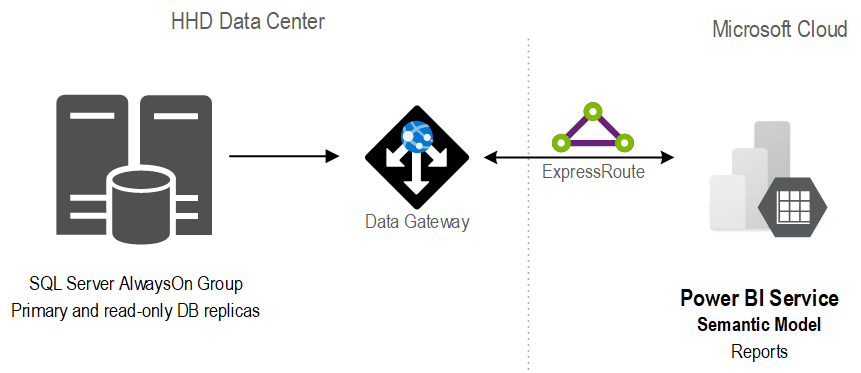
A good solution starts with a solid foundation. After assessing the current state and objectives, Prologika recommended and implemented the following architecture:
The stand-alone SQL database was replaced with an AlwaysOn availability group. Not only did this provide high availability, but it also isolated operational from reporting workloads.
In the client’s own words “we have compared the cluster server to the report server and cluster is vastly superior with regard to performance for regular queries. One simple run was 4x faster on cluster than the current report server. A much more complex run took four minutes on cluster and I stopped the same run on the report server after 87 minutes.”
Previously, data analysts would produce reports using different tools, ranging from SQL, Python, to Power BI reports. With scarce resources, HHD found it difficult to continue that path. Instead, Prologika implemented a semantic model that was hosted in Power BI.
Benefits
The new architecture and semantic model delivered the following benefits to HHD:
A single version of truth – Strategic data and business calculations were centralized on one place.
Fast insights – The Power BI reports crunching millions of rows were instantaneous.
Isolation – Report loads were isolated from the operational loads because the data was cached in the semantic model.
Standardization and centralization – Power BI became the reporting platform for delivering insights across the organization.
Teo Lachev
Prologika, LLC | Making Sense of Data
Microsoft Partner | Gold Data Analytics
Amidst the pandemic, the Houston Health Department (HHD) had another predicament to tackle. With lab results accumulating rapidly at one million cases per month, the vendor system they used for capturing and analyzing COVID data couldn’t keep up. The SQL Server database had large tables with normalized name-value pairs for each question and answer received from the patient, and for each investigation result. Read our case study to learn how Prologika implemented a BI solution powered by SQL Server and Power BI to help HHD gain reliable and timely insights from COVID lab results.
https://prologika.com/wp-content/uploads/2016/01/logo.png00Prologika - Teo Lachevhttps://prologika.com/wp-content/uploads/2016/01/logo.pngPrologika - Teo Lachev2021-02-26 14:19:222021-02-26 14:26:19State Health Department Gains Reliable and Rapid COVID Insights
Please join us online for the next Atlanta MS BI and Power BI Group meeting on Monday, March 1st, at 6:30 PM. Your humble correspondent will discuss the business value of semantic models and implementation options for self-service BI and organizational BI. For more details, visit our group page.
A semantic model is a layer between the data source and end user. Data analysts create self-service semantic models with Power BI Desktop or Excel. BI developers implement organizational semantic models with SSDT, Tabular Editor, and PBI Desktop. Join this session to:
· Learn what is a semantic model and how to choose between the self-service and organizational paths.
· Understand the implementation options for self-service BI models and best modeling practices.
· Find how organizational semantic models can help you achieve the “Discipline at the core, Flexibility at the Edge” tenant
· Learn how to choose a hosting platform and tool for implementing organizational semantic models.
· Learn how data analysts can extend organizational semantic models.
Speaker:
Teo Lachev is a consultant, author, and mentor, with a focus on Microsoft BI. Through his Atlanta-based company Prologika (a Microsoft Gold Partner in Data Analytics and Data Platform) he designs and implements innovative solutions that bring tremendous value to his clients. Teo has authored and co-authored several books, and he has been leading the Atlanta Microsoft Business Intelligence group since he founded it in 2010. Teo is one of the few FastTrack Recognized Solution Architects by Microsoft for Power BI in the world. Microsoft has also acknowledged Teo’s expertise and contributions to the technical community by awarding him the Microsoft Most Valuable Professional (MVP) Data Platform status for 15 years.
Prototypes without pizza:
Power BI Latest
https://prologika.com/wp-content/uploads/2016/01/logo.png00Prologika - Teo Lachevhttps://prologika.com/wp-content/uploads/2016/01/logo.pngPrologika - Teo Lachev2021-02-21 19:49:192021-02-27 13:58:50Atlanta MS BI and Power BI Group Meeting on March 1st
Please join us online for the next Atlanta MS BI and Power BI Group meeting on Monday, February 1st, at 6:30 PM. Paul Turley (MVP) will show you how to use Power Query to shape and transform data. For more details, visit our group page.
Presentation:
Preparing, shaping & transforming Power BI source data
In a business intelligence solution, data must be shaped and transformed. Your source data is rarely, if ever, going to be in the right format for analytic reporting. It may need to be consolidated into related fact and dimension tables, summarized, grouped or just cleaned-up before tables can be imported into a data model for reporting.
· Where should I shape and transform data… At the source? In Power Query, or In the BI data model?
· Where and what is Power Query? Understand how to get the most from this amazing tool and how to use it most efficiently in your environment.
· Understand Query Folding and how this affects the way you prepare, connect and interact with your data sources – whether using files, unstructured storage, native SQL, views or stored procedures.
· Learn to use parameters to manage connections and make your solution portable. Tune and organize queries for efficiency and to make them maintainable.
Speaker:
Paul (Blog | LinkedIn | Twitter) is a Principal Consultant for 3Cloud Solutions (formerly Pragmatic Works), a Mentor and Microsoft Data Platform MVP. He consults, writes, speaks, teaches & blogs about business intelligence and reporting solutions. He works with companies around the world to model data, visualize and deliver critical information to make informed business decisions; using the Microsoft data platform and business analytics tools. He is a Director of the Oregon Data Community PASS chapter & user group, the author and lead author of Professional SQL Server 2016 Reporting Services and 14 other titles from Wrox & Microsoft Press. He holds several certifications including MCSE for the Data Platform and BI.
Prototypes without pizza:
Power BI Latest
https://prologika.com/wp-content/uploads/2016/01/logo.png00Prologika - Teo Lachevhttps://prologika.com/wp-content/uploads/2016/01/logo.pngPrologika - Teo Lachev2021-01-31 09:20:382021-01-31 09:34:36Atlanta MS BI and Power BI Group Meeting on February 1st
The moment you add a calculation group to your model, Power BI sets DiscourageImplicitMeasures = True on the model. Although this property can trick you to be believe that they are still supported, you can’t create implicit measures, such as by dragging a numeric field on the report to summarize that field. That’s because implicit measures are created as inline calculations which calculation groups don’t support.
Also, there is a current issue where when you add a column from a calculation group to a filter, “Require single selection” is set to on and it can’t be changed. Therefore, you won’t be able to filter multiple calculation items, such as to present t only MTD, QTD, and YTD from a list of many items in your calculation group. As a workaround, you add a calculated column that flags the desired values and filter on it. You can vote to expedite the fix here.
I’ve noticed severe performance degradation after refreshing a Power BI Desktop model with some five million rows. The Power BI Desktop process showed a sustained 50-60 % utilization for minutes in the Windows Task Manager. I did a profiler trace and I saw expensive DAX queries like these:
As it turned out, Power BI Desktop autogenerates these queries when building a Q&A index. The 100-size limit is because Power BI wants to keep the index small. In addition, values that are longer than 100 characters are unlikely to be asked by the user. Why not check thd the maximum column value and skip the column? Power BI wants to skip instances that are too long but still index the remaining instances of the column.
To avoid this performance degradation when modeling on the desktop you could disable the Q&A feature. This will also disable smart narratives because they depend on Q&A.
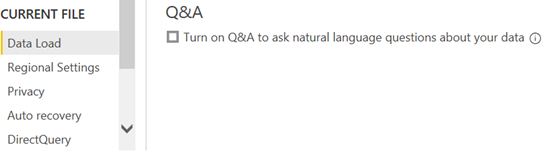
To do this, go to the File, Options and Settings, Options, and turn off the Q&A option.
If Power BI Desktop is connected to a remote model, such as a published Power BI dataset, you’ll see also an option to create a local index. This option was added because Power BI needs to ask user permission to query data from remote sources, build the data index, and store it on user’s machine. By default, it’s disabled until the user explicitly turns on Q&A. For import models, as the data is already on user’s machine, Power BI doesn’t need to ask the permission to query data anymore. That’s why the option to build a local index is not applicable to models with imported data.
Disabling the Q&A in Power BI Desktop affects the local file only. When you publish the model, you reenable Q&A from the data settings if you want end users to use Q&A features. For remote models, if you leave the first option, “Turn on Q&A to ask …”, on, but disable the second option, “Create a local index….”, and publish the model to the service, then Q&A will be enabled in the service by default. That is, you don’t have to go to dataset settings to enable Q&A for that model. For import models, you have to disable the first option, and then after publishing the model to the service, you have to go to dataset settings to enable Q&A there.