Posts

Atlanta MS BI and Power BI Group Meeting on September 10th

MS BI fans, join us for the next Atlanta MS BI and Power BI Group meeting on September 10, Tuesday, at 6:30 PM at the Microsoft office in Alpharetta. This is a meeting not to miss. A DAX founder, Jeffrey Wang (Principal Software Engineer Manager at the Power BI product group) is coming all the way from Seattle to share DAX best practices with our group! Captech Consulting will sponsor the event. For more details, visit our group page and don’t forget to RSVP (fill in the RSVP survey if you’re planning to attend).

Presentation: Common DAX Patterns
Date: September 10, 2019
Time 6:30 – 8:30 PM ET
Place: Microsoft Office (Alpharetta)

8000 Avalon Boulevard Suite 900

Alpharetta, GA 30009

Overview: We will learn common DAX patterns by examining several issues frequently reported by DAX users through PowerBI customer support tickets. Users will be able to:

1.      Learn from mistakes made by other DAX users so you can avoid them in your own work.

2.      Learn the common techniques to debug DAX problems.

3.      Learn the best DAX patterns to solve common problems.

4.      Gain deeper understanding of DAX by learning relevant history and underlying design of the programming language.

5.      Ask me their own DAX questions

Speaker: Currently working as Principal Software Engineer Manager at Microsoft, Jeffrey Wang stumbled upon BI after the Y2K bubble burst, fell in love with the field, and stayed in the industry ever since. After I joined Microsoft Analysis Services engine team in 2004, I quickly discovered that working on the programming language is the best way to stay close to the end users, so I joined the MDX formula engine team. After shipping a couple of releases of SQL Server Analysis Services, I joined the committee that created DAX. Today I lead the development effort of the DAX engine and the modeling engine inside the Power BI product group.

DCI_PowerBI

Implementing Asymmetric Crosstab in Power BI

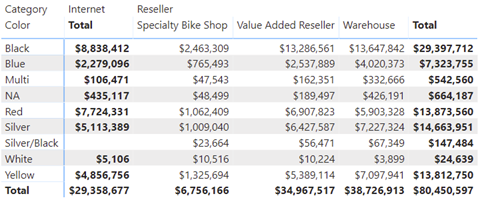
A recent requirement called for an asymmetric crosstab report in Power BI. Transitioned to Adventure Works, the final report looks like this.

The Internet column shows the sales amount from FactInternetSales. Then, the matrix pivots on the BusinessType column in the FactResellerSales. Because, Internet sales don’t relate to BusinessType, it doesn’t make sense to pivot it. Instead, we want to show Internet sales in a single static column before the crosstab portion starts.

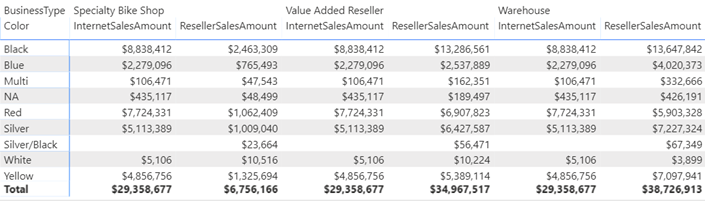
Implementing such a report in SSRS is easy thanks to its support of adjacent groups and static columns but not so much in Power BI. The issue is that Matrix would happily pivot both measures and the InternetSalesAmount would be repeated for each business type.

Fortunately, with some blackbelt modeling and DAX, we can achieve the desired effect. I attached the pbix file and here are the high-level implementation steps:

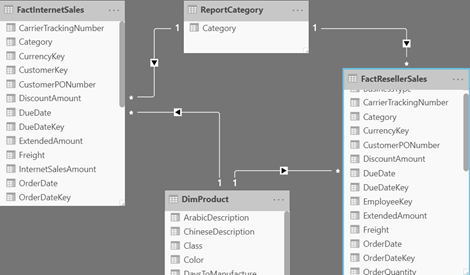
  1. Add a ReportCategory table (you can use the Enter Data feature), with a single column Category and two values: Internet and Reseller. Add a Category calculated column to FactInternetSales with a value of “Internet”. Add a Category calculated column to FactResellerSales with a value of “Reseller”. Create relationships FactInternetSales[Category]->ReportCategory and FactResellerSales[Category]->ReportCategory. These relationships are required because Matrix doesn’t support unrelated tables. Your model schema should look like this:

  2. Create a SalesAmount measure with the following formula:
     SalesAmount = IF(SELECTEDVALUE('ReportCategory'[Category]) = "Internet" && NOT ISINSCOPE('FactResellerSales'[BusinessType]),
     SUM(FactInternetSales[InternetSalesAmount]),
     SUM(FactResellerSales[ResellerSalesAmount]))

    The IF condition checks if the measure is under the Internet category. NOT ISINSCOPE(‘FactResellerSales'[BusinessType]) will return TRUE only for the total column in the Internet section. Otherwise, it will return the reseller sales. Because there are no reseller sales in the Internet category, only Internet sales will be shown. Note that SELECTEDVALUE will return FALSE for empty cells which is why I had to create the ReportCategory table.

  3. Add Matrix viz and bind Product[Color] to rows, ReportCategory[Category] and ResellerSales[BusinessType] on columns, and SalesAmount in Values. Expand the columns to the next level (to show the BusinessType level).
  4. In the Matrix format properties, go Subtotals, enable the “Per column” setting, and turn off the Category subtotal to avoid showing the reseller sales total twice.

Although Power BI has made great progress on the visualization side of things, it still lacks in flexibility. The two features that miss the most from SSRS are nesting visuals (to create repeat sections) and the flexible Matrix layout. However, with some black belt modeling and DAX, workarounds are possible.

High Memory Usage and Calculated Columns

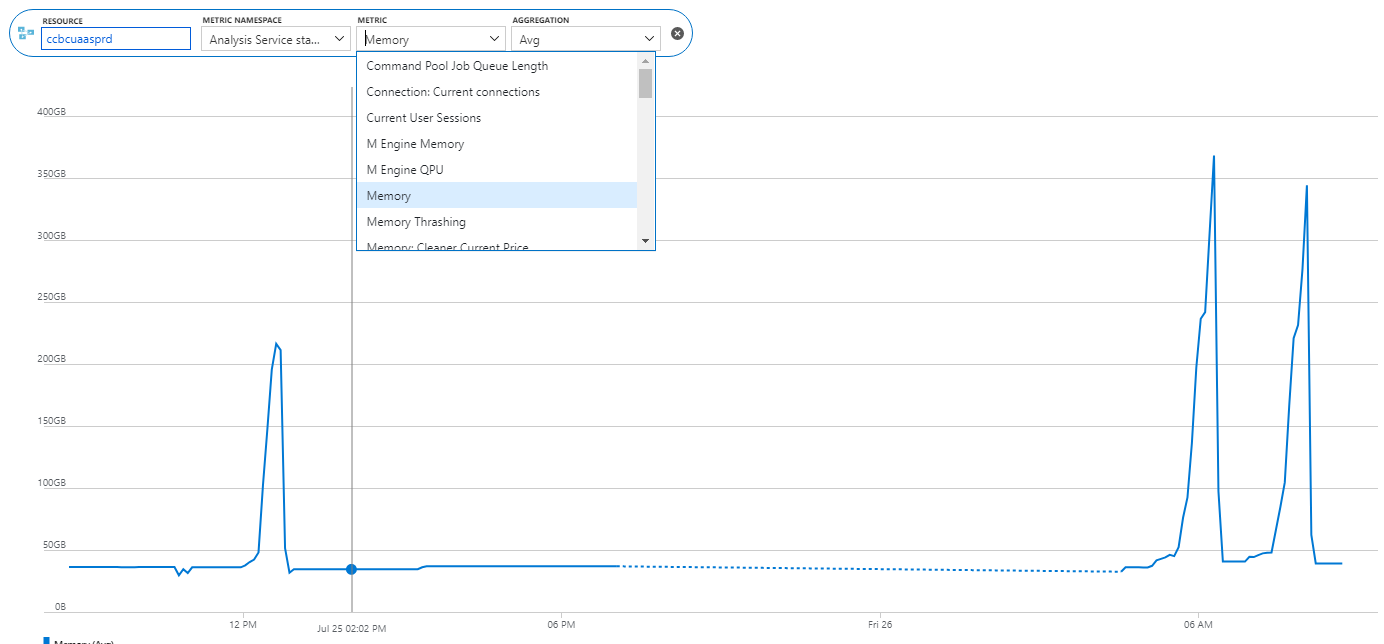
Scenario: A client reports a memory spike during processing. They have a Tabular semantic model deployed to Azure Analysis Services. They fully process the model daily. The model normally takes less than 50 GB RAM but during processing, it spikes five times and Azure Analysis Services terminates the processing task complaining that it “reached the maximum allowable memory in our pricing tier”. Normally, fully processing the model should take about twice the memory but five times?

high_memory_usageSolution: Upon expecting the model design, I discovered that the client has decided to add (many) calculated columns to the two fact tables in the model. Most of these columns are used to calculated variances to prior year. The formulas contain DATESYTD and other DAX date-related functions. After data is read, Tabular processes calculated columns, relationships and hierarchies. In this case, the spike was due to calculations involving large time ranges and ineffective DAX expressions. Converting these columns to measures resolved the issue.

As a best practice, abstain from using calculated columns (especially in fact tables). Make sure you understand the difference between measures and calculated columns (I cover this extensively in my latest book “Applied DAX with Power BI“). If you do need expression-based columns, such to materialize expensive calculations, consider defining them upstream, such as in SQL views or Power Query.

Gateway AD Lookups

A data gateway is required for a cloud service, such as Power BI, to access on-prem data, either for live connections or for refreshing imported data. The gateway picked up an interesting feature to look up Active Directory on one property and return the value of another, which proved extremely useful for one client of mine.

Scenario: An enterprise client has adopted a hybrid architecture I set up for them, where Power BI reports connect directly to an on-prem Analysis Services Tabular model. The issue is that besides the regular network login, every user has a cloud identity (the employee number) to access cloud data sources. Before the gateway enhancement, this required explicit per-user mappings in the gateway data source. Imagine you must do this for thousands of users. and you’ll understand the maintenance issue they faced rolling Power BI across the enterprise.

Solution: Instead of explicit mappings, all they need to do now is configure the following two settings in the Microsoft.PowerBI.DataMovement.Pipeline.GatewayCore.dll.config file:

<setting name=”ADUserNameReplacementProperty” serializeAs=”String”>

<value>UserPrincipalName</value>

</setting>

<setting name=”ADUserNameLookupProperty” serializeAs=”String”>

<value>employeeNumber</value>

</setting>

When a Power BI user opens a report connected live to the on-prem Analysis Services Tabular model, the gateway receives the request mapped to the email that the user logs in Power BI. Then, the gateway queries the Active Directory to look up the user principal name (login) based on the employeeNumber which is what the Power BI login is. This query should complete fairly quickly so no worries about report queries. Make sure you restart the gateway after the configuration change.

AD lookups could save you configuring per-user mappings for live connections to on-prem data sources. Adam Saxton has a Power BI User lookup with the gateway using Active Directory video on this topic that goes into more detail.

The Power BI Viewer Role

As I discussed in “Power BI Sharing is Getting Better” and “Power BI Sharing is Getting Better 2“, the Power BI sharing saga has been improving and Microsoft is closing gaps. As recently announced, Microsoft added an important Viewer role that grants view permissions to the workspace content.

The most important part in the announcement is:

“Viewer role requires a Pro license or for the content to be in Power BI Premium. If your workspace is in Premium, users with Viewer role who don’t have a Pro license can view the workspace in the workspaces list, navigate to the workspace, and view the content without getting a Pro Trial prompt.”

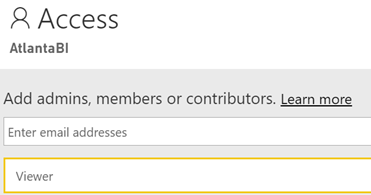
Therefore, the Viewer role lifts a significant limitation that forced you to use report/dashboard sharing or apps to share content out of a premium workspace with viewers. So, if you want to share the entire content of the workspace, now you don’t have to use apps. You can simply add users or groups as viewers to the workspace.

Speaking of apps and selective sharing, my joy will be complete once workspaces supports nesting (folders) with the ability to overwrite the securing permissions at a folder level so we can have SSRS-like folder-based security. This will allow you to organize content anyway you want (instead of resorting to a flatten list of workspaces) and grant selective permissions to different groups of users. Now I have a much better Power BI sharing story to tell!

Power BI Sharing is Getting Better 2

We had to wait four years but here they are: Power BI shared datasets are here. This makes it a good time to revisit the remaining Power BI sharing limitations, which I listed in my previous blog on the same subject.

  1. No nesting support – Workspaces can’t be nested, such as to have a global Sales workspace that breaks down to Sales North America, Sales Europe, etc. You can’t organize content hierarchically and there is no security inheritance. Consequently, you must resort to a flattened list of workspaces. Microsoft has hinted about subfolders, but no further details are provided about how they will work and ETA.
  2. UPDATE 6/27: The new Viewer role supports sharing with viewers. Sharing with “viewers” – You can’t just add Power BI Free users to share content in a premium workspace. This would have been too simple. Instead, you must share content out with either individual reports/dashboards or apps. A Viewer role has been in the works to address this, but no official release date yet.
  3. One-to-one relationship with apps – Since for some obscure reason that only Microsoft knows, broader sharing requires apps, an app needs to be created (yet another sharing layer) to share workspace content to a broader audience. But you can’t publish multiple apps from a workspace, such as to share some reports with one group of users and another set with a different group. Hopefully, the forthcoming Viewer role will remove this limitation and de-emphasize apps, which in my opinion add unnecessary complexity without bringing much business value.

It’s nice to share and it’s good to see that Power BI is making it simpler but more is needed to bring sharing to where it should be.

Atlanta MS BI and Power BI Group Meeting on June 3rd

MS BI fans, join us for the next Atlanta MS BI and Power BI Group meeting on June 3, Mondayat 6:30 PM at the Microsoft office in Alpharetta. I’ll show you how to bridge the analytical and developer worlds by integrating Power BI with PowerApps. Eric Flamm will demonstrate SQL Notebooks in Azure Data Studio. Prologika will sponsor the event. For more details, visit our group page and don’t forget to RSVP (fill in the RSVP survey if you’re planning to attend).

Presentation: Bridge Analytics and Developer Worlds with Power Platform
Date: June 3, 2017
Time 6:30 – 8:30 PM ET
Place: Microsoft Office (Alpharetta)

8000 Avalon Boulevard Suite 900

Alpharetta, GA 30009

Overview: One of the Power BI most prominent strengths is that it’s a part of the much broader Microsoft Power Platform and Data Platform that spans various on-premises and cloud offerings for data storage, processing, and analysis. Join this session to learn how to integrate Power BI with PowerApps and discover exciting new possibilities that redefine the meaning of a report and let you do more with less. During this entirely hands-on, almost no-slides session I’ll walk you through the steps to implement a popular report requirement for writeback, that Power BI doesn’t natively support.
Speaker: Through his Atlanta-based company Prologika (https://prologika.com), a Microsoft Gold Partner in Data Analytics, Teo Lachev helps organizations make sense of their most valuable asset: their data.  Teo has authored and co-authored several bestselling books on organizational and self-service data analytics (his latest is “Applied DAX with Power BI”), and he has been leading the Atlanta Microsoft BI and Power BI group since he founded it in 2010. Teo has been a Microsoft Most Valued Professional (MVP Data Platform) since 2004.
Sponsor: Prologika is one of the most trusted names in Data Analytics. Our clients, from small businesses to Fortune 100 enterprises, derive tremendous value from our services. Our mission is to help organizations make sense of data by applying the latest technologies for descriptive and predictive analytics and get actionable insights. Your organization will spend less time mining for information and be better equipped to make sound business decisions.
Prototypes with Pizza “SQL Notebooks in Azure Data Studio” by Eric Flamm

092417_1708_AtlantaMSBI1.png

“Applied DAX with Power BI” Book Available

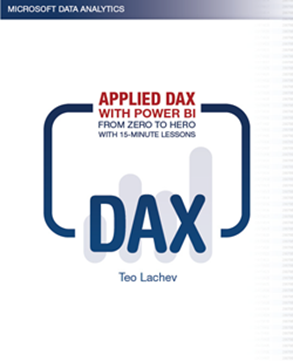
I’m excited to announce my latest book: “Applied DAX with Power BI: From zero to hero with 15-minute lessons“. This book was born out of necessity. In my consulting practice, I had been teaching and implementing Power BI and Analysis Services Tabular, and people were constantly asking for DAX book recommendations. Indeed, DAX is not an easy topic and has its ways to humble even experienced practitioners. There are a few good reference books out there, but they could be somewhat overwhelming for novice users. So, I turned my classroom and consulting experience into this book and designed it as a self-paced guide to help you learn DAX one lesson at a time.

This one was a different book to write. Unlike my other books, which tend to be heavy, this book is smaller (220 pages). Regardless, it took me a while to write it. The book also adopts a lesson-based approach,  so the reader can learn and practice a specific DAX concept quickly. There are usually three sections in each lesson: Practice (with step-by-step guidance), Outcome (a visual that shows the result), and Analysis (explaining why it works this way). Most lessons are five to six pages long, and it should take no more than 15 minutes to complete the lesson’s exercises (you can download and view a sample lesson from the book page).

And if you do one lesson per day, you’ll be a DAX expert in a month!

Currently, the book is available on Amazon (paperback and Kindle eBook) and it’s making its way to other outlets. As always, I’m awaiting feedback on the discussion forum at the bottom of the book page.

051119_2019_AppliedDAXw1.png

Atlanta MS BI and Power BI Group Meeting on May 6th

MS BI fans, join us for the next Atlanta MS BI and Power BI Group meeting on May 6, Mondayat 6:30 PM at the Microsoft office in Alpharetta. Patrick LeBlanc, a Principal Program Manager at Microsoft, will show us how to integrate Power BI and Flow for geospatial analytics. I’ll showcase Power BI Report Builder.  TEKSystems will sponsor the event. For more details, visit our group page and don’t forget to RSVP (use the RSVP survey on http://atlantabi.pass.org if you’re planning to attend).

Presentation:

Using the Power Platform to Enhance Spatial Granularity

Date:

May 6, 2019, Monday

Time

6:30 – 8:30 PM ET

Place:

Microsoft Office (Alpharetta)

8000 Avalon Boulevard Suite 900
Alpharetta, GA 30009

Overview:

Join this session to see how you can use the Power Platform to solve a real world customer problem. With a growing mobile workforce, many organizations are trying to figure out how to properly arm them with the correct tools. In this session we will explain and demonstrate how you can leverage the Power BI Mobile app and Microsoft Flow to build a solution that enables them to quickly identify locations near and far. We will demonstrate how the solution was built step-by-step, detailing how and why certain technologies and solutions were selected or not.

Speaker:

Patrick LeBlanc is a currently a Data Platform Solutions Architect. Along with his 15+ years’ experience in IT he holds a Master of Science degree from Louisiana State University. He is the author and co-author of five SQL Server books and one of the only two guys in the cube. Prior to joining Microsoft, he was awarded Microsoft MVP award for his contributions to the community. Patrick is a regular speaker at many SQL Server Conferences and Community events.

Sponsor:

People are at the heart of every successful business initiative. At TEKsystems, we understand people. Every year we deploy over 80,000 IT professionals at 6,000 client sites across North America, Europe and Asia. Our deep insights into IT human capital management enable us to help our clients achieve their business goals – while optimizing their IT workforce strategies. We provide IT staffing solutions, IT talent management expertise and IT services to help our clients plan, build and run their critical business initiatives!

Prototypes
with pizza

“Power BI Report Builder” with Teo Lachev

092417_1708_AtlantaMSBI1.png

Power BI XMLA Endpoint

If “XMLA” doesn’t ring a bell especially in the context of Power BI, it stands for Extensible Markup Language for Analysis. Still puzzled? It’s the protocol of Analysis Services (Multidimensional and Tabular). So, when an Excel or Power BI sends a query to a cube, it’s encoded according the XMLA specification (an XML-based format). And, the XMLA endpoint is the web service endpoint that Analysis Services listens for upcoming requests.

Now that I cleared the terminology, Microsoft announced the public preview of the XMLA endpoint in Power BI Premium. Since Power BI uses Analysis Services Tabular to scale and hosts the Power BI Desktop models you deploy, this means you can now access that Analysis Services backend instance which wasn’t accessible before. Or, at least read-only for now, meaning that you can only query it and not deploy organizational Tabular models to it.

What it’s in there for you? Here are some scenarios that this management feature enables:

  • Besides Excel, you can connect any client that support Analysis Services, such as Tableau, to your published Power BI datasets if you’re looking for ways to diversify reporting. Chris Finlan mentions this as one scenario worth considering for the near-and-dear to my heart Report Builder (aka Power BI Paginated Report Builder).
  • You can profile your Power BI published datasets by connecting the SQL Server Profiler.
  • You can stress test your Power BI datasets, such as to ensure that they support the expected workload.
  • And my favorite, I can script any Power BI model to see how all these hidden features, such as grouping and binning, are coded.

040719_0037_PowerBIXMLA2.png

Microsoft is probably finding it increasingly difficult to maintain multiple deployments for Analysis Services: SSAS, AAS, and Power BI. Once the Power XMLA endpoint is writable and Power BI dataset sizes increase, I expect them to nudge customers to deploy organizational Tabular models to Power BI Premium, to be on the latest and greatest on a single platform. I hope that it won’t require Power BI Premium too when it goes GA.