Posts

Dataflows: The Good, the Bad, the Ugly

This blog is an update of my previous blog “Common Data Service for Analytics: The Good, the Bad, the Ugly“. Things have changed in the past 6 months. The Common Data Service for Analytics is no more. It got superseded by Power BI dataflows, which Microsoft officially introduced at the PASS Summit last week.

Think of dataflows as “Power Query in the Cloud”. Dataflows is to self-service BI what ETL is to Power BI pros.

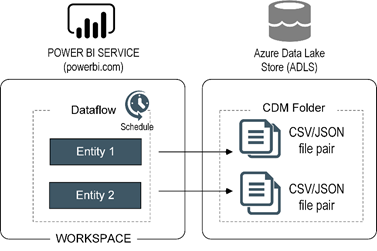
A dataflow is a collection of Power Query queries, also known as entities, and it lives in a Power BI organizational workspace. For example, if I want to stage data from Salesforce, I can create a dataflow with as many entities as Salesforce tables I want to stage. Unlike Power Query, which can only output to a table in a data model, a dataflow saves its output as a pair of a CSV file (data) and JSON file (metadata) in Azure Data Lake Store (ADLS).

111718_0237_DataflowsTh1.png

The Good

There is a lot to like about dataflows. I can think of two primary self-service scenarios that can benefit from dataflows:

  • Data staging – Many organizations implement operational data stores (ODS) and staging databases before the data is processed and loaded in a data warehouse. As a business user, you can use data-flows for a similar purpose. For example, one of our clients is a large insurance company that uses Microsoft Dynamics 365 for customer relationship management. Various data analysts create data models from the same CRM data, but they find that refreshing the CRM data is time consuming. Instead, they can create a dataflow to stage some CRM entities before importing them in Power BI Desktop. Even better, you could import the staged CRM data into a single dataset or in an organizational semantic model to multiple data copies and duplicating business logic.
  • Certified datasets – One way to improve data quality and promote better self-service BI is to prepare a set of certified common entities, such as Organization, Product, and Vendor. A data steward can be responsible for designing and managing these entities. Once in place, data analysts can import the certified entities in their data models.

There is a solid architecture, vision, and investments behind dataflows. You create dataflows using a tool that you’re already familiar with: Power Query. If you know Power Query, you know dataflows. Microsoft has provided the data lake storage and pricing is included in Power BI Pro/Power BI Premium. So, you have everything you need to get started with dataflows today. Ingesting the dataflow output is very fast too because you import CSV files.

The Bad

Let’s start with positioning. I’ve heard Microsoft position dataflows for any data integration task, from data staging to loading data warehouses and even replacing data warehouses and ETL (heard that vibe before?) I’ve seen business users doing impressive things with Power BI. But I’ve seen them also attempting to implement organizational solutions that collapse from their own weight. Dataflows are not an exception and I don’t think it’s a business user’s job to tackle ambitious data integration tasks.

You need Power BI Premium to realize the full potential of dataflows. For some obscure reason, features like linked and computed entities are not available in Power BI Pro. I wonder how many customers will feel pushed to go Power BI Premium as more and more features are only available there. I don’t mind scalability and performance related features but incremental refresh and linked entities?

The CSV output is both a blessing and a curse. True, ingestion is fast but text files are not a relational database. For example, the only option is to import the dataflow output in Power BI as DirectQuery is not available for text files.

The Ugly

You (almost) can’t access directly the output generated by dataflows. This precludes the continuum between self-service and organizational worlds. For example, IT might need to import a certified dataset into a data warehouse. But you can only connect to a dataflow in Power BI Desktop because the CSV files are not accessible. Power BI Premium will let you bring your own data lake storage in near future but a better option in my opinion was to provide access to the raw data in both Power BI Pro and Premium given that this is your data lake and your data.

Atlanta MS BI and Power BI Group Meeting on October 30

MS BI fans, join us for the next Atlanta MS BI and Power BI Group meeting on October 30th, Tuesday at 6:30 PM at the Microsoft office in Alpharetta. Neal Waterstreet will tackle the important and pervasive issue of bad data quality. ZAP BI will sponsor the event. And your humble correspondent will introduce you to Power BI Home and data profiling. For more details, visit our group page and don’t forget to RSVP (use the RSVP survey on the main page) if you’re planning to attend.

Presentation: Data Quality – Plain and Simple
Date: October 30, 2018, Tuesday
Time 6:30 – 8:30 PM ET
Place: Microsoft Office (Alpharetta)

8000 Avalon Boulevard Suite 900
Alpharetta, GA 30009


Overview: Data quality is a subject that comes up repeatedly in many organizations. Most executives are concerned about the quality of the information used in their decisions. We talk about “good data” and “bad data” but what do those terms mean? In this presentation, we will first define what data quality is and look at how to measure it with data quality dimensions. Then, we’ll explore common causes for data quality issues and how to perform a data quality assessment. Finally, we’ll review the results and discuss some strategies and tools that can help improve the quality of the data in your organization.
Speaker: Neal Waterstreet is a BI Architect/Consultant with Prologika (https://prologika.com) ad he has more than 20 years of industry experience. Neal is skilled in the entire BI spectrum, including dimensional modeling, ETL design and development using Integration Services (SSIS), designing and developing multidimensional cubes and Tabular models using Analysis Services (SSAS) and Master Data Management using Microsoft Data Services (MDS). He’s also involved with the database community with the Atlanta BI and Power BI User Group and the Atlanta Modern Excel User Group.
Sponsor: ZAP’s mission is clear: to connect your business with data. Game-changing insight that impacts business performance only happens when you analyze data by business process or team objective, as opposed to by file type or IT system. This is what ZAP enables. https://www.zapbi.com/
Prototypes with Pizza “Power BI Home and data profiling” by Teo Lachev


092417_1708_AtlantaMSBI1.png

Power BI Release Notes

Want to know what Power BI features are in the works and when they will be released? My “Power BI Features Report” showed you how to find what features were released over time so it’s retrospective. On the other hand, Business Applications Release Notes are forward looking. For example, the October release notes for BI go all the way to March 2019. The release notes are for all business apps (not just Power BI): Dynamics, BI, PowerApps, Flow, AI, and others. There is also a change log.

Power BI Data Profiling

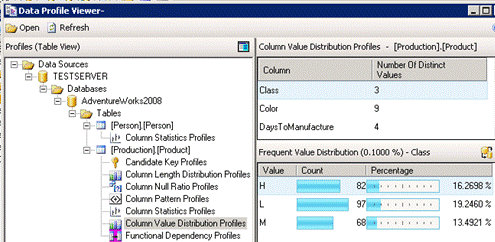
You know it and I know it. Data quality is a BIG problem that reduces the business value of BI. ETL practitioners will probably recall that SSIS includes a comprehensive Data Profiling Task but it is somewhat difficult to set up, especially if you wanted to profile multiple tables. It saves the results in an xml file and then you could use the Data Profile Viewer to visualize the results.

101618_0209_PowerBIData1.gif

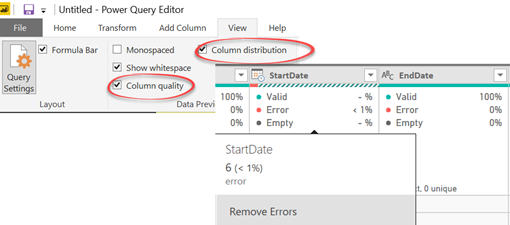
Can we do something like this in Power BI? Starting with Power BI Desktop (October 2018) release you can. Well, sort of. Once you enable the column profiling preview feature, open the query behind any table and enable these options in the View ribbon.

101618_0209_PowerBIData2.png

You’ll get basic statistics showing the percentages of Valid, Error, and Empty values out of the sample size (the first 1,000 values). Here are definitions of these categories:

  • Valid – Non-Error and Non-Empty values out of the sample size
  • Error – Values with errors
  • Empty – Empty values

Below you get a column chart (not shown in the screenshot) that shows the distribution of the sample size, but unfortunately it doesn’t show the actual values. That’s all data profiling you get for now. Here is what it will take to make Power BI data profiling a killer feature:

  1. Allow data profiling over all the values (understandably there will be performance impact).
  2. Add more aggregates, such as Min/Max/Std/Median.
  3. The ability to dynamically filter the preview data for the selected bar in the profile.

Power BI Features Report

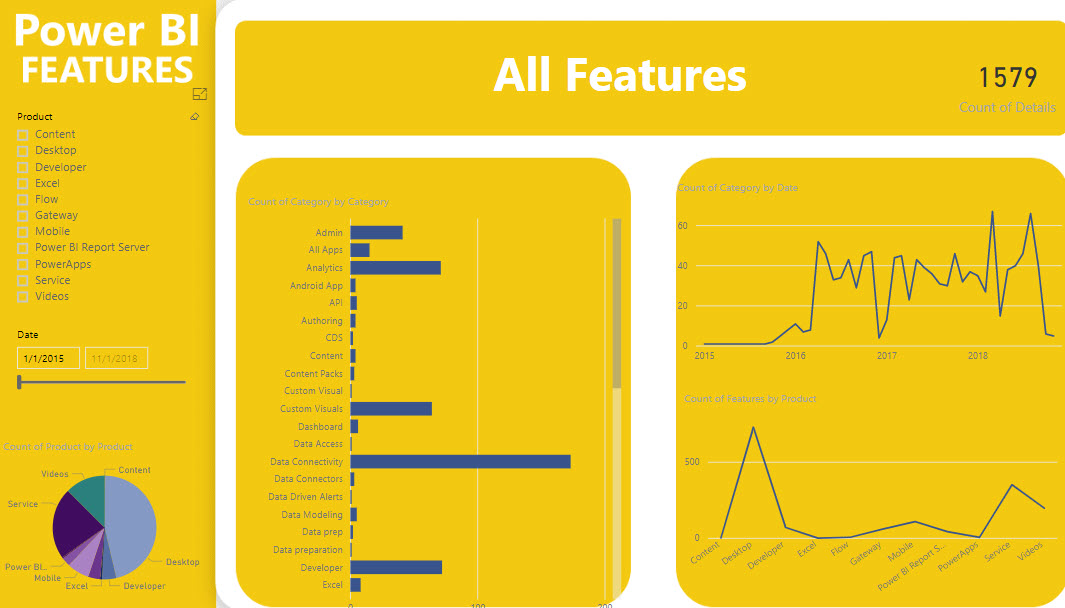
Want to know what Power BI features were released in a certain time period? Check out the Power BI Features report. After some delay, you should see the report embedded on the page but please be patient. If no patience, you can also download the pbix file from the same page. Then, use the slicer on the first page to filter your date range. In the “Count of Category” bar chart, right-click the category and then click See Records to see to the actual features. Once you drill through the category, there is a link next to each feature that redirects you to the corresponding blog to learn more.

pbifeatures

Prologika Newsletter Fall 2018

Semantics relates to discovering the meaning of the message behind the words. In the context of data and BI, semantics represents the user’s perspective of data: how the end user views the data to derive knowledge from it. A modeler translates the machine-friendly database structures and terminology into a user-friendly semantic model that describes the business problems to be solved. To address this need, you create a semantic model. In my “Why Semantic Layer?” newsletter I explained the advantages of an organizational semantic model. In this newsletter, I’ll discuss how Power BI extends semantic modeling and converges it on a single platform. But before I go into details and speaking of semantic models, I’m excited to announce the availability of my new “Applied DAX with Power BI” workshop and its first in-person and public enrollment class on Oct 15-16 in Atlanta! Space is limited so RSVP today.
Semantic Model Flavors

In Microsoft BI, you can implement a semantic model using Power BI Desktop, Excel (Power Pivot) and Analysis Services (Multidimensional and Tabular). The first two are typically used by data analysts, while Analysis Services is considered a professional technology. Thus, we can classify semantic models into two broad categories: personal (self-service) and organizational. Behind the scenes, Power BI Desktop, Power Pivot and Analysis Services Tabular use the same foundation and storage engine. Nevertheless, up to now there have been feature differences and a strict division between these two types.

Personal Organizational
Author Data analyst BI Pro
Tool Power BI Desktop, Excel (Power Pivot) SSDT and Analysis Services
Scope Narrow (usually to solve specific need) Wide (multiple subject areas)
Implementation effort Short Longer (data warehouse, ETL, model, testing)
Data capacity Limited (up to a few million rows) Larger (millions or billions of rows)
Data quality Trust author Trust modeler and testers
Data centralization May lead to data duplication Single version of truth
Deployment Power BI Service, Power BI Report Server SSAS (on premises)

Azure Analysis Services (cloud)

Consumers Department, project Potentially entire organization

How Power BI Changes Semantic Modeling

Power BI will blur the boundary between the personal and organizational aspects of semantic modeling. First, we’ve already seen how Microsoft introduced the following “pro” features in Power BI that don’t even exist or more difficult to implement with Analysis Services:

  • Incremental refresh – Delivers the ability to refresh portions of a larger dataset, such as the last 7 days. Currently, the largest dataset size supported by Power BI Premium is 10 GB, but Microsoft has already announced that soon Power BI will support larger datasets. What this means for you is that you’d be able to deploy organizational semantic models to Power BI Premium and schedule them for incremental refresh. My blog “Notes on Power BI Incremental Refresh” provides the details on this feature.
  • Composite semantic models – A composite model has heterogenous storage, such as some tables are imported and some are DirectQuery, as I discussed in my blog “Power BI Composite Models: The Good, The Bad, The Ugly“. This brings a lot of flexibility to how you connect to data.
  • Aggregations – Aggregations are predefined data summaries to speed up queries with very large models. My blog “A First Look at Power BI Aggregations” covers Power BI aggregations.

On the tooling side of things, Power BI Desktop will also pick “pro” features, such as perspectives and displays folders. Microsoft hopes that in time Power BI Desktop will serve the needs of both data analysts and BI pros. However, the lack of extensibility and source control, as well as performance issues caused by committing every model change to the background Analysis Services instance, makes me skeptical that pros will embrace Power BI Desktop. But because Microsoft announced plans to open the Power BI Tabular management endpoint (recall that published Power BI datasets are hosted in a “hidden” Tabular server), pros can still use SSDT and community tools, such as Tabular Editor, to design and deploy their models to Power BI Premium.

In time Power BI Premium will become a single cloud platform for hosting Microsoft BI artifacts (semantic models and reports) and facilitating the continuum from personal to organizational BI. This is a great news for BI practitioners frustrated by tooling and deployment differences. At the end, the personal and organizational paths will converge without feature discrepancies. The only difference would be the scope of your organizational model and how for you want it to become “organizational”.

Teo Lachev
Prologika, LLC | Making Sense of Data
Microsoft Partner | Gold Data Analytics

logo

Power BI Conversations

As Microsoft announced in the “Distribute insights across the organization with Microsoft Power BI” presentation (forward to the Nikhil Gaekwad part starting at the 32 min), they’ve been releasing the following set of features to improve the end user experience in Power BI Service:

  • Home (not yet available) – Personalized landing page
  • Personal bookmarks (not yet available) – End users can create their own bookmarks
  • Persistent filters (already available) – Remembers filters and slicers set by end users
  • Conversations (dashboards conversations are available) – Dashboard and report discussions
  • Sharing with filters (not yet available) – Propagates the current filters when sharing individual reports and dashboards

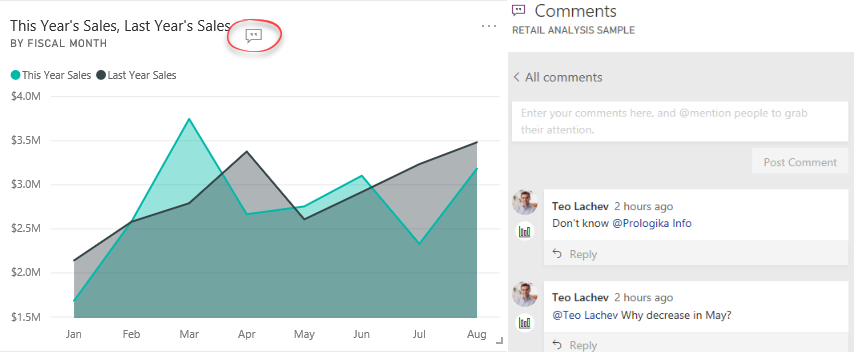
I’ve noticed that the dashboard conversations are now available. Just open a Power BI dashboard and click the Comments menu. This will open a Comments pane when you can post comments related to the entire dashboard. You can also post comments for a specific tile by clicking the tile ellipsis menu and then choosing “Add a comment”. You know that a tile has comments when you see the “Show tile conversations” button that floats on the tile. Clicking this button brings to the Comments pane to see and participate in the discussion.

conversations

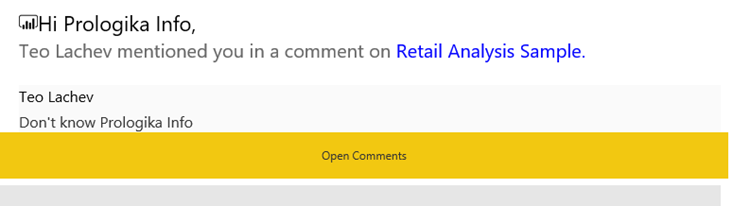
For tile-related comments, you can click the icon below the person in the Comments pane, to navigate to the specific visual that comments are associated with. Conversations are available in Power BI Service and Power BI Mobile. To avoid posting a comment and waiting someone to see it to act on it, you can @mention people as you can do on Twitter. For example, in my first comment I referenced @Prologika Info. Then that user will get an email that looks like this:

090318_2020_PowerBIConv2.png

Collaboration features are not new to Power BI. Workspaces backed by O365 groups (the old-style workspaces) have supported email-based conversations. Power BI Mobile lets users annotate reports or tiles with text and emotions, and then send a screenshot to another user. Dashboard and report conversations bring collaboration a step further by allowing end users to collaborate in the context of a specific report, dashboard, or even a visual.

Usage scenario Limitations
Workspace conversations Workspace-level email-based collaboration The workspace needs to be backed by O365 group.
Power BI Mobile annotations Send annotated screenshots to other users Power BI Mobile only; no discussion thread
Dashboard and report conversations Discussion thread on dashboard/report/tile Comments don’t save the state of the visual or include a screenshot of the visual if it changes after data refresh

Power BI Dataset Size Limits

Question: What’s the maximum dataset size Power BI can support?

Answer: As of now (Sep 1, 2018), the maximum dataset size that Power BI Pro can support is 1 GB. The maximum dataset size with Power BI Premium and Power BI Embedded is 10 GB but it depends on the SKU purchased.

Power BI Premium Plan Power BI Embedded Plan Max Dataset Size and Memory
P1 A1 3 GB
P2 A2 5 GB
P3 and higher A3 or higher 10 GB

The important point is “as of now”, as with everything cloud these limits will probably get higher soon. Also, recall that Power BI compresses data well so don’t jump to conclusions of how many rows a dataset can pack if you base the estimate solely on the dataset original size. For example, a 100 MB Excel file might compress to 10 megabytes.

The limits apply to datasets after compression. So, if the file size fits the limit, Power BI will let you upload it. But what happens if the dataset size increases after the dataset memory footprint expands or if it continues to expand on refresh? For example, a 10 GB pbix file might translate to a much larger memory footprint once loaded up (due to abf compression, dictionary expansion, assorted data structures, etc.). So, even if the dataset is loaded is loaded up, there will not be enough memory to do anything useful with it like run queries, do refresh, etc. because all the physical memory is used up. So there are also limits based on the actual memory used. The documentation refers to some extra memory that Power BI grants the dataset to allow future expansion to a point, such as up to 12 GB for a 10 GB dataset.

Power BI Sharing Is Getting Better

A Power BI training or assessment won’t be complete unless I get hammered on the Power BI sharing limitations. So far, I could only mumble something to the extent of “I agree that Power BI sharing sucks big time”, look for the exit and suggest an unplanned break. Fortunately, it looks like quantitative accumulations from unhappy corporate customers have resulted in qualitative changes as Microsoft is getting serious about addressing these limitations. To me, as it stands today, the Power BI sharing is a classic example of overengineering. Something that could have been easily solved with the conventional and simple folders a la SSRS, morphed into some farfetched “cool” vision of workspaces and apps without much practical value. Let’s revisit the current Power BI sharing limitations to understand why change was due:

  • Workspace dependency on Office 365 groups – This results in explosion of workspaces as Power BI is not the only app that creates groups.
  • Any Power BI Pro user can create a workspace – IT can’t put boundaries. I know of an organization that resorted to an automated script that nukes workspaces which aren’t on the approved list.
  • You can’t add security groups as members – As I discussed in my blog “Power BI Group Security“, different Power BI features have a different degree of support for groups. For example, workspaces didn’t support AD security groups.
  • Coarse content access level – A workspace could be configured for “edit” or “view only” at the workspace level only. Consequently, it wasn’t possible to grant some members view access while others edit permissions.
  • (UPDATE 6/9/2019: A dataset can now be shared across workspaces) Content sharing limitations – Content can’t be copied from one workspace to another. Worse yet, content can’t be reused among workspaces. For example, if Teo deploys a self-service semantic model to the Sales workspace, reports must be saved in the same workspace. 
  • No nesting support – Workspace can’t be nested, such as to have a global Sales workspace that breaks down in to Sales North America, Sales Europe, etc. Again, this is a fundamental requirement that any server-side reporting tool supports but not Power BI. You can’t organize content hierarchically and there is no security inheritance. Consequently, you must resort to a flattened list of workspaces.
  • (UPDATE 6/9/2019: A dataset can now be promoted and certified). No IT oversight – There is no mechanism for IT to certify workspace content, such as a dataset. There is no mechanism for users to discover workspace content.
  • UPDATE 6/27: The new Viewer role supports sharing with viewers. Sharing with “viewers” – You can’t just add Power BI Free users to share content in a premium workspace. This would have been too simple. Instead, you must share content out either using individual report/dashboard sharing or apps.
  • One-to-one relationship with apps – Since broader sharing requires apps (why?), an app needs to be created (yet another sharing layer) to share out workspace content. But you can’t publish multiple apps from a workspace, such as to share some reports with one group of users and another set with a different group.

Enough limitations? Fortunately, the new workspace experience immediately solves the first four (highlighted) issues!

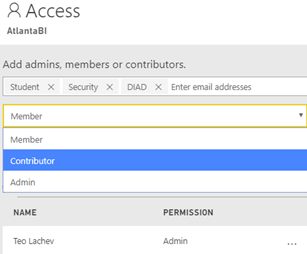
For example, the screenshot below shows how I can add all the O365 group types as members of a workspace (Student is individual member, Security is a security group, and DIAD is a O365 group). Moreover, two new roles, Contributor and Viewer (the Viewer role is not yet available), would further limit the member permissions. So, we finally have member-level security instead of workspace-level security.

What about the other limitations? Microsoft promises to fix them all, but it will take a few more months. Meanwhile, watch the “Distribute insights across the organization with Microsoft Power BI” presentation. So, hopefully by the end of the year I’ll have a much better sharing story to tell after all.

Atlanta MS BI and Power BI Group Meeting on August 28

MS BI fans, join us for the next Atlanta MS BI and Power BI Group meeting on Monday, August 28th, Tuesday at 6:30 PM at the Microsoft office in Alpharetta (our regular venue room is being renovated). If you haven’t been at the new MS office, prepare to be impressed! Mark Tabladillo, Ph.D, from Microsoft will show you how to advanced analytics with Power BI. Accelebrate will sponsor the meeting.  For more details, visit our group page and don’t forget to RSVP (use the RSVP survey on the main page) if you’re planning to attend.

Presentation: Advanced Analytics with Power BI
Date: August 28, 2018, Tuesday
Time 6:30 – 8:30 PM ET
Place: Microsoft Office (Alpharetta)

8000 Avalon Boulevard Suite 900
Alpharetta, GA 30009

Overview: Power BI has become an increasingly important data analytics tool.  This presentation focuses on the advanced analytics options currently available in Power BI.  Attendees to this talk will see:

·         Microsoft’s perspective on advanced analytics development:  the Team Data Science Process

·         What the general options are for advanced analytics on Azure

·         What the specific native advanced analytics capabilities are in Power BI

·         Some ideas on pairing Power BI with other technologies in advanced analytics architectures

See https://powerbi.microsoft.com/en-us/blog/power-bi-expands-self-service-prep-for-big-data-unifies-modern-and-enterprise-bi/ for the latest announcements.

Speaker: Mark Tabladillo Ph.D. is a data scientist at Microsoft. His career has focused on industry application of advanced analytics, using a variety of analytics tools including SAS, SQL Server Analysis Services, Cortana Intelligence (including Microsoft R Server and Microsoft Machine Learning Services), R, and Python.  He was a founding member of the Atlanta Microsoft BI User’s Group eight years ago, and this group’s second presenter.
Sponsor: Don’t settle for “one size fits all” training. Choose Accelebrate, and receive hands-on, engaging training precisely tailored to your goals and audience! Our on-site training offerings range from ASP.NET training and SharePoint training to courses on ColdFusion, Java™, C#, VB.NET, SQL Server, and more.
Prototypes with Pizza Featured Power BI enhancements


092417_1708_AtlantaMSBI1.png