Data Lakehouse: The Good, The Bad, and the Ugly

There has been a lot of noise surrounding a data lakehouse nowadays, so I felt the urge to chime in. In fact, the famous guy in cube, Patrick LeBlanc, gave a great presentation on this subject to our Atlanta Power BI Group and you can find the recording here (I have to admit we could have done better job with the recording quality, but we are still learning in the post-COVID era).

What is a Lakehouse?

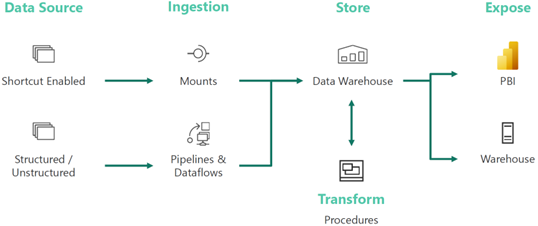
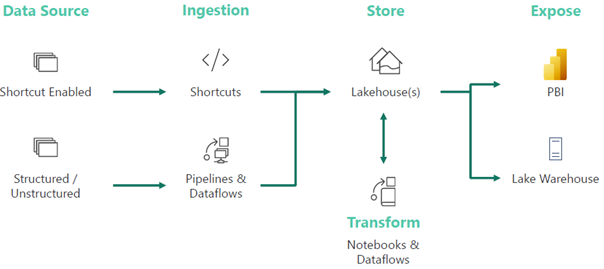
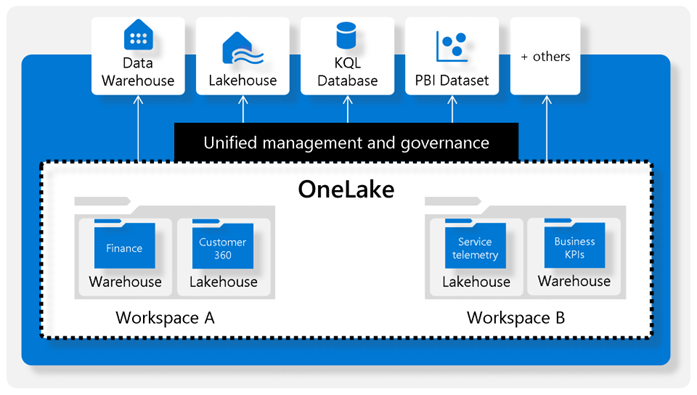
According to Databricks which are credited with this term, a data lakehouse is “a new, open data management architecture that combines the flexibility, cost-efficiency, and scale of data lakes with the data management and ACID transactions of data warehouses, enabling business intelligence (BI) and machine learning (ML) on all data.” It other words, it’s a hybrid between a relational data warehouse and a data lake. Sounds great, right? Visualizing this in Microsoft parlor, the last incarnation of the lakehouse architecture that I came across looks like this:

The Good

I’m sure that many large companies or companies with complex data integration needs could benefit from a similar architecture. As I said many times, staging data to a lake is a good thing when you must deal with files. For example, some cloud vendor that hasn’t matured enough to give direct access to your data, could decide to push files instead (I described a similar scenario in this blog). A “network share” on steroids, the data lake is the best place to store files. A good question here and the one I personally struggled with would be “what if the data comes from relational databases or from REST APIs?” Should you stage that data in a data lake as files before it flows into the data warehouse? A wise consultant’s answer here would be “it depends”. Here are some good reasons when this might make sense.

  1. Stage data first – For some, a large ISV company (see related newsletter here), had to integrate data from many databases with similar but not the same schema. They preferred to stage the data to a data lake and figure out the integration “mess” caused my schema discrepancies and data quality later.
  2. A glorified archive – For example, in case you want to reload the data, you can do it from the lake in the case where the source systems truncate data. However, my personal preference to address this scenario would be to stage the data into a relational Operational Data Store (ODS), especially in the case where changes must be tracked. In a nutshell, if I’m given a choice between a file or relational database, I’d go with the latter.
  3. Synapse – If you decide to host your data warehouse in a Synapse dedicated SQL pool and use Azure Data Factory (ADF) to load the data, ADF will stage the data to Azure Data Lake Service (ADLS) anyway to load it faster into Synapse. Another good thing for Synapse here is that you can use Synapse Serverless to query that data using SQL which might come handy (I share some “serverless” lessons learned here).
  4. Data science – There are some good reasons why data scientists prefer files instead of loading the data from a relational database. Or so I was told (I’m not a data scientist).
  5. Uniformity – If your organization prefers a uniform data flow path despite the additional effort, inconvenience, and redundancy, then this might make sense. Then despite the source data type (structured or unstructured), all data follows the same ingestion pipeline. Just make sure to hire more ETL developers.

Outside these considerations, when you can connect directly to the data source, staging data to files is probably overkill as files are notoriously difficult to deal with.

The Bad

Now let’s look at the so-called zones in the lake: raw, enriched and curated, sometimes also referenced as bronze, silver, and gold. The idea here is to enrich the staged data. So, the raw zone has the staged data 1:1 as in the source. Then let’s say a data scientist needs some enrichment, and we spin more ETL to add a bunch of columns to some file. And then Business needs to reference the data that might require more enrichment. So, into the ETL rabbit hole we go again.

The problem is that many people take this architecture verbatum, whether it makes sense or not. A question came from the audience during Patrick’s presentation “What data do we add to these zones?” How do we know when it’s time to move to the next zone? And the answer here is that these zones are just a recommendation that someone has come up with. A large organization might benefit from them. But in most cases in my opinion spinning more and more ETL and moving data around just so that you follow some vendor’s best practices, makes no sense. And should you stage the data 1:1 from the source? In some cases, like the Get Data First aforementioned scenario, it might make sense. But in most cases, it would be much more efficient to stage the data in the shape you need it, which may necessitate joining multiple tables at the source (by the way, a relational server is the best place to handle joins).

The omni-presence of Synapse in such architectural diagrams is questionable at least. As I stated in another newsletter, like a red giant star, Synapse seems to engulf everything in its path in order to increase its value potential. But Synapse shouldn’t be a default choice for most organizations. It’s rather expensive and has limitations, such as lacking important T-SQL features.

Finally, Spark/Databricks that orchestrates the data preparation with Python or some other custom code since all the toolset you get is a notebook with a blinking cursor. What happened to low code, no code approach? More ETL developers to the rescue…

The Ugly

The omnipresence of the delta lake regardless if it makes sense or not. I’m sure that some scenarios for staging changing data into a lake, such as IoT streaming, will benefit greatly from a delta lake. But it shouldn’t be a default recommendation. The moment we introduce a delta lake, our tool choice becomes rather restricted because of the file format. On ETL side of things, for example, you must use data flows with Azure Data Factory (I’d personally favor ELT over data flows). And to read the data, you must provision either a Spark cluster or Synapse Serverless. So, complexity increases together with cost while data accessibility decreases.

And if you go with Databricks (credited for inventing the delta lake too), they are far more ambitious . They want to replace RDBMs for OLAP (OLTP won’t work with a delta lake for performance reasons). We’ve seen similar claims before and how they ended. Another question came from the audience during the presentation was if a lakehouse can deliver the same performance as a relational database. One house must be redundant, right? True, after rewriting their software, Databricks can deliver some decent performance (they even claim to be the world’s fastest “data warehouse” although only one other vendor submitted results to that specific benchmark). James Serra (Data & AI Solution Architect at Microsoft), whose excellent blog discusses these topics in detail, recently gave our group a presentation and said that anyone he knows of that has tried replacing a relational data warehouse with a data lake, has failed. Enough said.

What’s a best practice? A best practice to me is adopting the most efficient way to achieve something without sacrificing too much flexibility for what might be thrown at you in the future. To me, a lakehouse as a replacement for a relational data warehouse or as a default staging area is as big of a hype as Big Data was, with all the vendor propaganda surrounding it to buy stuff you don’t need. Large organizations with complex integration needs might benefit from the lakehouse architecture shown above. However, most companies could save a lot of implementation, maintenance, and licensing costs by simplifying it and judicially introducing pieces when it makes sense.

Atlanta MS BI and Power BI Group Meeting on February 6th (Lakehouse in an Hour)

Please join us for the next meeting on Monday, February 6th, at 6:30 PM ET.  Patrick LeBlanc (Principal Program Manager at Microsoft and Guy in a Cube) will show you how to implement a lakehouse with Delta lake, Azure Data Factory, and Synapse. For more details and sign up, visit our group page.

WE ARE RESUMING IN-PERSON MEETINGS AT THE MICROSOFT OFFICE IN ALPHARETTA. WE STRONGLY ENCOURAGE YOU TO ATTEND THE EVENT IN PERSON FOR BEST EXPERIENCE. PLEASE NOTE THAT GUESTS ENTERING MICROSOFT BUILDINGS IN THE U.S. MUST PROVIDE PROOF OF VACCINATION OR SELF-ATTEST WITH HEALTHCHECK (HTTPS://AKA.MS/HEALTHCHECK). ALTERNATIVELY, YOU CAN JOIN OUR MEETINGS ONLINE VIA MS TEAMS. WHEN POSSIBLE, WE WILL RECORD THE MEETINGS AND MAKE RECORDINGS AVAILABLE AT HTTPS://BIT.LY/ATLANTABIRECS. PLEASE RSVP ONLY IF COMING TO OUR IN-PERSON MEETING.

Presentation: Lakehouse in an Hour

Date: February 6th

Time: 6:30 – 8:30 PM ET

Place: Onsite and online

 ONSITE

Microsoft Office (Alpharetta)

8000 Avalon Boulevard Suite 900

Alpharetta, GA 30009

ONLINE

Click here to join the meeting

Overview: Join us for an action-packed demo-fueled session where we actually build a lake house from source to report in less than an hour. We will walk you through getting your data from your source system, building out your data lake using Delta, transforming your data with Data Flows, serving it with Serverless SQL Pool and in the end connecting it to Power BI! After this session you will be able to start using all of these technologies and make your Analytical environment a success!

Speaker: Patrick LeBlanc is a currently a Principal Program Manager at Microsoft and a contributing partner to Guy in a Cube. Along with his 15+ years’ experience in IT he holds a Masters of Science degree from Louisiana State University. He is the author and co-author of five SQL Server books. Prior to joining Microsoft he was awarded Microsoft MVP award for his contributions to the community. Patrick is a regular speaker at many SQL Server Conferences and Community events.

Sponsor: The Community (thank you for your donations!)

Prototypes with Pizza: Power BI latest news

PowerBILogo

Implementing “Generic” Percent of Grand Total in DAX

Suppose you need to calculate a percentage of grand total measure. Easy, you can use the Power BI “Show value as” without any DAX, right? Now suppose that you have 50 Table visuals and each of them require the same measure to be shown as a percentage of total. Although it requires far more clicks, “Show value as” is still not so bad for avoiding the DAX rabbit hole. But what about if you need this calculation in another measure, such as to implement a weighted average? Now, you can’t reference the Microsoft-generated field because it’s not implemented as a measure.

That’s exactly the scenario I faced while working on a financial report, although at the end I followed another approach to calculate the weighted average that didn’t require a percentage of total. Anyway, the question remains. Is there a way to implement a “generic” percent of grand total for a given measure that will work irrespective of what dimensions are used in a Table or Matrix visuals? Consider the following simple report.

We want to show sales as a percentage of total irrespective of what dimension(s) are used in the report. Typically, to implement percentage of total measures you’d implement a DAX explicit measure that overwrites the filter context, such as:

% SalesAmount =
VAR _TotalSales = CALCULATE(SUM(ResellerSales[SalesAmountBase]), ALL('Product'))
RETURN
DIVIDE (ResellerSales[SalesAmount], _TotalSales)

This measure uses the ALL function to remove the filter from the Product table to calculate the sales across any field in that table. But we want this measure to work even if fields from other tables are used as dimensions.

Enter the magical ALLSELECTED function. From the documentation, ALLSELECTED “removes context filters from columns and rows in the current query, while retaining all other context filters or explicit filters”, which is exactly what’s needed. That’s because we want to ignore the context from fields used in the visual but apply other filters, such as slicers and visual/page/report filters, and cross filtering from other visuals.

And so, the formula becomes:

% SalesAmount =
VAR _TotalSales = CALCULATE(SUM(ResellerSales[SalesAmountBase]), ALLSELECTED())
RETURN
DIVIDE (ResellerSales[SalesAmount], _TotalSales)

And that’s all to it except if you need a percentage of column total in a Matrix visual that has a field in the Columns bucket. In this case, ALLSELECTED will ignore not only the dimensions on rows but also dimensions on columns. Then, the net effect will be a generic measure that calculates the percent of grand total instead of column total.

By the way, if you use the “Show value as” built-in feature and capture the query behind the visual, you’ll see that Microsoft follows a rather complicated way to calculate it to handle this scenario. Specifically, the visual generates two queries, where the first computes the visual totals and the second computes the percentage of total.

Solving iPad Issues with Power BI Secure Embed

Scenario: You have an intranet web portal and use the Power BI secure embed feature (from the report menu, File->Embed report->Website or portal) to embed a report. However, the report doesn’t render on iPad and iPhone devices. Instead, the user is perpetually asked to authenticate  with Power BI.

Solution: Apple has started preventing cross-site cookies to tighten up security. To resolve this horrible issue, each user must turn off this feature. On their iPad or iPhone device, go to Settings > your browser app, such as Safari or Chrome, and set Present Cross-Site Tracking to Off (assuming you are using Safari to render the web page).

Atlanta MS BI and Power BI Group Meeting on January 9th (Integrating Azure Synapse Analytics and Power BI)

The Atlanta MS BI and Power BI Group is resuming in-person meetings! Please join us for the next meeting on Monday, January 9th, at 6:30 PM ET.  Elayne Jones (Data Engineer at 3Cloud) will show you how to integrate Synapse with Power BI. For more details and sign up, visit our group page.

WE ARE RESUMING IN-PERSON MEETINGS AT THE MICROSOFT OFFICE IN ALPHARETTA. WE STRONGLY ENCOURAGE YOU TO ATTEND THE EVENT IN PERSON FOR BEST EXPERIENCE. PLEASE NOTE THAT GUESTS ENTERING MICROSOFT BUILDINGS IN THE U.S. MUST PROVIDE PROOF OF VACCINATION OR SELF-ATTEST WITH HEALTHCHECK (HTTPS://AKA.MS/HEALTHCHECK). ALTERNATIVELY, YOU CAN JOIN OUR MEETINGS ONLINE VIA MS TEAMS. WHEN POSSIBLE, WE WILL RECORD THE MEETINGS AND MAKE RECORDINGS AVAILABLE AT HTTPS://BIT.LY/ATLANTABIRECS. PLEASE RSVP ONLY IF COMING TO OUR IN-PERSON MEETING.

Presentation: Integrating Azure Synapse Analytics and Power BI

Date: January 9th

Time: 6:30 – 8:30 PM ET

Place: Onsite and online


ONSITE

Microsoft Office (Alpharetta)

8000 Avalon Boulevard Suite 900

Alpharetta, GA 30009

ONLINE

Click here to join the meeting


Overview: Combining the forces of Azure Synapse Analytics and Microsoft Power BI allows you to weave together the full lifecycle of data ingestion, transformation, and visualization. Synapse encompasses the traditional processes of data warehousing, cleansing, and visualizing all within Synapse Studio, fostering unity among teams and driving efficiency across organizations.

Speaker: Elayne Jones is a Data Engineer at 3Cloud. She specializes in data visualization and data modeling using Power BI. She has expertise developing Power Apps and creating Power Platform solutions that drive efficiency within organizations. Elayne is also experienced querying data using the DAX and SQL languages. Elayne has delivered numerous BI trainings and written blog posts on various BI and reporting topics.

PowerBILogo

Report-enable Internal Portals with Power BI Reports

Expanding on my previous blog on this subject, there are three options to report-enable your Intranet portals with Power BI reports:

  • Report link – This is the link to the report that you obtain from the browser address bar. If you want to report in full screen viewing mode (hiding the Power BI chrome), you can append the chromeless=1 query parameter to the URL, such as https://app.powerbi.com/groups/689c8ae3-0e22-44d1-9803-b6afdba4e583/reports/b60eaab4-9a85-47c3-8cde-e3a17e8f3dae/ReportSection?chromeless=1. If the “Display report pages as tabs along the bottom of the report” report setting is disabled, the report will be rendered with a few buttons at the bottom. Clicking “Go back” or exiting the full-screen view, will “restore” the Power BI portal chrome, allowing the user to gain access to the report action bar, such as to get report insights. This is the only option to have access to all commands in the report action bar. In addition, the users can store the link in the browser favorites and potentially customize it. However, a report link doesn’t allow the report to be “embedded” in a page. Attempting to put the link on an iframe won’t work because of content security policy (specifically Microsoft sets the Content-Security-Policy tag to frame-ancestors ‘self’ in the response payload, I guess to prevent organizations from circumventing the Power BI portal).
  • Embed for Website or Portal – This is the iframe code you get from the report’s File -> Embed for Website or Portal. This is your easiest option to provide an embedded experience for your coworkers, but it doesn’t currently support the report action bar. There isn’t a way to customize the report link.
  • Power BI Embedded REST API – This option includes server-side and client-side APIs to let you customize the embedding experience, such as to replace the default Filter pane with your own implementation. This is the option most organizations take to provide embedded experience for external customers, but it could be used if you want full control over embedding reports internally. Microsoft added recently an option to show the action bar, however, only a subset of commands are available. This is the only option for single sign-on (SSO) experience, but it’s the most difficult to implement, as it requires extending your app with custom code.

This table summarizes the three options discussed in this blog.

Feature Report link Embed for Website or Portal Power BI Embedded REST API
Embedded content experience No Yes Yes
Single sign-on No No Yes
Action bar No No Partially
Shortcut Yes No No
Developer API No No Yes
Integration effort Low Low Medium to High

What Exactly is Microsoft Synapse?

The other day an exalted customer shared that they’ve acquired Synapse and now they’re ready for implementing semantic models with Power BI. The client wasn’t sure how to give business users access to Synapse so cool self-service BI can finally start. In the process of the conversation, it became clear that they opened Synapse Studio and were left with the impression that Synapse has semantic modeling features. This is what happens when Marketing gets involved and people get confused about what a tool actually does. Let’s attempt to clear this confusion.

What’s Synapse?

Think of Synapse (aka Azure Synapse Analytics) as a umbrella name that spans multiple unrelated (or rather loosely) related services that are sold separately but are bundled together to fulfill a vision of a “unified analytical platform”. This vision is further emphasized by Synapse Studio – an online tool to work with and monitor the Synapse services.

Let’s explain each service in the order it’s listed in the Azure pricing calculator. Again, each service has its own pricing model, and I don’t think that bundling them together gives you any price break.

  • Data Integration – This is Azure Data Factory, which is typically acquired and installed as a standalone service. Why would you want to create ADF pipelines inside Synapse Studio instead of ADF Studio is beyond me. Another caveat to watch for regarding data integration is that Microsoft seemingly emphasizes the role of ADF data flows (at least there is a separate “Data flows” section in Synapse Studio) despite that the ELT pattern is a best practice to load data into the SQL dedicated pool.
  • Data Warehousing – Synapse comes with a preconfigured “serverless” pool that can be used to virtualize data stored in Azure Data Lake. This is a very useful service that allows you to query data in ADLS files using T-SQL. Check this case study to learn how Prologika used this feature in a real-life project. This tab also provides pricing for a dedicated SQL pool but since there is a separate tab for it, I’ll cover it further down.
  • Big Data Analytics – You can optionally provision an Azure Spark pool to process data or apply ML at scale using the Microsoft implementation of Apache Spark.
  • Log and Telemetry Analysis – A recently introduced type of pool for analyzing large volumes of data streaming (i.e. log and telemetry data) from applications, websites, or IoT devices using Kusto Query Language (KDL).
  • Dedicated SQL Pool – This is your SQL Server (or rather Azure SQL Database) on steroids for storing and querying massive data volumes that was previously known as Azure SQL DW. While you gain scalability, you lose various T-SQL features so don’t think that you can seamlessly migrate your on-prem SQL databases to Synapse. Also, for now, a dedicated pool is limited only to a single database.
  • Azure Synapse Link – Another recently introduced service to automatically synchronize data from Azure Cosmos DB and SQL Server 2022 (without using change data capture).

What Synapse is not?

  • Synapse is not a semantic modeling tool. Although you’ll see a Power BI section in the Develop tab of Synapse Studio, modeling is still done with Power BI Desktop (or other professional tools) and published to Power BI. As with ADF, why would a developer want to register your Power BI artifacts in Synapse Studio is another thing that escapes me.
  • Synapse is not a data integration tool, master data management tool, or data cataloging tool.
  • Synapse shouldn’t be your default option for data warehousing in the cloud. In my experience, Synapse would be an overkill for data processing needs of most companies because there are more cost-effective options for SQL Server in the cloud with less data.

Testing DAX Measures

DAX can get complex and humble even experienced BI developers. Since Microsoft left us without a proper debugger, here a couple of techniques that I use to debug DAX when going gets tough:

  1. Variables – I often break down the formula in variables. As a bonus, variables make expressions easier to read and might yield performance gains. Consider the following SalesYoY% measure that calculates the variance in sales between the current period and same period last year.
    SalesYoY% =
    VAR _LastYearSales =
    CALCULATE (
    [InternetSales],
    SAMEPERIODLASTYEAR ( 'Date'[Date] )
    )
    RETURN
    IF (NOT ISBLANK([InternetSales]), DIVIDE ([InternetSales] - _LastYearSales, _LastYearSales))

    Let’s say you believe that last year’s sales look suspicious, such as the high value for 2011. You can comment the last line and return the LastYearSales variable to investigate further.

    SalesYoY% =
    VAR _LastYearSales =
    CALCULATE (
    [InternetSales],
    SAMEPERIODLASTYEAR ( 'Date'[Date] )
    )
    RETURN
    _LastYearSales
    --IF (NOT ISBLANK([InternetSales]), DIVIDE ([InternetSales] - _LastYearSales, _LastYearSales))
  2. The EvaluateAndLog function – With the introduction of the EvaluateAndLog function in Power BI, Microsoft has provided us with a poor man’s debugger that can print the output of a DAX expression. For example, to investigate the last year’s sales, you can enclose it with EvaluateAndLog.
    SalesYoY% =
    VAR _LastYearSales =
    CALCULATE (
    [InternetSales],
    SAMEPERIODLASTYEAR ( 'Date'[Date] )
    )
    RETURN
    IF (NOT ISBLANK([InternetSales]), DIVIDE ([InternetSales] – EvaluateAndLog(_LastYearSales), _LastYearSales))

    Then, you can use the SQL Server Profiler (distributed with SSMS) or the tool mentioned in the blog to see the output. I have the SQL Server Profiler registered as a Power BI Desktop external tool using the steps in this blog so that I can conviniently launch it connected to the Power BI Desktop model. Once the profiler opens, make sure to select the “DAX Evaluation Log” event.

    In this case, the event outputs the last year’s sales broken by year because the visual slices the measure by years.

Atlanta MS BI and Power BI Group Meeting on December 5th (Automate and Improve Planning, Budgeting and Forecasting)

The Atlanta MS BI and Power BI Group is resuming in-person meetings! Please join us for the next meeting on Monday, December 5th, at 6:30 PM ET.  Your humble correspondent will show you how to implement a custom solution for automating planning, budgeting, and forecasting based on a real-life project. For more details and sign up, visit our group page.

WE ARE RESUMING IN-PERSON MEETINGS STARTING DECEMBER 5, 2022, AT THE MICROSOFT OFFICE IN ALPHARETTA. WE STRONGLY ENCOURAGE YOU TO ATTEND THE EVENT IN PERSON FOR BEST EXPERIENCE. PLEASE NOTE THAT GUESTS ENTERING MICROSOFT BUILDINGS IN THE U.S. MUST PROVIDE PROOF OF VACCINATION OR SELF-ATTEST WITH HEALTHCHECK (HTTPS://AKA.MS/HEALTHCHECK). ALTERNATIVELY, YOU CAN JOIN OUR MEETINGS ONLINE VIA MS TEAMS. WHEN POSSIBLE, WE WILL RECORD THE MEETINGS AND MAKE RECORDINGS AVAILABLE AT HTTPS://BIT.LY/ATLANTABIRECS. PLEASE RSVP ONLY IF COMING TO OUR IN-PERSON MEETING.

Presentation: Automate and Improve Budgeting, Planning, and Forecasting

Date: December 5th

Time: 6:30 – 8:30 PM ET

Place: Onsite and online


ONSITE

Microsoft Office (Alpharetta)

8000 Avalon Boulevard Suite 900

Alpharetta, GA 30009

ONLINE

Click here to join the meeting

Overview: Business Performance Management (BPM) is a methodology to help the company predict its performance. An integral part of a BPM strategy is a process for Budgeting, Planning, and Forecasting which is typically performed by the Finance department. When it comes to Finance, nothing is simple, and budgeting is no exception.  The temptation is to buy expensive prepackaged software but even that route would require a lot of customization and compromises.

Join this session to learn how to implement your own home-grown solution using Microsoft Analysis Services and Excel. I’ll share lessons learned from a real-life project.

Speaker: Teo Lachev is a consultant, author, and mentor, with a focus on Microsoft BI. Through his Atlanta-based company Prologika he designs and implements innovative solutions that bring tremendous value to his clients. Teo has authored and co-authored several books, and he has been leading the Atlanta Microsoft Business Intelligence group since he founded it in 2010. Microsoft has recognized Teo’s contributions to the community by awarding him the prestigious Microsoft Most Valuable Professional (MVP) Data Platform status for 15 years. Microsoft has selected Teo as one of only 30 FastTrack Solution Architects for Power BI worldwide.

Sponsor: Prologika (a Microsoft Gold Partner in Data Analytics and Data Platform and Power BI Red Carpet Partner) helps organizations of all sizes to make sense of data. Your BI project will be your best investment, we guarantee it! prologika.com

Prototypes with Pizza: Power BI latest news

Download presentation

PowerBILogo

Estimating DAX Query Completion Time

Usually, DAX queries execute very fast, like flashes in a gold seeker’s pan. Sometimes, however, you could end up with a massive DAX query that takes minutes if not hours. For example, a financial institution requested credit monitoring results to be evaluated overnight and saved in a relational database for fast retrieval. The query involved processing some 300+ measures for 40 million customers and took about an hour to complete. While working on optimizing the query and tracing its execution, I enabled the VertiPaq SE Query End event and was able to monitor how far the query got by seeing which measure is being processed. This was also useful to understand which measures are more expensive.

In general, the server doesn’t process measures in parallel. A measure may produce multiple storage queries, some in parallel and some sequentially. The VertiPaq SE Query End event would show the SQL-like query that the server sent to the storage engine, but usually you can easily correlate it to the DAX formula of the measure being processed. Thanks to the performance enhancements Microsoft is making, such as horizontal fusion, multiple measures may be coalesced into the same storage operation, and therefore a query with multiple measures might yield parallelism or could be sequential. On the other hand, there is plenty of parallelism within a Vertipaq query.